Setting Up Versions, Vendors, and Shipping (Netherlands)
Netherlands-specific guide to setting up production versions, assigning them to releases, and configuring DCP/KDM vendors and shipping in Mica. Includes the production-version-release hierarchy and Content ID search.

Every release in Mica needs at least one version and, for digital distribution, a vendor linked to handle DCP and KDM delivery. This guide walks you through setting up versions for your productions, assigning them to releases, and configuring vendors and shipping so that content delivery requests are sent automatically when bookings are created.
Table of Contents
- Understanding the Hierarchy
- Adding Versions
- Assigning Versions to a Release
- Setting Up Vendors and Shipping
- Searching for Content IDs
- Shipping Without a Content ID
Understanding the Hierarchy
Mica organises film content into three levels:
- Production — The film itself, including its title, release date, runtime, and genre. A production holds all versions and releases.
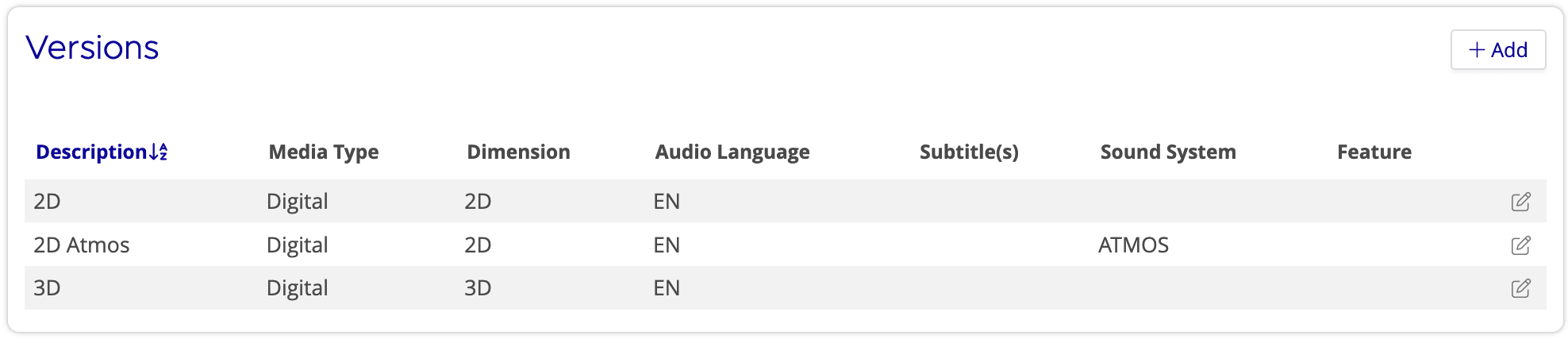
- Version — A specific format of the film, defined by its media type, dimension, audio language, subtitles, sound system, and special features. For example, a 2D Digital English 7.1 version and a 3D Digital English ATMOS version are two different versions of the same production.
- Release — A territory-specific instance of the production, with its own release date, licensor, rating, and distribution license period. Each release has one or more versions assigned to it, along with vendor and shipping configuration.
You create versions at the production level, then assign them to individual releases. This means a single version (e.g. 2D Digital English) can be shared across multiple territory releases.
Adding Versions
Versions are created from the production detail page.
- Navigate to Productions and open the production you want to configure
- Scroll down to the Versions section
- Click the Add button to open the version form
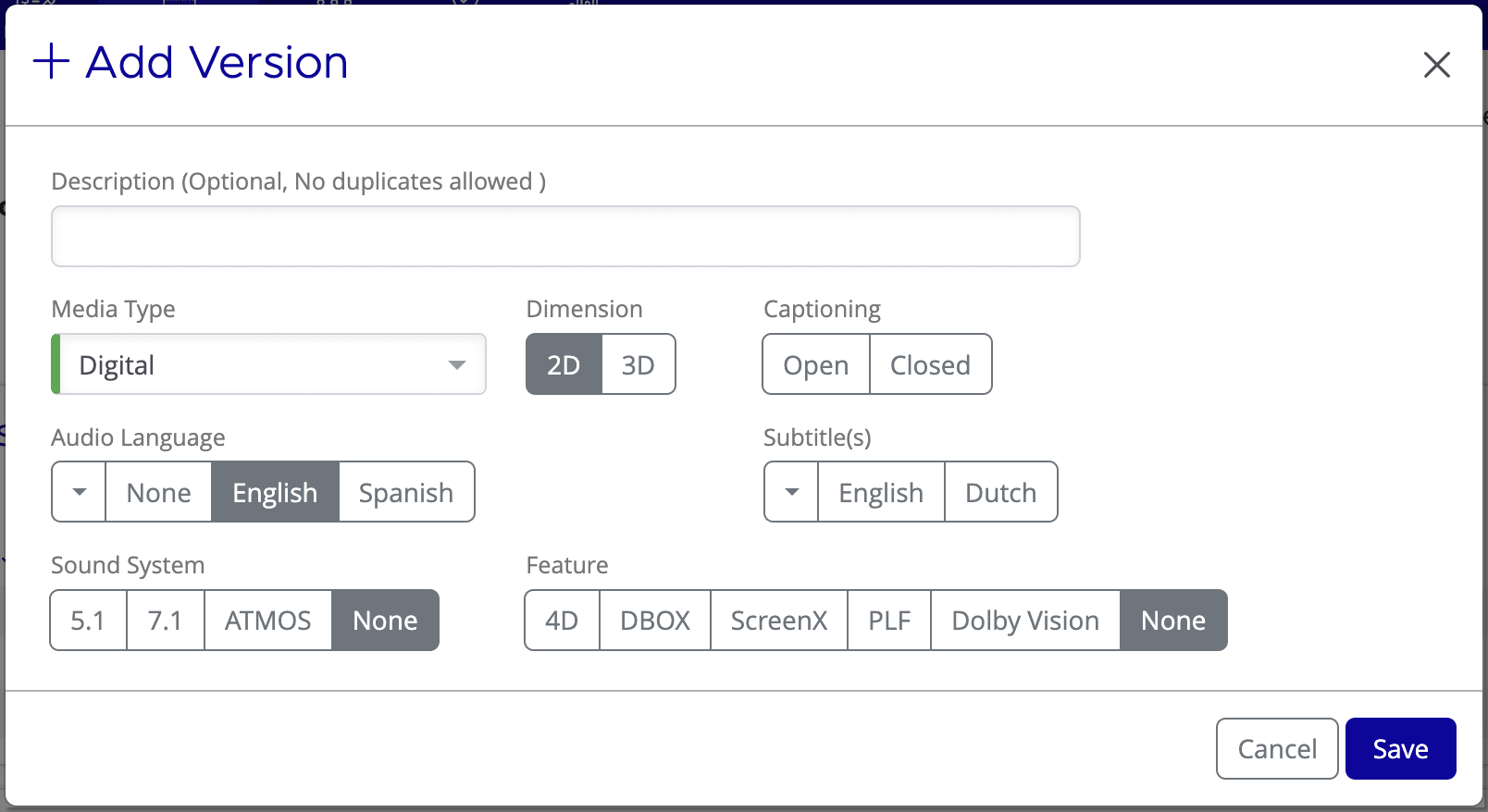
The Add Version form includes the following fields:
- Description — An optional label to help identify this version (e.g. "2D Atmos"). Each description must be unique within the production.
- Media Type — The distribution format. Options include Digital, 35mm, 70mm, 70mm IMAX, Digital IMAX, and DVD/Blu-Ray.
- Dimension — Choose between 2D and 3D.
- Captioning — Select Open (burned into the image) or Closed (viewer-selectable).
- Audio Language — The primary audio track language. Select from the full language list, or use the quick-select options at the bottom of the list.
- Subtitle(s) — One or more subtitle languages. You can select multiple languages using the checkboxes.
- Sound System — Choose from 5.1, 7.1, ATMOS, or None.
- Feature — Special exhibition formats: 4D, DBOX, ScreenX, PLF, Dolby Vision, or None.
Click Save to create the version. Mica generates a version summary from your selections (e.g. "2D · Digital · EN · 7.1 · Dolby Vision") which appears in the Versions table and throughout the system.
Assigning Versions to a Release
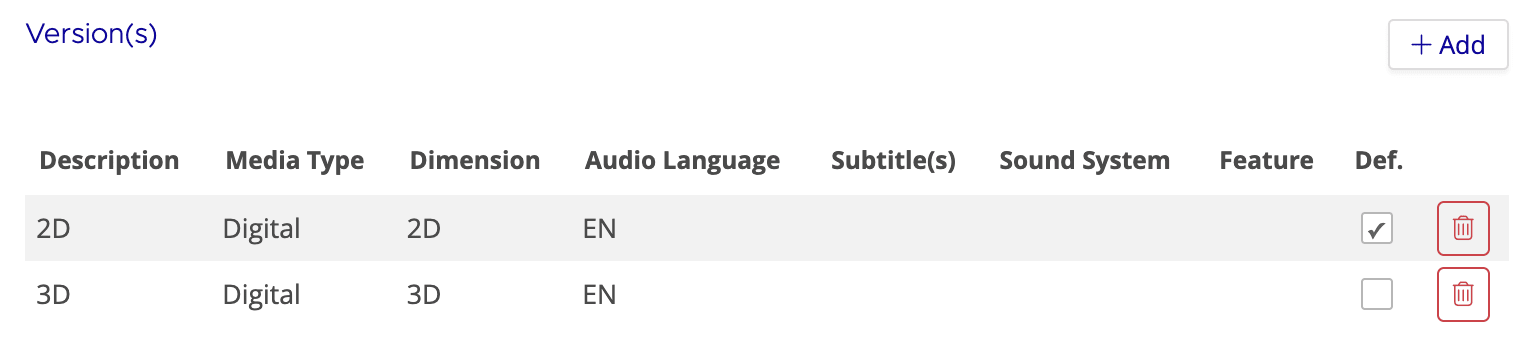
Once versions exist at the production level, you assign them to specific releases. Each release can have one or more versions, and you can set which version(s) are the default.
- In the Releases section of the production page, click the edit icon next to the release you want to configure
- In the Edit Release dialog, scroll down to the Version(s) section
- Click Add to assign a version from the production's available versions
- Use the Def. checkbox to mark one or more versions as the default for this release
Setting Up Vendors and Shipping
Vendors are the DCP and KDM suppliers responsible for delivering your content to venues. By linking vendors to a release, Mica can automatically send delivery requests to your content suppliers whenever a new booking is created.
To configure shipping for a release:
- Open the Edit Release dialog for your release
- Scroll down to the Shipping section
- Click Add to create a new shipping entry
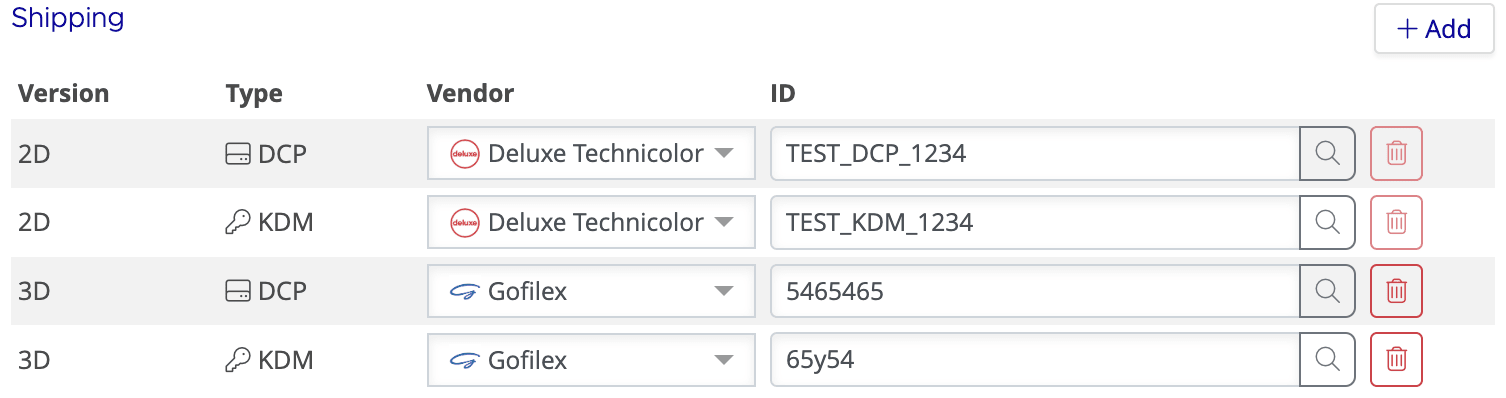
Each shipping entry has four fields:
- Version — Select which version this shipping entry applies to. The dropdown shows only versions assigned to this release.
- Type — Choose DCP (the encrypted film content) or KDM (the decryption key for a specific venue and time window).
- Vendor — Select the content supplier from the available list. Your vendor handles storage and delivery of the DCP or KDM files.
- ID — The Content ID that identifies this specific file at the vendor. You can enter it manually or use the search tool to look it up.
A typical setup includes both a DCP and a KDM entry for each version, often with the same vendor. For example, a release with 2D and 3D versions would have four shipping entries: 2D DCP, 2D KDM, 3D DCP, and 3D KDM.
Click Save on the Edit Release dialog to store your shipping configuration.
Searching for Content IDs
If your vendor supports it, you can search for Content IDs directly from Mica rather than entering them manually. Click the search icon next to the ID field in a shipping entry to open the Content ID search dialog.
The search queries the vendor's system and returns a list of matching files, showing the file type, description, and UUID. Select the correct entry and Mica populates the Content ID automatically.
Shipping Without a Content ID
You don't need to wait for a Content ID to set up your shipping configuration. You can create shipping entries with a vendor and type selected but leave the ID field empty. Mica creates the order in an ⚠️ Awaiting ID state.
Once you receive the Content ID from your vendor and enter it into the shipping entry, Mica automatically processes the order. This allows you to complete your release setup and start creating bookings while content delivery details are still being finalised.
If you need assistance with any aspect of Mica, we're here to help:
Contact your Mica system administrator for organisation-specific questions or access issues
OR
Reach out to the Mica support team at support.mica@maccs.com
How did we do?
Setting Up Versions, Vendors, and Shipping
