Managing Contacts
Add and manage contacts in Mica — bookers, buyers, and exhibitor staff. Covers creating contacts, connecting them to venues, venue groups, payers and other entities, filtering and searching, and exporting contact lists.

Contacts in Mica represent the people you work with — bookers, buyers, exhibitor staff, and other industry professionals. You can connect a contact to venues, venue groups, payers, exhibitors, and other entities, making it easy to filter bookings and communications by the people involved.
Table of Contents
- Where to Find Contacts
- Adding a Contact
- Contact Fields
- Connecting Contacts to Venues, Groups, and More
- Filtering and Searching
- Exporting Contacts
- Editing and Deleting Contacts
Where to Find Contacts
Navigate to Customers → Contacts in the top menu. The Contacts page lists all contacts in your system with columns for name, phone, email, job details, connections, and more.
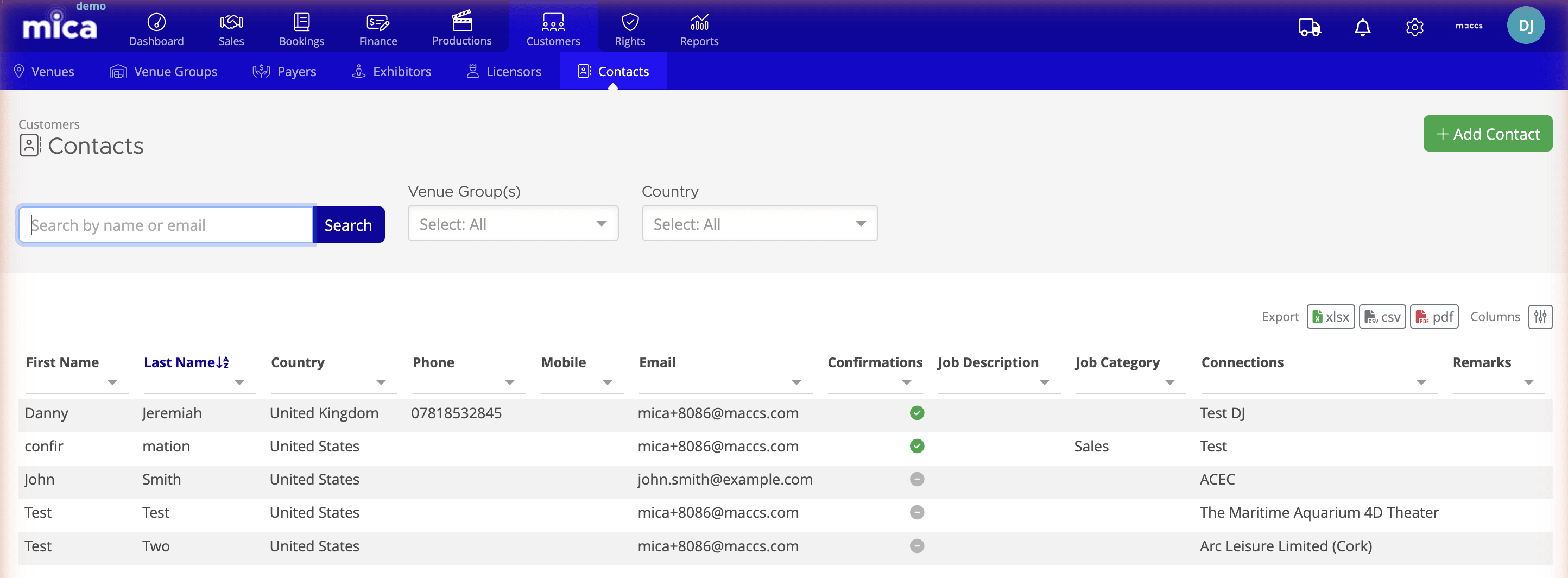
You can customise which columns appear by clicking the Columns button above the table. The available columns are:
- First Name and Last Name
- Country
- Phone and Mobile
- Confirmations — whether the contact receives booking confirmations
- Job Description and Job Category
- Connections — the venues, groups, and other entities linked to the contact
- Remarks
Adding a Contact
- Navigate to Customers → Contacts
- Click + Add
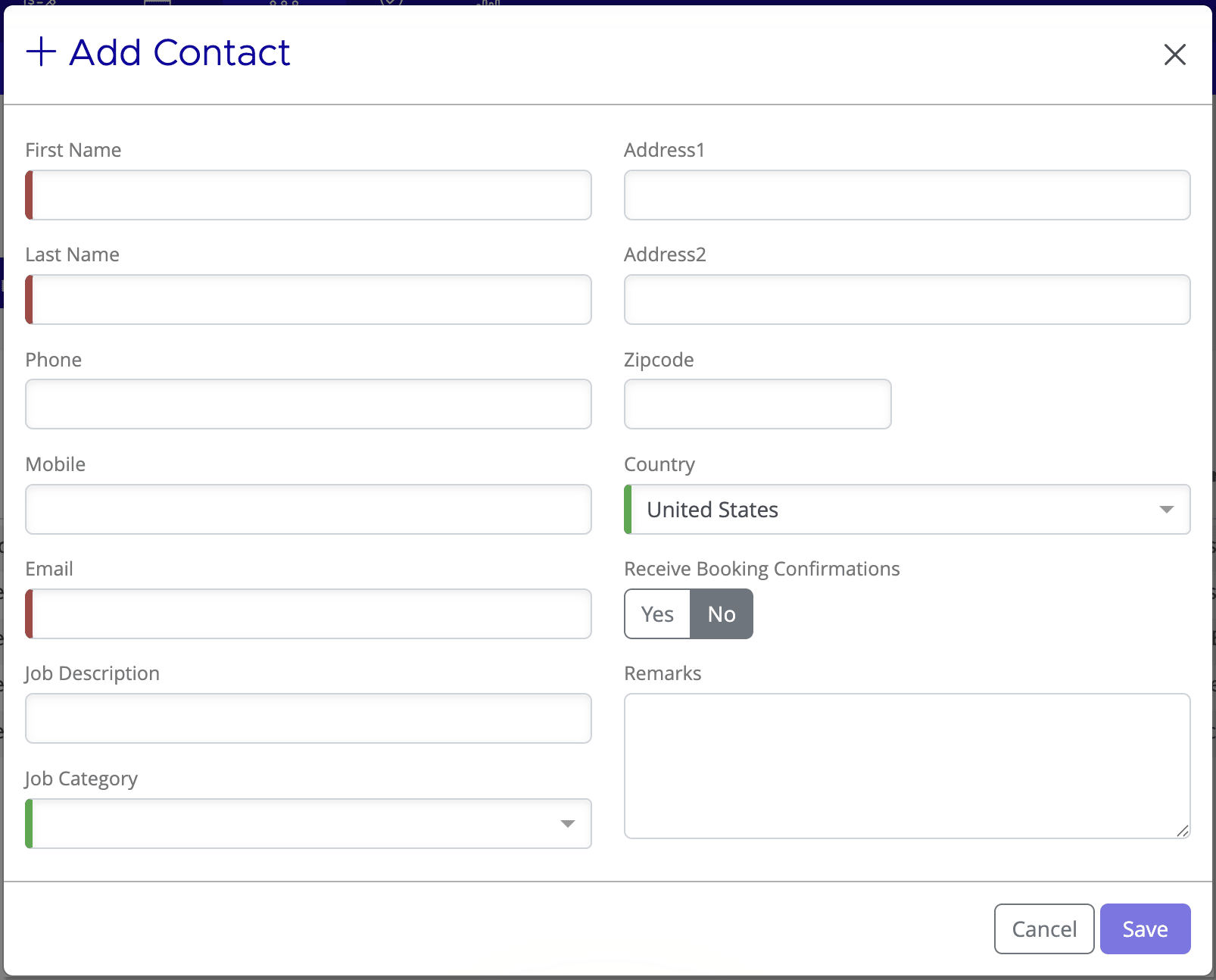
- Enter the contact's First Name and Last Name (both required)
- Fill in any additional fields — phone, email, address, job details, and remarks
- Set Receive Booking Confirmations to Yes if this person should receive confirmation emails when bookings are created or updated
- Click Save
Contact Fields
Field | Description |
First Name / Last Name | The contact's name. Both are required. |
Phone / Mobile | Phone numbers for the contact. |
Email address. Used for booking confirmation emails if enabled. | |
Job Description | Free-text field for the contact's role (e.g. "Head of Programming", "Film Buyer"). |
Job Category | A categorisation of the contact's role, selected from a dropdown. |
Address 1 / Address 2 | Street address fields. |
Zipcode | Postal or zip code. |
Country | The contact's country, selected from a dropdown. |
Receive Booking Confirmations | When set to Yes, the contact receives email notifications when bookings are created or modified for their connected venues. |
Remarks | Free-text notes about the contact. |
Connecting Contacts to Venues, Groups, and More
After creating a contact, you can connect them to one or more entities in Mica. Connections define the relationship between a person and the organisations or locations they work with, and they power filtering throughout the system.
How to connect a contact
- Open the contact's detail page by clicking their name in the contacts list
- Click Connect in the Connections section
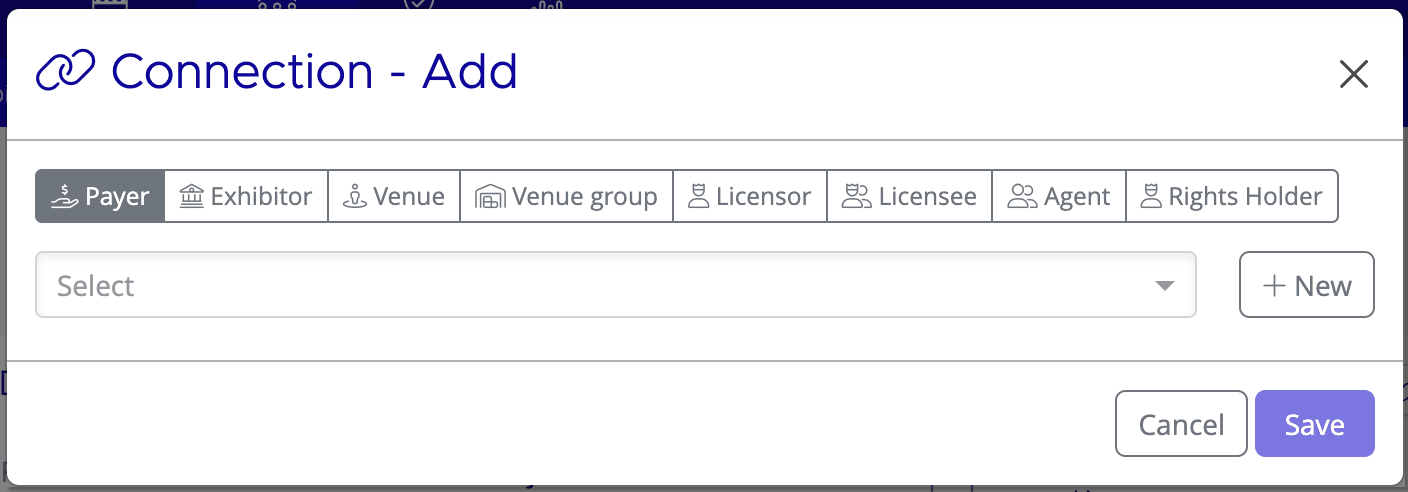
- Select the connection type (e.g. Venue, Venue Group, Payer)
- Search for and select the entity you want to link
- Click OK
Available connection types
A contact can be connected to any of the following entity types:
- Venue — an individual cinema or screening location
- Venue Group — a circuit, booking group, or custom collection of venues
- Payer — the entity responsible for paying invoices
- Exhibitor — the organisation operating one or more venues
- Licensor — a content licensor
- Licensee — a content licensee
- Agent — a sales agent or representative
- Rights Holder — a rights-holding entity
How connections are used
Connecting a contact to an entity creates a filtering relationship that works across Mica:
- Booking filters — in Bookings → Browse, filter by a contact to see all bookings for their connected venues and venue groups
- Booking confirmations — contacts with Receive Booking Confirmations set to Yes receive email notifications for bookings at their connected venues
- Entity detail pages — contacts appear on the detail pages of their connected venues, venue groups, exhibitors, and payers, so you can quickly see who to reach out to
Removing a connection
To disconnect a contact from an entity, open the contact's detail page, select the connection in the Connections table, and click Disconnect. This removes the link but does not delete either the contact or the entity.
Filtering and Searching
The Contacts page provides several ways to find the contact you're looking for:
- Search — type a name or email address in the search box and click the search button
- Venue Group filter — select one or more venue groups from the dropdown to show only contacts connected to those groups
- Country filter — filter contacts by country

Exporting Contacts
You can export your contacts list for use in spreadsheets, mail merges, or external systems. Click the export button above the contacts table and select a format:
- XLSX — Microsoft Excel format
- CSV — comma-separated values for import into other tools
- PDF — formatted document for printing or sharing
The export respects any active filters, so you can export a subset of contacts (e.g. all contacts for a specific venue group or country).
Editing and Deleting Contacts
Editing a contact
- Click a contact's name to open their detail page
- Click Edit
- Update the relevant fields
- Click Save
Deleting a contact
To delete a contact, open their detail page, click Edit, and select Delete. Deleting a contact removes them from the system and disconnects them from all linked entities.
If you need assistance with any aspect of Mica, we're here to help:
Contact your Mica system administrator for organisation-specific questions or access issues
OR
Reach out to the Mica support team at support.mica@maccs.com
How did we do?
Managing Users
