Creating Bookings via Plans
Creating Bookings via Plans. Plans allow you to negotiate with multiple venues before converting them into actual bookings. Once you've agreed on terms with a venue and your venue is in Agreed status…

Creating Bookings via Plans
Plans allow you to negotiate with multiple venues before converting them into actual bookings. Once you've agreed on terms with a venue and your venue is in Agreed status, you can create a booking in Mica. This article covers how to create bookings from your plan and what happens automatically when you do.
- Before You Book
- Creating Bookings
- What Happens After Booking
- Configuring Venues Before Booking
- Exporting Plan Data
Before You Book
Ensure each venue you want to book meets these requirements:
- Status — Venue is in Agreed status
- Versions — At least one version is assigned to the venue
- Playweek — Playweek dates are set
- Terms — Financial terms are configured (rental percentage, minimum guarantee, etc.)
- Payer — A payer is assigned for billing
Creating Bookings
To create a booking from your plan:
- Open your plan and navigate to the venue list.
- Select one or more venues that are in Agreed status.
- In the bulk action bar, click Book.
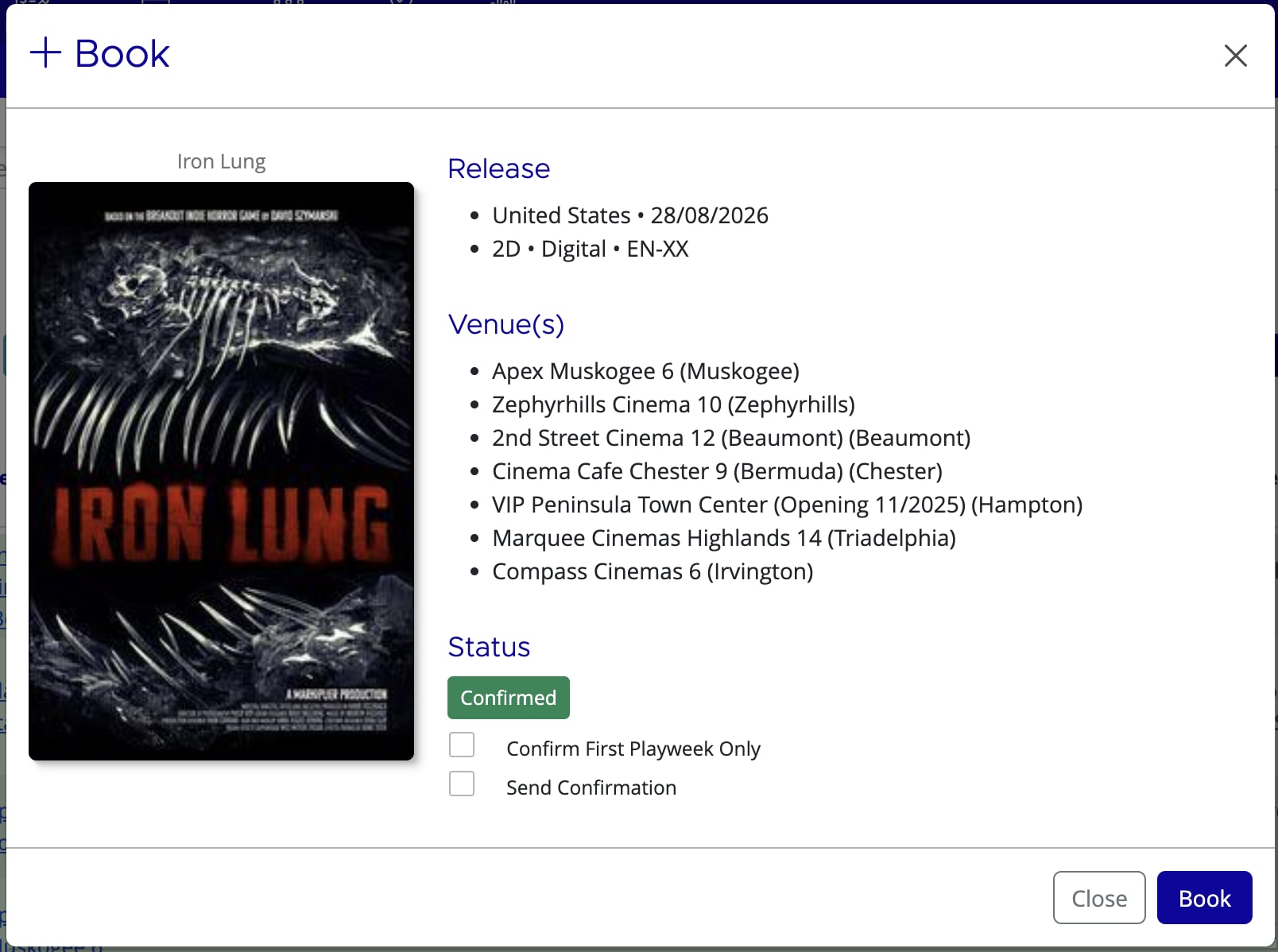
- Review the booking confirmation dialog and confirm.
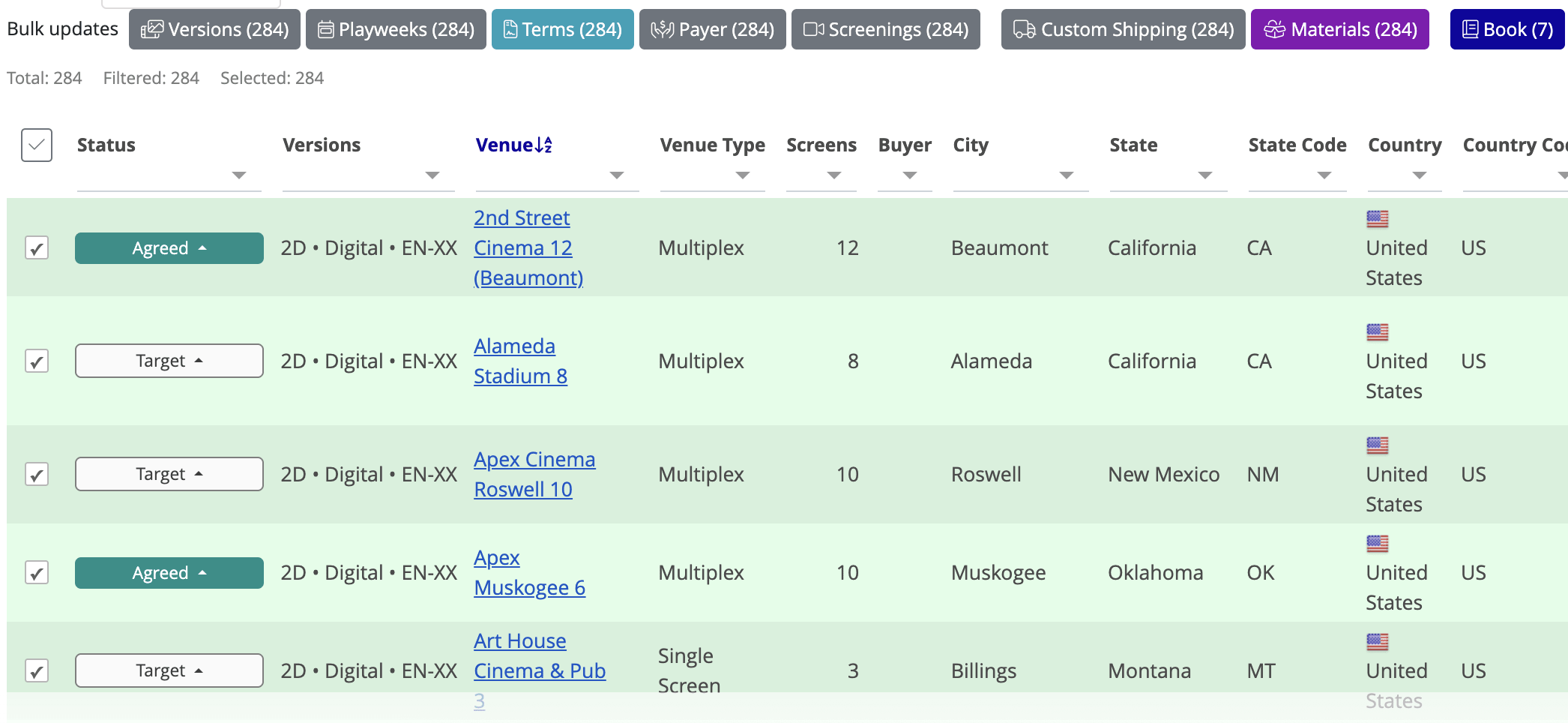
Each selected venue becomes a separate booking record in your Bookings section. The booking inherits all configuration from the plan, including versions, playweek dates, terms, screenings, and payer.
What Happens After Booking
When you confirm the booking:
- Booking records are created in Bookings → Bookings for each venue you selected.
- KDM orders are automatically created for all KDM versions assigned to the venue and sent to your configured Vendor.
- DCP shippings are created if they haven't already been shipped via Ship-Now in the plan. If DCPs were already shipped, those existing shippings are preserved and not duplicated.
Configuring Venues Before Booking
Use these bulk actions in the plan detail page to prepare venues for booking:
- Versions — Assign which versions each venue receives. Select venues and click Versions to add or change versions.
- Playweeks — Set the playweek period (start and end dates). All selected venues receive the same playweek.
- Terms — Configure rental percentage, minimum guarantee, and other financial terms. You can apply default terms from a term template or set custom terms per venue group.
- Screenings — Set the expected screening profile (e.g. "Clean", "Matinee") for each venue.
- Payer — Assign who pays the distributor. Select venues and click Payer to assign.
Exporting Plan Data
The Export button on the plan detail page lets you download venue and booking information for external stakeholders or record-keeping. Click Export and select your format:
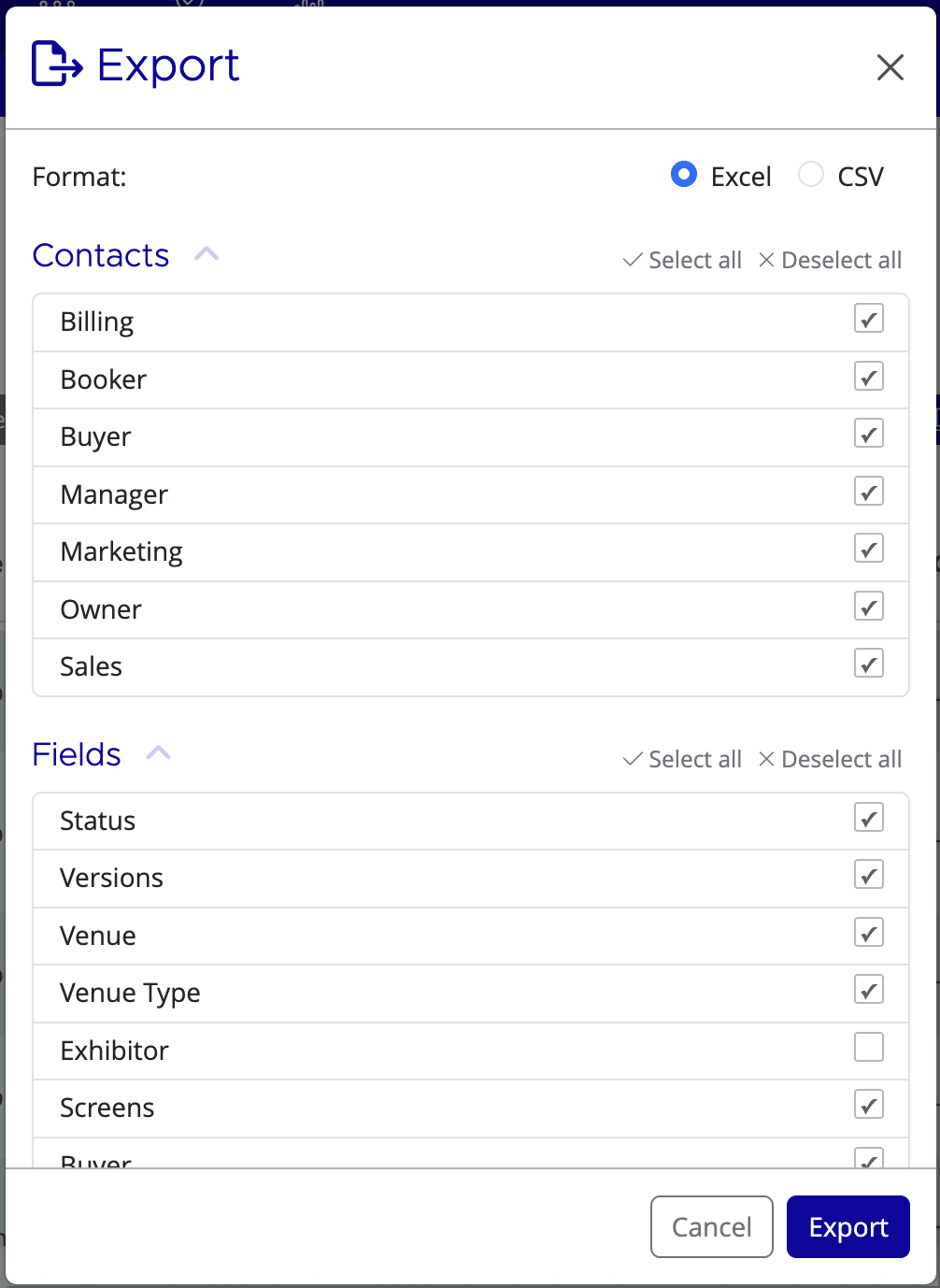
- XLSX — Excel format, suitable for spreadsheet analysis and sharing with bookers or venue networks.
- CSV — Comma-separated values, compatible with most business tools.
- PDF — Formatted document, ready to share or print.
The export includes all visible columns in your plan view: venue names, addresses, status, versions, playweek dates, terms, competitive data (if Numero is enabled), and more. Adjust column visibility in the plan view to control what appears in your export.
If you need assistance with any aspect of Mica, we're here to help:
Contact your Mica system administrator for organisation-specific questions or access issues
OR
Reach out to the Mica support team at support.mica@maccs.com
How did we do?
Configuring a Plan
Numero Competitive Holdovers in Plans
