Numero Competitive Holdovers in Plans
This article applies only to customers with an active Numero subscription. Numero is a Vista Group's box office data provider that integrates with Mica to help your sales teams target venues based on…

This article applies only to customers with an active Numero subscription. Numero is a Vista Group's box office data provider that integrates with Mica to help your sales teams target venues based on how comparable films performed in specific locations. With Numero enabled, you can add other distributor's titles to your plans and filter venues by the box office performance of those comparable films.
- Before You Start
- Adding Competitive Titles to a Plan
- Filtering Venues by Competitive Box Office
- Viewing Competitive Data in the Plan
- Adjusting Competitive Titles
Before You Start
To use Numero competitive data features, ensure you have the following:
- An active Numero subscription configured by your Mica administrator
- Access to the Plans module in Mica
- Permissions to add or edit plans
Adding Competitive Titles to a Plan
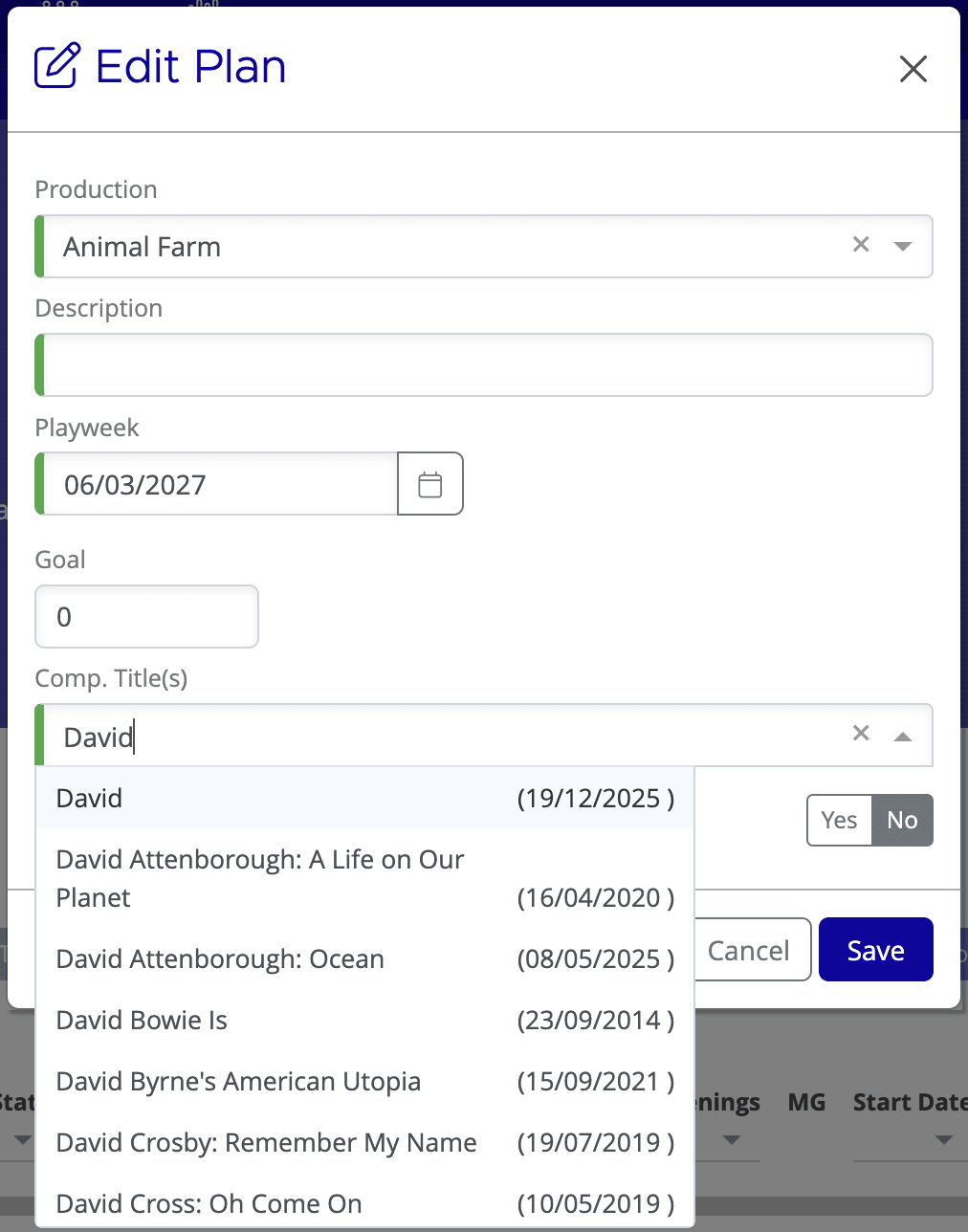
You can add up to three competitive titles to any plan. These titles serve as benchmarks for venue performance analysis.
To add a competitive title:
- Open or create a plan and click Edit Plan
- Locate the Comp. Title field (previously called "Similar Production")
- Click the field and search for any production in the Numero database
- Select your desired competitive title from the search results
- Repeat to add up to two additional competitive titles
- Click Save
Filtering Venues by Competitive Box Office
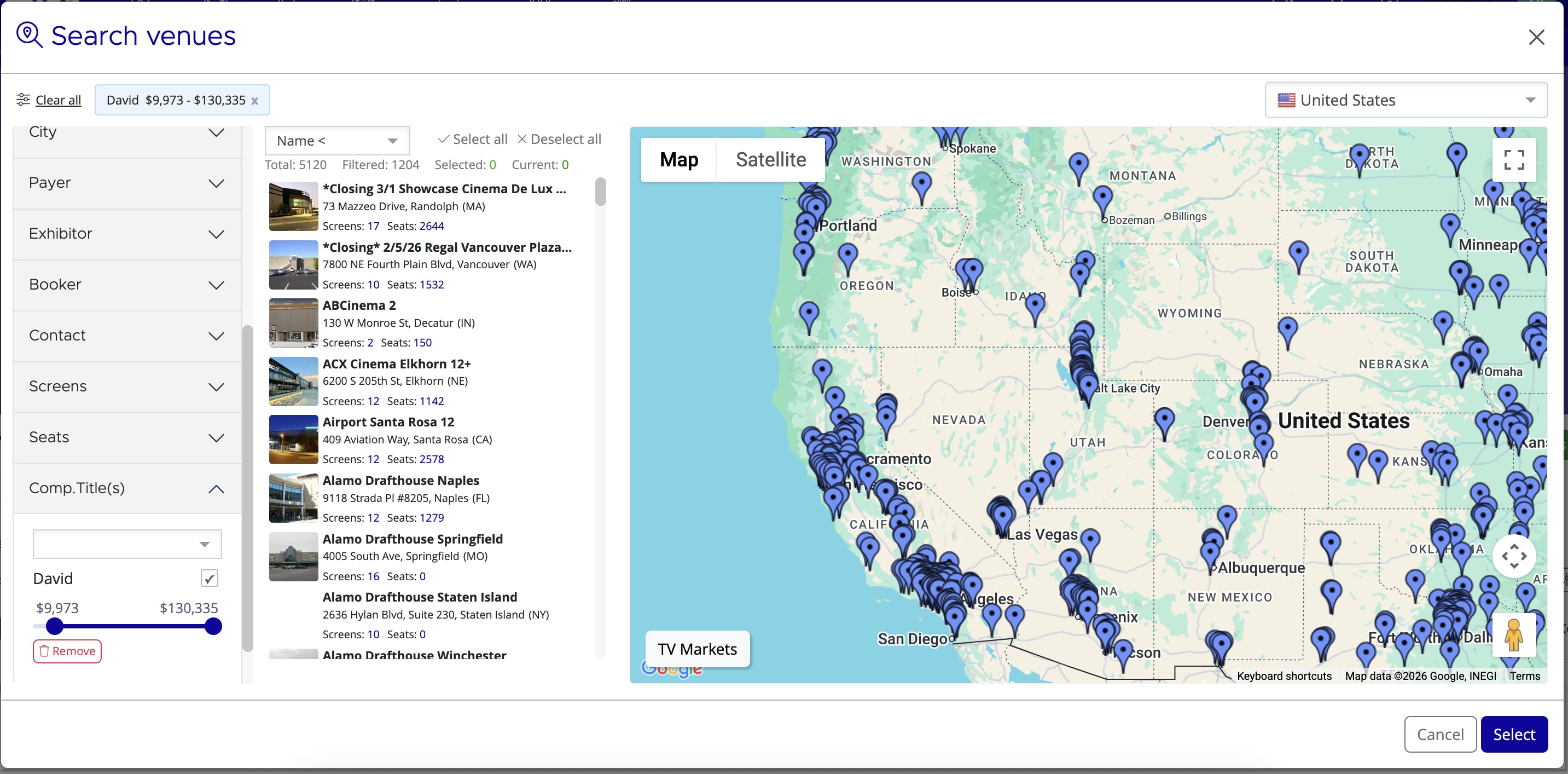
Once you've added competitive titles, you can use box office performance data to filter which venues appear in your plan. The competitive box office range filter is available on the Add Venues modal.
To filter venues by competitive box office:
- In your plan, click Add Venues
- Locate the Competitive Box Office range slider for your selected comp title
- Set a lower bound by dragging the left slider or entering a minimum gross amount
- Set an upper bound by dragging the right slider or entering a maximum gross amount
- The venue list updates instantly to show only venues where your comp title performed within that range
- Add venues as normal and click Save
Viewing Competitive Data in the Plan
After you've added venues to your plan, the Plan Details page displays the lifetime gross for each competitive title at every venue in your plan. This gives your sales team immediate context on how similar films performed in each location.
The competitive data columns appear alongside your standard plan information (venue name, status, versions, etc.), showing the lifetime gross figure for each comp title at each venue. This gives your team a side-by-side view of venue performance and comparable film data without leaving the plan details screen.
Adjusting Competitive Titles
You can change or remove competitive titles at any time. There are two ways to modify them:
Via Edit Plan:
- Open your plan and click Edit Plan
- Update, remove, or add new Comp. Title entries
- Click Save
Via Add Venues modal:
- Click Add Venues in your plan
- Use the + button next to competitive titles to add additional comp titles
- Adjust filter ranges as needed
- Save your venue additions
If you need assistance with any aspect of Mica, we're here to help:
Contact your Mica system administrator for organisation-specific questions or access issues
OR
Reach out to the Mica support team at support.mica@maccs.com
How did we do?
Creating Bookings via Plans
Plan Venue Statuses — Quick Reference
