Adjusting Shippings When Editing Playweeks
How to use the Adjust Shippings toggle when editing playweeks. Automatically updates DCP delivery dates and KDM validity periods to match new booking durations.

Overview
When you change playweeks on a booking, the associated shippings — DCP delivery dates and KDM validity periods — usually need to change too. The Adjust Shippings toggle handles this automatically, so you don't have to update shippings manually after every playweek edit.
The toggle is available in three places:
- The playweeks editor on the Booking Details page
- Bulk Replace mode (Bookings > Bookings > Replace)
- Bulk Adjust mode (Bookings > Bookings > Adjust)

How It Works
The toggle defaults to Yes (enabled). When you save playweek changes with the toggle enabled, Mica automatically:
- Adjusts DCP delivery dates so that the delivery falls on or before the first playdate of the updated booking, based on your shipping defaults
- Extends KDM validity to cover all booked playdates, using the KDM rules configured for that venue and production combination
- Places new KDM orders if the existing KDM validity doesn't cover the updated booking period — for example, if you extend a one-week booking to three weeks
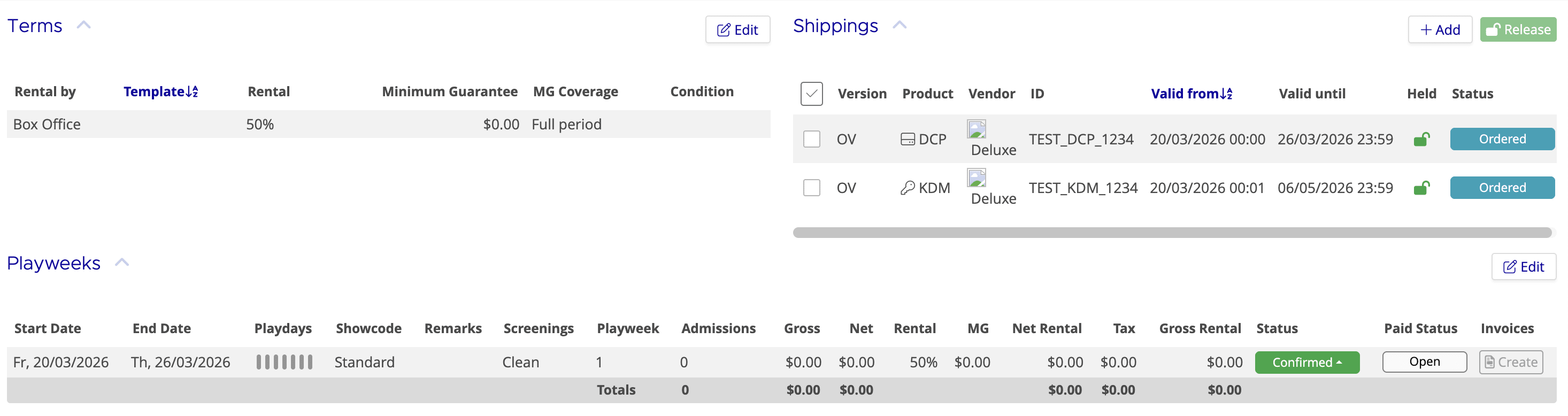
In the example below, a one-week booking has a single DCP and KDM order:
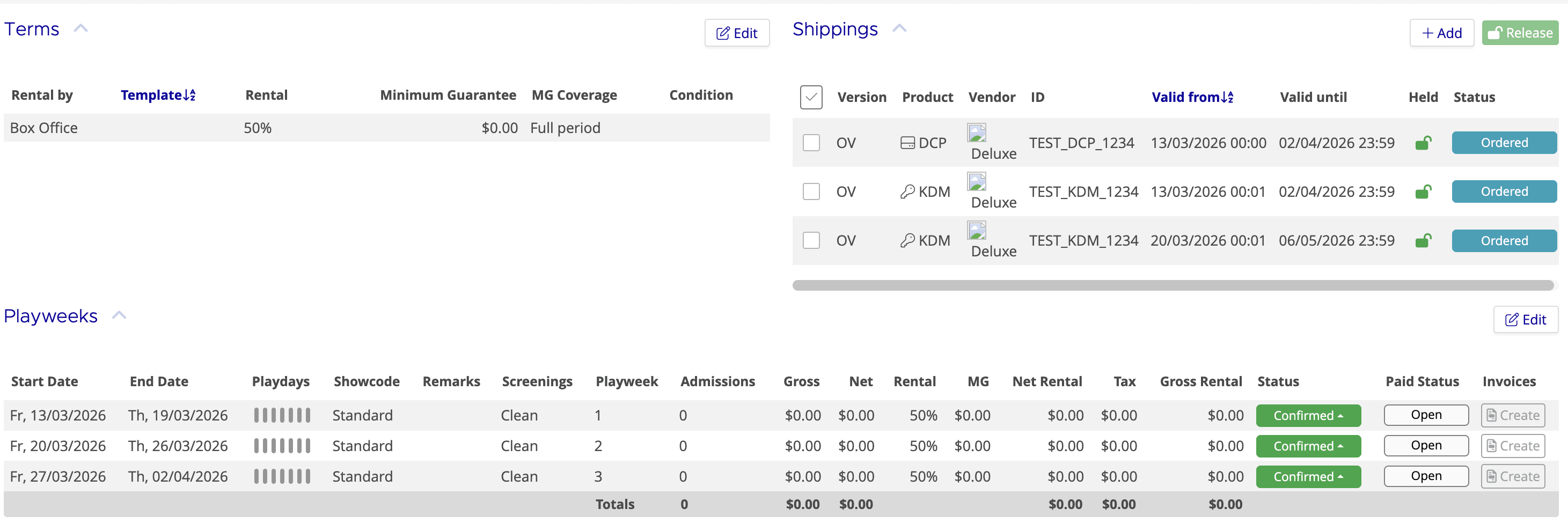
After extending to three weeks with Adjust Shippings enabled, the DCP delivery date has been updated and a second KDM order has been placed to cover the extended period:
When to Disable the Toggle
Set the toggle to No when you only want to change playweeks without affecting shippings. This is useful when:
- You're correcting a data entry error in playweeks and the shippings are already correct
- You're managing shippings manually for a particular booking
- The vendor has already shipped materials that cover the updated period
Using Adjust Shippings on the Booking Details Page
- Open the booking and go to the Playweeks section
- Click Edit to open the playweeks editor
- Add, remove, or modify playweeks as needed
- Confirm that the Adjust Shippings toggle is set to Yes (or set it to No if you want to skip shipping updates)
- Click Save
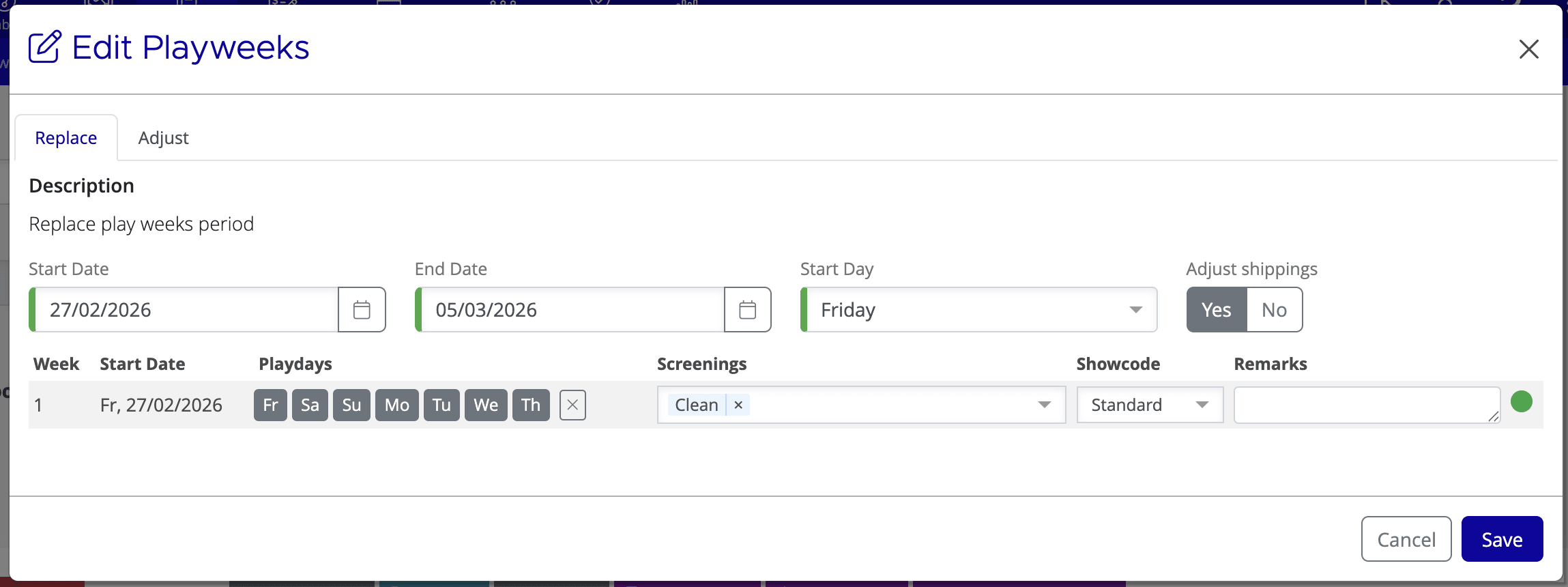
Using Adjust Shippings in Bulk Replace Mode
- Go to Bookings > Bookings
- Select the bookings you want to update
- Click Replace to open the bulk replace dialog
- Set the new playweeks
- Confirm that the Adjust Shippings toggle is set to your preference
- Click Save
Using Adjust Shippings in Bulk Adjust Mode
- Go to Bookings > Bookings
- Select the bookings you want to adjust
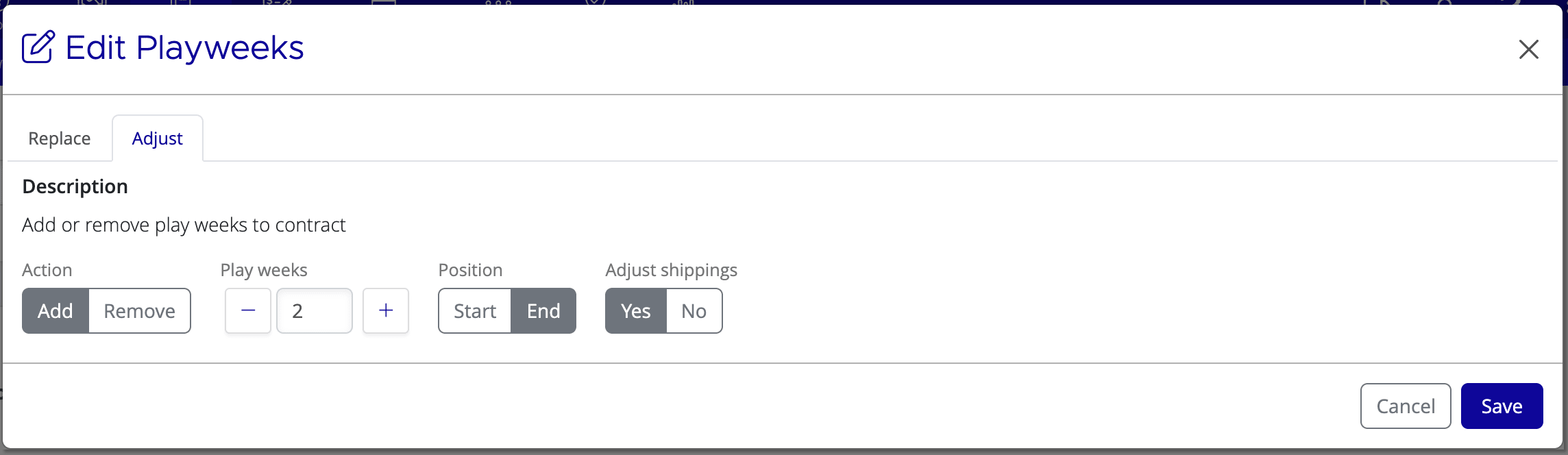
- Click Adjust to open the bulk adjust dialog
- Set the adjustment (e.g. add 2 weeks to the end)
- Confirm that the Adjust Shippings toggle is set to your preference
- Click Save
If you need assistance with any aspect of Mica, we're here to help:
Contact your Mica system administrator for organisation-specific questions or access issues
OR
Reach out to the Mica support team at support.mica@maccs.com
How did we do?
Creating Additional Shippings
