Creating Additional Shippings
Create additional DCP and KDM shipping orders for existing bookings in Mica. Covers when to create additional shippings, configuring versions and validity periods, and setting delivery dates.

When a booking is already confirmed and shipping orders have been placed, you may sometimes need to create additional shipping orders — for example, to send updated KDMs with extended validity, ship an alternative version, or resend a failed delivery. This guide covers how to create additional DCP and KDM shipping orders from the Bookings menu.
Table of Contents
When to Create Additional Shippings
You may need additional shipping orders in the following situations:
- Shipping errors — the initial order was not delivered or had incorrect parameters
- Additional versions — shipping an alternative version (e.g. adding a subtitled version to an existing booking)
- Content updates — updated DCPs need to be shipped to venues
- KDM corrections — the original KDM validity period was wrong and needs to be reissued
Additional shippings are automatically linked to the original booking and do not create duplicate bookings. Mica maintains a complete shipping history for each booking.
Step-by-Step Process
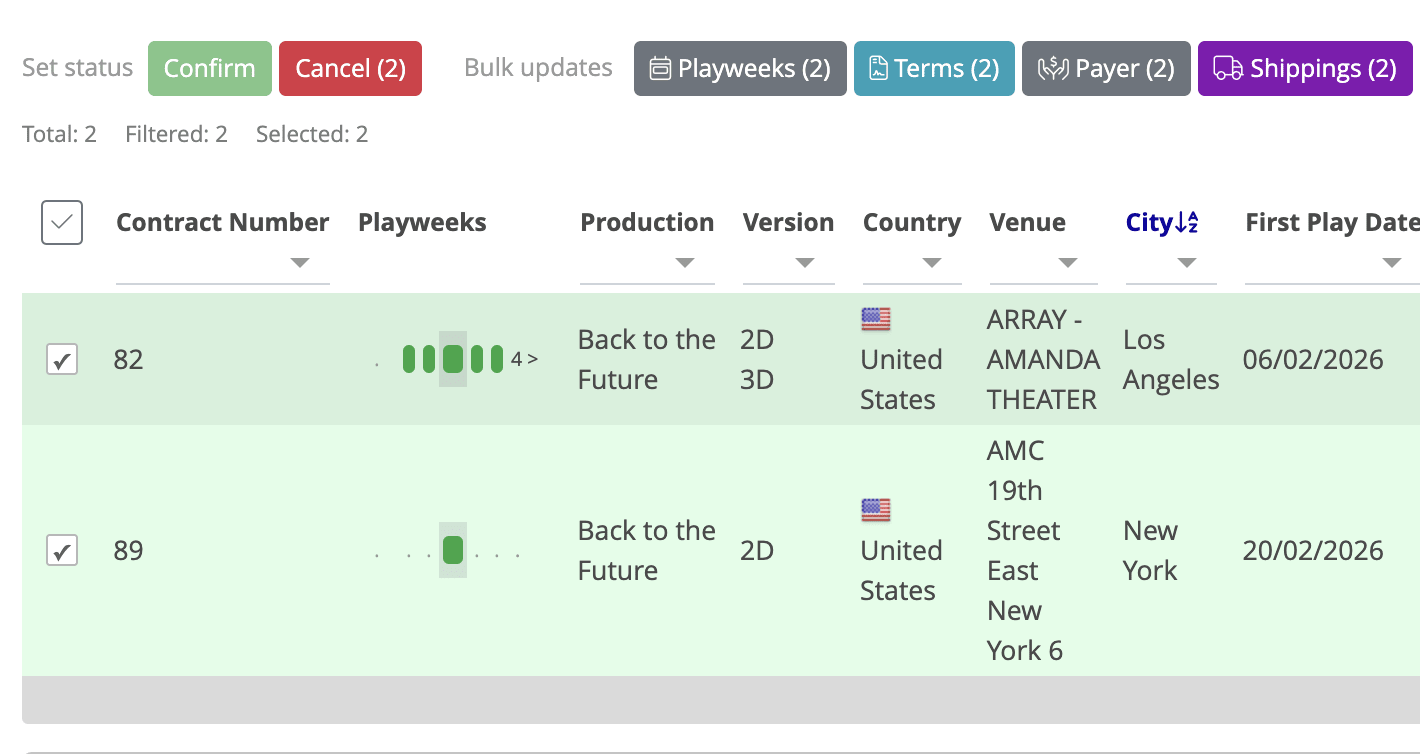
1. Find and select bookings
- Navigate to Bookings → Bookings
- Use the search filters to locate the relevant bookings — filter by production, venue, venue group, or date range
- Filter by status Confirmed (only confirmed bookings can have shipping orders)
- Click the checkbox next to each booking that needs additional shipping. You can select multiple bookings if they need the same shipping parameters
2. Open the Shippings dialog
- With bookings selected, look for the bulk action buttons that appear above the list
- Click the Shippings button
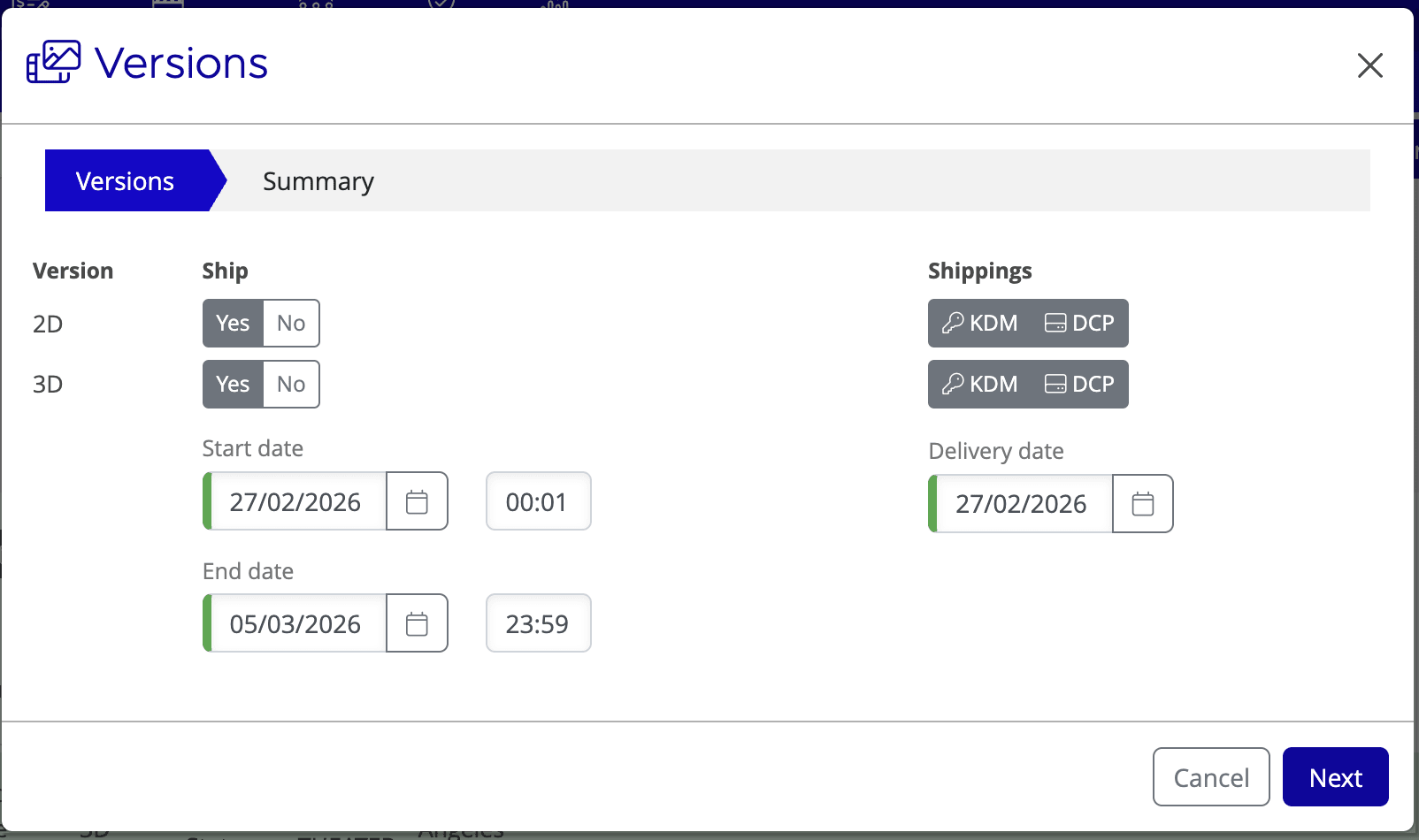
- The Versions dialog opens, showing shipping options for all selected bookings
3. Configure version settings
The Versions dialog displays all available versions for the selected bookings. For each version:
- Ship column — shows Yes/No for each version. Click No to exclude versions you don't need to ship. By default, all versions are set to Yes
- Shippings column — toggle KDM and/or DCP on or off:
- KDM — Key Delivery Message (digital key required to play encrypted content)
- DCP — Digital Cinema Package (the actual content files)
4. Set KDM validity period
- Start date — the first day the venue needs to play the content. You can also set a specific unlock time (default is 00:01)
- End date — the last day the venue needs access. Set this with some margin beyond the last expected playday
5. Set DCP delivery date (if applicable)
If shipping a DCP, set the Delivery date — the date by which the DCP should arrive at the venue. This is typically a few days before the first playday.
6. Review and save
- Click Next to review the additional shippings being ordered
- Verify the version, shipping type (KDM/DCP), and dates are correct
- Click Save to place the orders
The shipping orders are placed with the selected vendor and appear in Sales → Shippings with status "Ordered", as well as on each individual booking's detail page.
Troubleshooting
Issue |
Solution |
Shippings button not visible |
Make sure you have selected at least one booking using the checkboxes. The bulk action buttons only appear when bookings are selected. |
No versions shown in the dialog |
The selected bookings may not have DCP/KDM content linked to their release. Check the release configuration under Productions and ensure content is linked. |
Shipping order stuck on "Ordered" |
The vendor hasn't processed the order yet. Check that the Content ID is set on the version — orders with status "Awaiting ID" are held until the ID is added. |
KDM not working at venue |
Verify the KDM validity period covers the required playdays. Check that the correct version was shipped. The venue's server certificate may also need updating. |
Related Articles
- Setting Up Versions, Vendors, and Shipping
- How to Process Holdovers
- Shipping Statuses Reference
- Create a Booking
If you need assistance with any aspect of Mica, we're here to help:
Contact your Mica system administrator for organisation-specific questions or access issues
OR
Reach out to the Mica support team at support.mica@maccs.com
How did we do?
Adjusting Shippings When Editing Playweeks
Shipping Statuses Reference
