Understanding the Mica Dashboard
Navigate the Mica Dashboard — your central hub for current releases, box office results, active bookings, and notifications. Learn how to use filters, create bookings from posters, and track shipping status.

The Mica Dashboard is your central hub for managing film distribution. It provides an at-a-glance view of your current releases, box office results, and active bookings, making it easy to stay on top of your distribution operations.
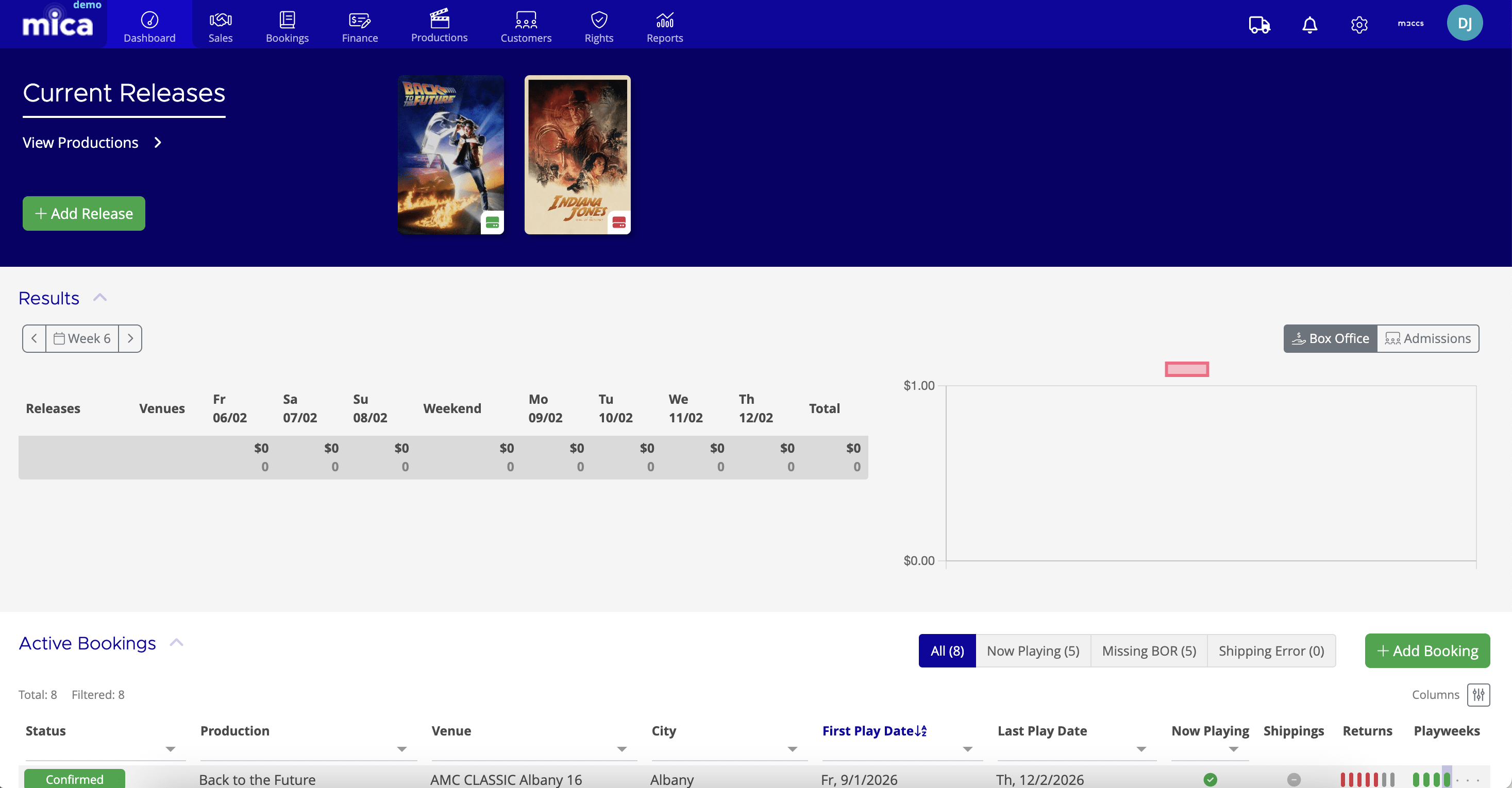
Table of Contents
- Dashboard Overview
- Navigation Menu
- Current Releases Section
- Results Section
- Active Bookings Section
- Taking Action from the Dashboard
Dashboard Overview
When you first log into Mica, the Dashboard is your landing page. It's designed to give you immediate access to the most important information and common actions for your daily workflow.
The dashboard is organized into four main sections:
- Current Releases - Films in active distribution
- Notifications - System alerts and updates
- Results - Box office performance data
- Active Bookings - Current venue contracts
Navigation Menu

At the top of the dashboard, you'll find the main navigation menu with seven key sections:
- Dashboard - Your home page (where you are now)
- Sales - Release plans, materials, and shipments
- Bookings - Contract management and holdovers
- Finance - Invoices, payments, and reconciliation
- Productions - Film catalog and DCP/KDM management
- Customers - Venues, exhibitors, and payers
- Reports - Analytics and box office data
Current Releases Section
The Current Releases section displays film posters for all titles currently in your distribution window. This provides a visual way to quickly identify which films are active.
Key features:
- Click any poster to immediately create a booking for that film
- Add Release button (green) lets you create new titles in your system
- View Productions link takes you to your complete film catalog
This quick-access design means you can start creating bookings for your current releases without navigating through multiple menus.
Results Section
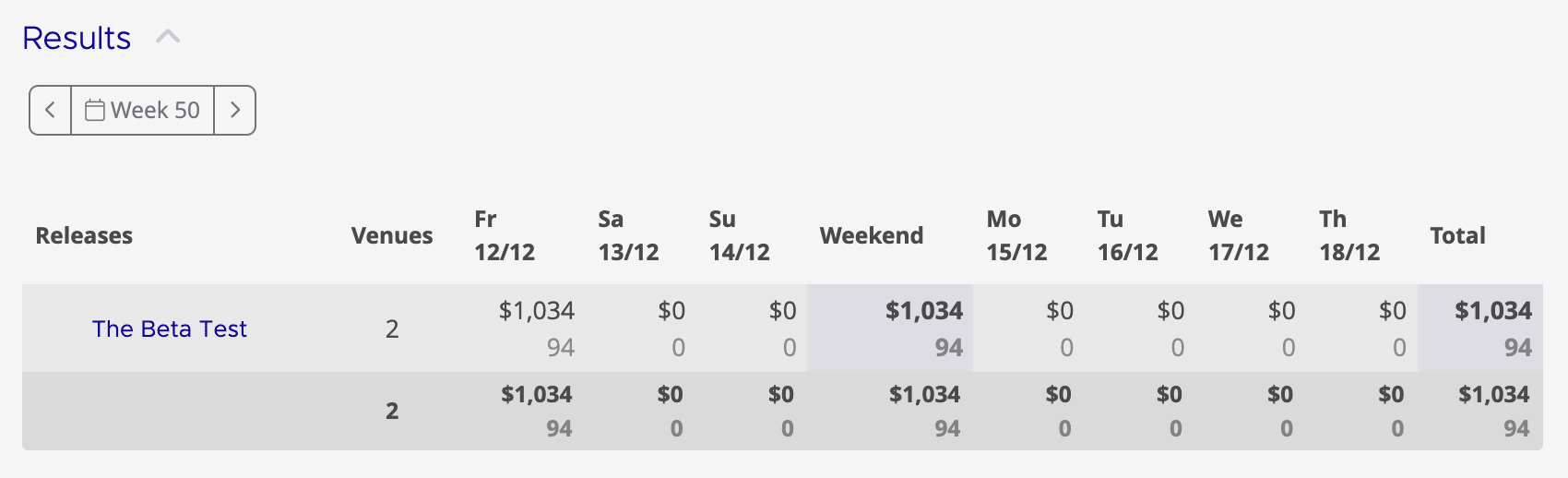
The Results section shows box office performance across your releases and venues for a selected week.
The interface includes:
- Week selector - Navigate between play weeks using arrow buttons
- Results table - Shows daily box office broken down by release and venue
- Performance chart - Visual representation of weekly trends
- View toggle - Switch between Box Office and Admissions data
The table displays daily figures from Friday through Thursday, plus weekend totals and weekly totals. This layout aligns with standard theatrical reporting periods.
Active Bookings Section
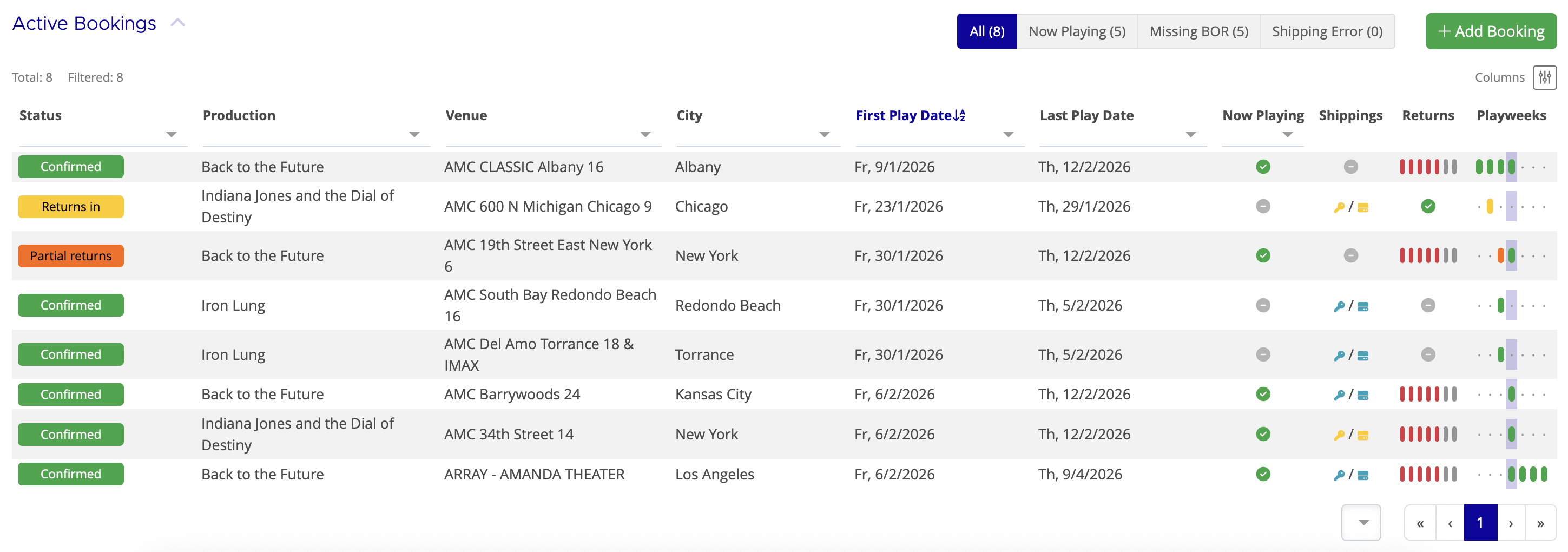
The Active Bookings section provides a detailed view of all current venue contracts.
The bookings table includes these columns:
- Status - Booking state (Confirmed, Returns In, Partial Returns)
- Production - Film title
- Venue - Cinema location
- City - Geographic location
- First Play Date - Contract start date
- Last Play Date - Contract end date
- Now Playing - Current status indicator
- Shippings - DCP delivery status
- Returns - Box office data status
- Playweeks - Visual timeline of the booking period
Booking Status Filters
At the top of the Active Bookings section, you'll find filter tabs:
- All - Shows all active bookings
- Now Playing - Currently running bookings only
- Missing BOR - Bookings awaiting box office returns
- Shipping Error - Bookings with DCP delivery issues
These filters help you quickly identify bookings that need attention, such as missing data or technical issues.
Taking Action from the Dashboard
The dashboard isn't just for viewing information—it's designed for taking action:
- Create bookings - Click any film poster in Current Releases
- Add new releases - Use the green "+ Add Release" button
- Add bookings - Click the green "+ Add Booking" button
- View booking details - Click any row in the Active Bookings table
- Access notifications - Click the bell icon in the top right
Dashboard Best Practices
To get the most from your dashboard:
- Start your day here - Check for missing returns or shipping errors
- Monitor Results regularly - Track box office performance week by week
- Use status filters - Focus on bookings that need action
- Check notifications - Stay informed about system events and data imports
- Quick navigation - Use Current Releases for fast booking creation
Customizing Your View
You can customize the Active Bookings table:
- Columns button - Show or hide specific columns
- Sort options - Click column headers to sort data
- Column filters - Use dropdown arrows to filter by specific values
This flexibility allows you to focus on the information most relevant to your workflow.
If you need assistance with any aspect of Mica, we're here to help:
Contact your Mica system administrator for organisation-specific questions or access issues
OR
Reach out to the Mica support team at support.mica@maccs.com
How did we do?
Getting Started with Mica
