Getting Started with Mica
Get started with Mica, the film distribution management platform. Learn the core workflow from creating productions and releases to managing bookings, processing returns, and generating invoices.

This guide walks you through the core Mica workflow — from setting up your first production to invoicing your venues. Each step links to a detailed article if you need more information. You don't need to complete every step before moving on; come back to this page whenever you need a reminder of what's next.
1. Get to Know the Dashboard
The dashboard is your home screen. It shows your active releases, current-week bookings, and key notifications. Spend a few minutes familiarizing yourself with the layout before diving in.
Understanding the Mica Dashboard
2. Set Up Your First Production
A production is the film or content you're distributing. You'll create the production record, add one or more versions (e.g. 2D DCP, 3D ATMOS), create a release for each territory, and optionally configure your DCP and KDM shipping suppliers.
Setting Up Versions, Vendors, and Shipping
3. Configure Your Templates
Templates save time by pre-filling settings every time you add a venue to a plan or create a booking. Set these up once and they'll apply automatically going forward.
- Working with Term Templates — define default rental percentages, minimum guarantees, and financial terms per venue or venue group.
- Working with KDM Templates — configure which KDM versions are assigned to each venue by default.
4. Set Up Venues and Payers
Organise your venues into groups and circuits for easier booking and planning. Then set up payers — the companies or individuals who receive your invoices.
- Working with Venue Groups
- Creating a Payer
- Payer Status — understand payment risk indicators.
5. Plan Your Release
Plans are where you manage the sales process for a release — targeting venues, negotiating terms, and tracking progress towards your booking goal. This step is optional if you prefer to create bookings directly, but most distributors find plans invaluable for managing larger releases.
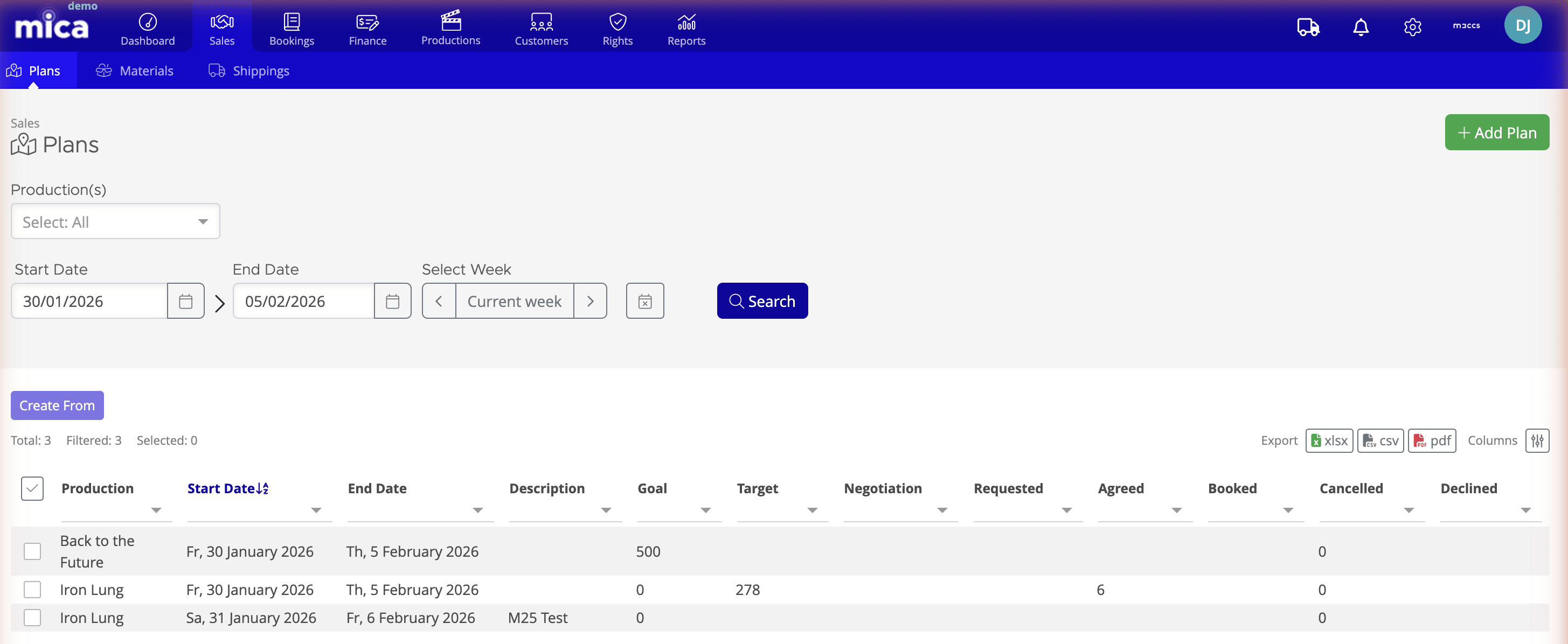
- Configuring a Plan — create a plan, set shipping rules, and navigate the plan detail page.
- Adding Venues to a Plan — search, filter, import, and manage venues.
- Plan Venue Statuses — Quick Reference — understand the status progression from Target to Booked.
6. Create Bookings
A booking is the confirmed commitment between you and a venue. You can create bookings directly or convert them from your plan once venues reach Agreed status.
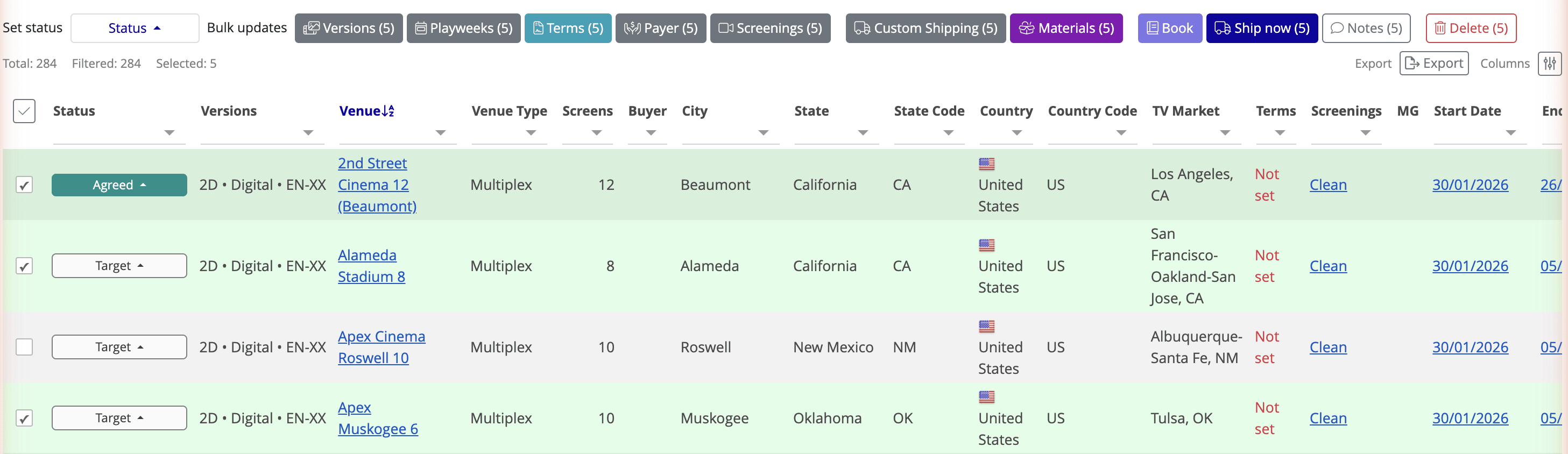
- Create a Booking — the standard booking wizard.
- Creating Bookings via Plans — convert plan venues into bookings in bulk.
- Understanding Booking Statuses — track bookings from Expected through to Paid.
7. Ship Content
Once bookings are confirmed, Mica handles DCP and KDM delivery. If you've configured shipping suppliers on your release, much of this happens automatically. You can also ship content early from within a plan using Ship-Now.
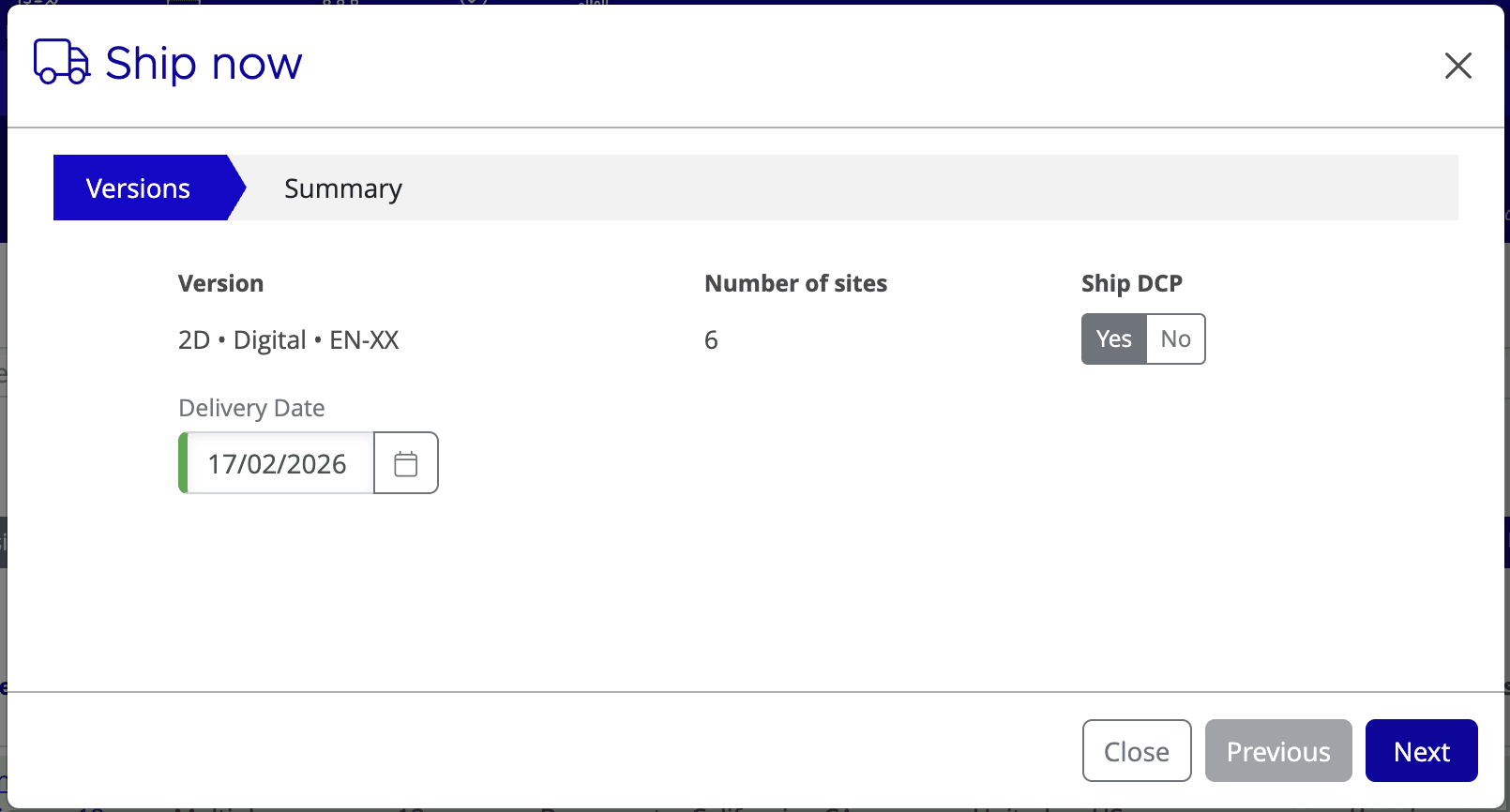
- Ship-Now — send DCPs before booking confirmation.
- Creating Additional Shippings — add extra shipments after booking.
- Shipping Statuses Reference
8. Process Returns and Holdovers
After a playweek ends, box office return (BOR) figures come in from your venues. You'll need these figures before you can invoice. If a venue continues playing your title beyond the original playweek, that's a holdover.
- Import Returns from Comscore — pull in BOR data automatically.
- How to Process Holdovers — extend bookings into additional weeks.
9. Create Invoices
Once BOR figures are in and verified, you're ready to invoice. Mica calculates rental amounts based on your terms and generates invoices for each payer.
- How to Create an Invoice — single and bulk invoicing.
- Adding Custom Invoice Remarks — include notes or references on invoices.
If you need assistance with any aspect of Mica, we're here to help:
Contact your Mica system administrator for organisation-specific questions or access issues
OR
Reach out to the Mica support team at support.mica@maccs.com
How did we do?
Understanding the Mica Dashboard
