Ship-Now
Ship-Now lets you order DCP content immediately from within a plan, delivering it to venues before booking confirmation is complete. This is useful when you want to get physical materials in motion w…

Ship-Now lets you order DCP content immediately from within a plan, delivering it to venues before booking confirmation is complete. This is useful when you want to get physical materials in motion while negotiations are still ongoing.
- What Ship-Now Does
- Using Ship-Now
- What Gets Shipped
- Duplicate Prevention
- When Ship-Now Is Unavailable
- Viewing Shipped Orders
What Ship-Now Does
Ship-Now orders DCP items directly from your plan detail page without waiting for booking confirmation. Unlike booking confirmation, Ship-Now focuses exclusively on physical DCP delivery — KDMs (key delivery messages) aren't included and are created only when venues transition from Agreed to Booked status.
This workflow is particularly useful when you want to accelerate physical content delivery while your team continues negotiating terms and finalizing bookings with venues.
Using Ship-Now
Step-by-step workflow
- Open your plan and navigate to the plan detail page.
- Select one or more venues from your plan (each venue must have at least one Version assigned).
- Click Ship Now in the bulk action bar above the venue list.
- A modal appears showing a summary of each DCP version to be shipped, with the venue count for each.
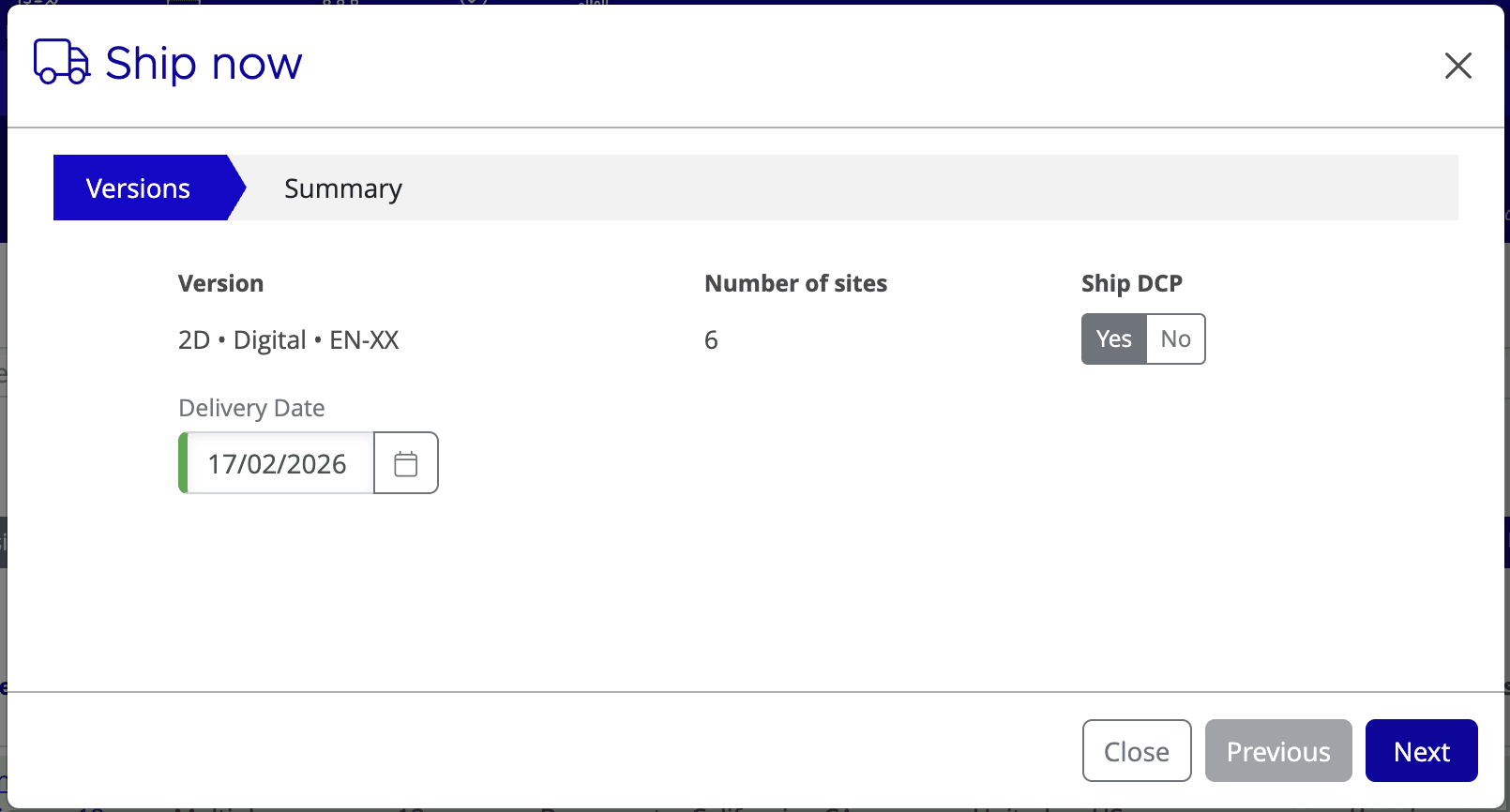
Configure shipping in the modal
- Review the list of DCP versions. Each has a Ship Now? toggle, defaulted to Yes.
- Deselect any versions you don't want to ship by toggling them to No.
- Set the Delivery Date field (defaults to tomorrow). Adjust as needed.
- Click Next to review your order summary.
Place your order
- The final screen shows: "Placing order for x shipping(s) to y venue(s)".
- Click OK to confirm and place the order.
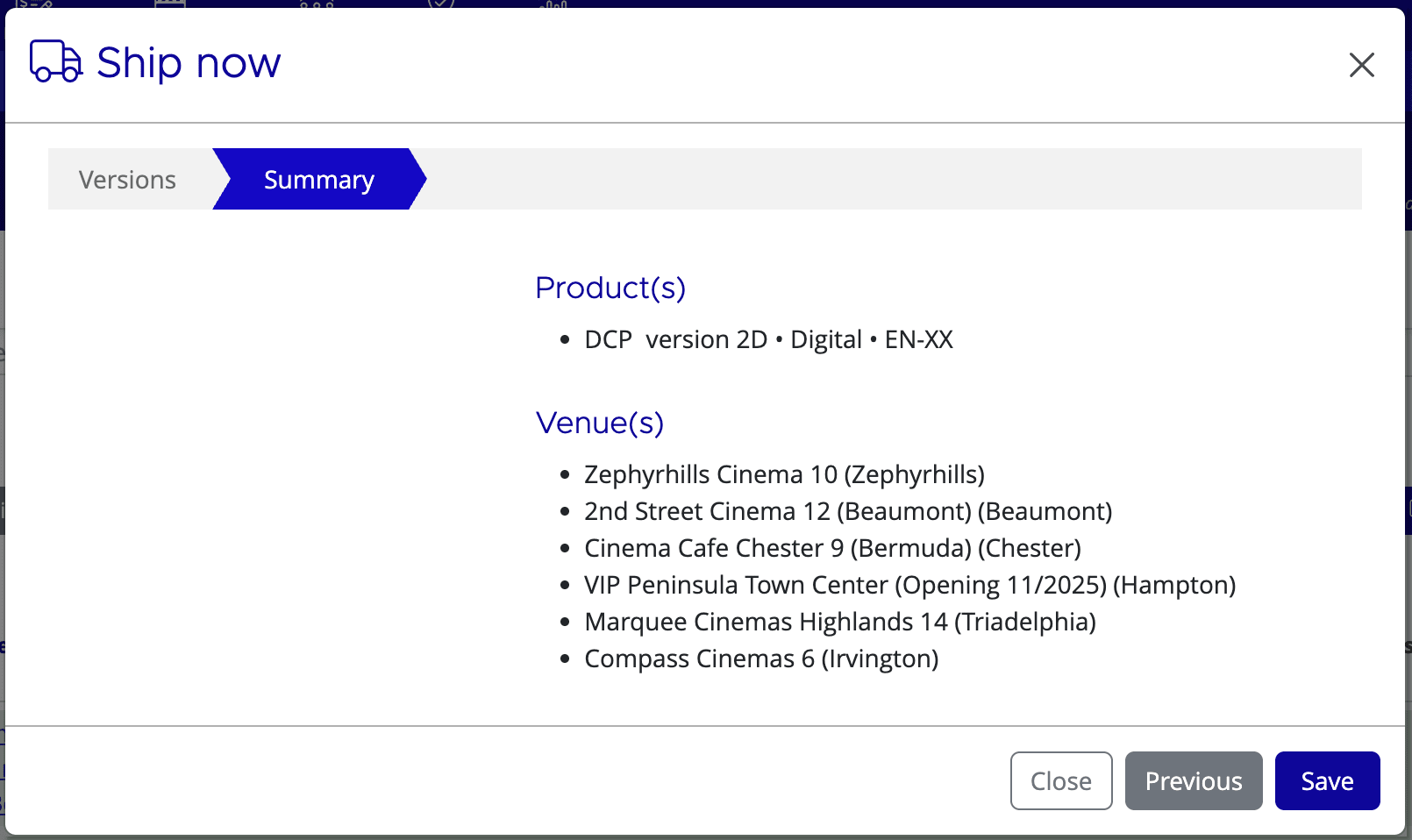
What Gets Shipped
Ship-Now only ships DCP versions. KDM-only versions are excluded from shipping and shown as greyed out in the modal (if your release contains both DCP and KDM-only versions).
In the modal, toggle Ship Now? to Yes or No for each DCP version individually. Deselecting a version prevents it from being ordered in this shipment.
Duplicate Prevention
Mica prevents duplicate orders automatically. If you click Ship Now multiple times for the same venues, previously ordered versions are not re-shipped.
This smart deduplication also applies during booking confirmation: when venues move from Agreed to Booked, only DCP versions not yet ordered via Ship-Now will generate new shippings. KDMs are always created on booking confirmation.
When Ship-Now Is Unavailable
The Ship Now button is active only when selected venues have at least one Version assigned within the plan.
Ship Now is disabled if:
- Your release contains only KDM-only versions with no DCP (there's nothing physical to ship).
- No venues are selected.
- Selected venues have no Versions assigned.
If your release mixes DCP and KDM-only versions, Ship Now remains enabled — KDM-only versions appear greyed out in the modal and can't be toggled.
Viewing Shipped Orders
After placing a Ship-Now order, track its status in the Shippings tab within your plan. This tab displays all ordered shippings, including those placed via Ship-Now and custom shipping methods.
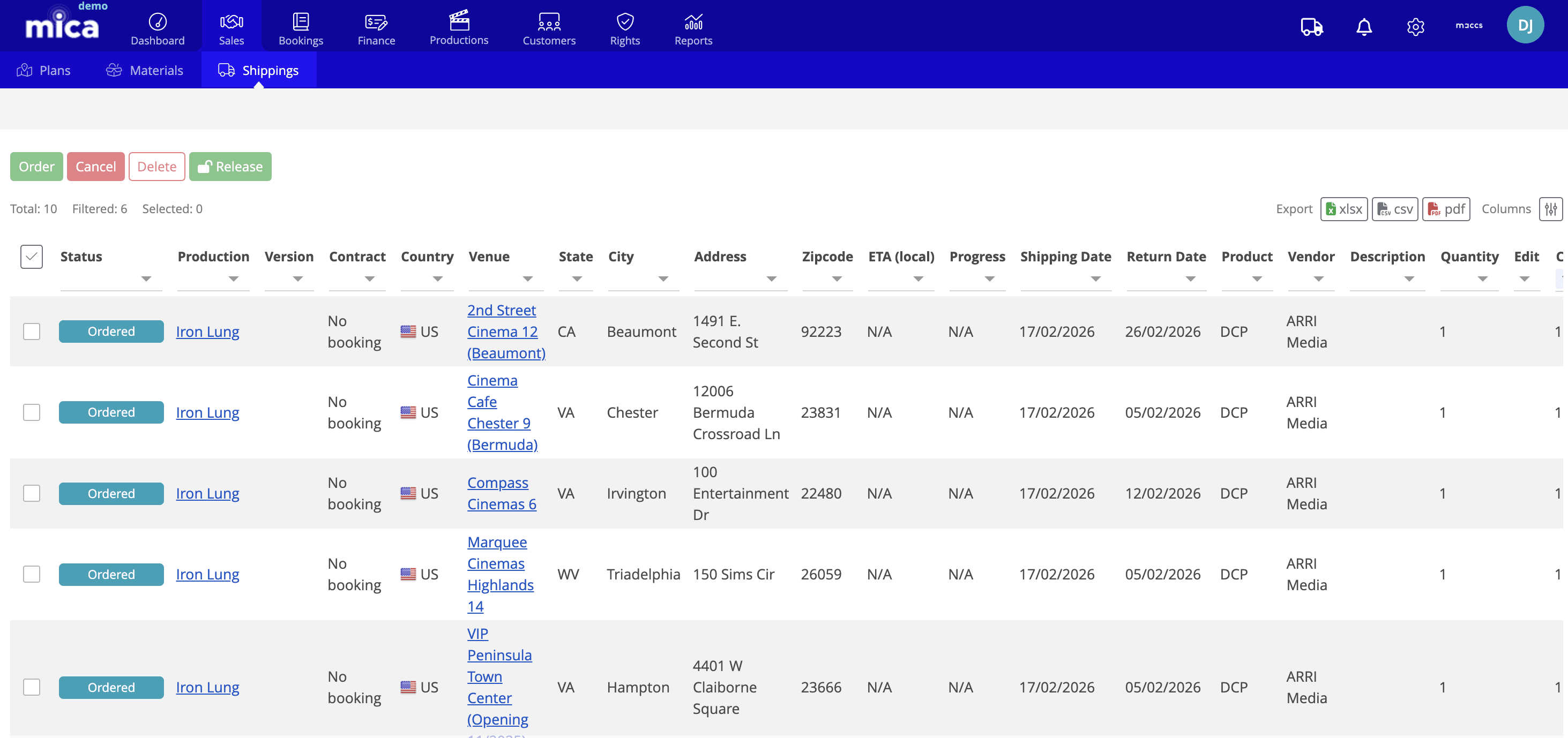
Each row shows the version, number of venues, delivery date, and current status. Use this view to monitor physical content distribution across your venues.
If you need assistance with any aspect of Mica, we're here to help:
Contact your Mica system administrator for organisation-specific questions or access issues
OR
Reach out to the Mica support team at support.mica@maccs.com
How did we do?
Plan Venue Statuses — Quick Reference
