How to Process Holdovers
Process holdovers in Mica to extend cinema bookings into additional play weeks. Covers the holdover page, status indicators, processing steps, KDM extension, and troubleshooting common issues.

The Holdover workflow in Mica allows you to manage bookings that are approaching the end of their current playweek. You can review each booking's performance, decide which ones continue and which ones end, adjust terms for the next week, and confirm your decisions in bulk.
Table of Contents
- Navigating the Holdovers Page
- Understanding Holdover Statuses
- Processing Holdovers Step by Step
- Editing Terms for the Next Week
- The Holdover Toolbar
- Tips and Best Practices
Navigating the Holdovers Page
To access the Holdovers page, click Bookings in the main navigation bar, then select the Holdover tab.
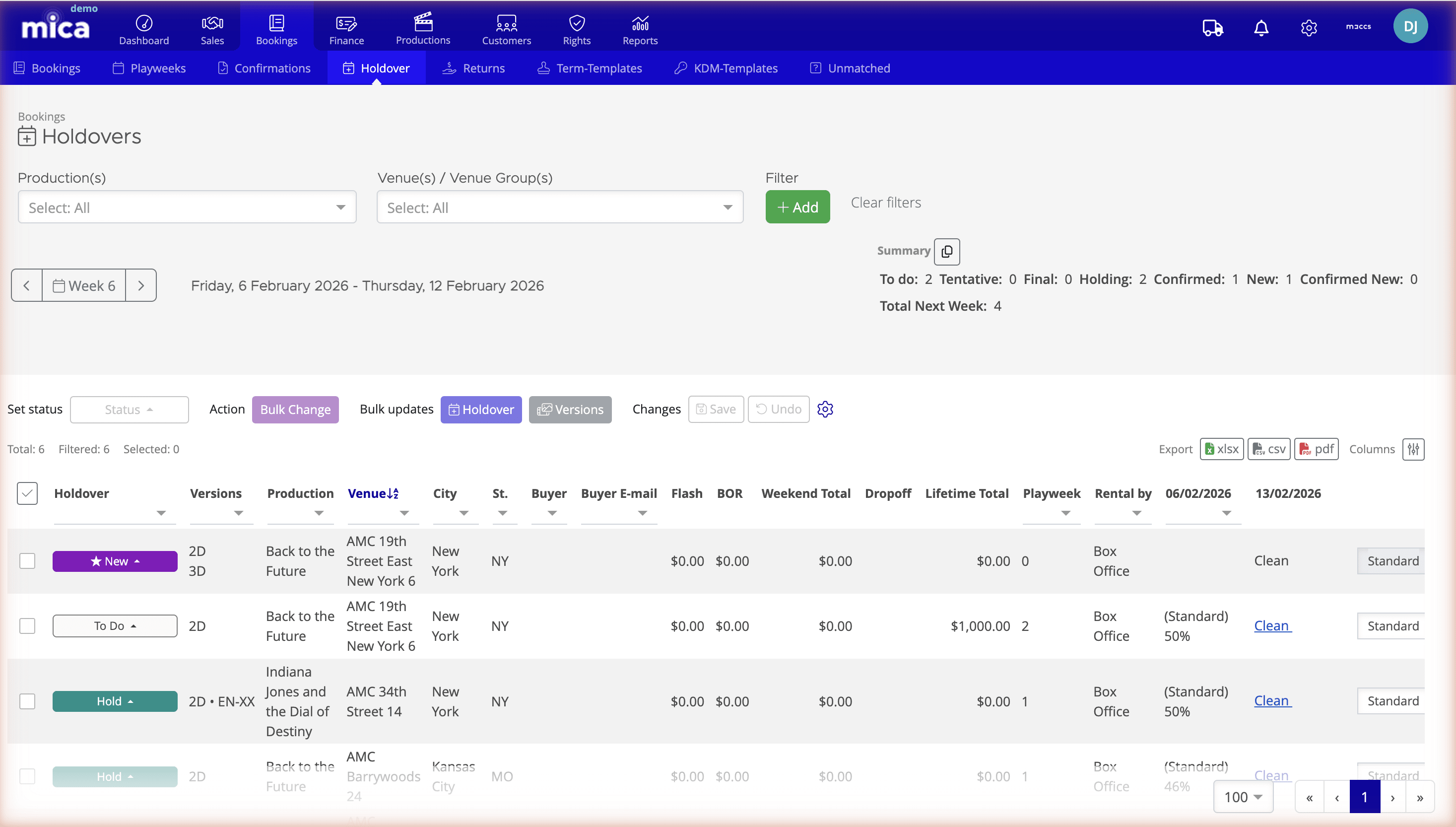
The page is organised into several sections from top to bottom:
- Filters — Narrow down bookings by production, venue, venue group, or additional criteria like country or exhibitor. Click Add to include extra filters, or Clear filters to reset.
- Week selector — Navigate between playweeks using the left/right arrows or click the week number. The date range shows which playweek's ending bookings you're viewing.
- Summary bar — A live count of bookings by holdover status: To Do, Tentative, Final, Holding, Held, Confirmed, New, Confirmed New, and Total Next Week.
- Booking table — Every booking ending in the selected playweek, with columns for production, venue, box office data, rental terms, and more.

Understanding Holdover Statuses
Each booking in the Holdover tab has a status indicating what will happen to it at the end of the current playweek.
| Status | Meaning |
|---|---|
| To Do | No decision made yet. This is the default status for bookings entering the holdover review. |
| Tentative | Possibly continuing — awaiting confirmation from the exhibitor or further review. |
| Hold | Marked to continue playing next week. Ready to be confirmed via the Holdover button. |
| Final | Booking will end after the current playweek. The film will not continue at this venue. |
| New | A new booking starting in this playweek (not a holdover from a previous week). |
| Confirmed-New | A new booking that has been validated. Similar to New, but serves as an extra confirmation step. |
| Held | Holdover has been processed. The booking has been extended for another playweek and any required KDM extensions have been ordered. |
| Confirmed | The next playweek was already confirmed as part of the original booking (typically a multi-week engagement). No holdover action is needed. |
Processing Holdovers Step by Step
1. Select the playweek
Use the week selector at the top to navigate to the playweek you want to review. The page shows bookings that are ending in the displayed week — these are the bookings you need to make decisions on.
2. Filter your view (optional)
If you manage a large number of bookings, use the filters to focus on specific productions or venues. Click Add to filter by additional criteria such as country or exhibitor.
3. Review the summary
Check the summary bar to see how many bookings still need decisions. Your goal is to get the To Do count down to zero by marking every booking as either Hold or Final (or Tentative if you're still waiting on a decision).
4. Set holdover statuses
Click the status badge on any booking row to open the status dropdown. Select the appropriate status:
- Hold — The film is performing well and you want it to continue
- Final — The booking is ending after this playweek
- Tentative — You're waiting for confirmation from the exhibitor
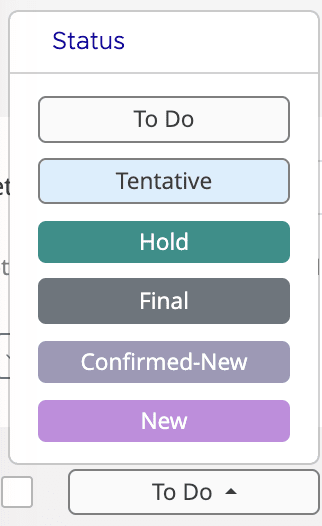
Use the box office data visible in the table — Flash, BOR, Weekend Total, Dropoff, and Lifetime Total — to inform your decisions. To change the status of multiple bookings at once, use the Set status dropdown and Bulk Change button in the toolbar (see The Holdover Toolbar).
5. Select bookings and confirm
Once all statuses are set:
- Select the bookings you want to process using the checkboxes on the left (or click the header checkbox to select all)
- Click the Holdover button in the Bulk updates section
- Bookings marked as Hold will change to Held — their playweek is extended by one week and any required KDM extensions are ordered automatically

Editing Terms for the Next Week
The right side of each booking row contains editable fields for the next playweek. You can adjust these before confirming the holdover:
- Showcode — The showcode type for the next week (e.g., Standard). Use the dropdown to change it.
- Rental % — The rental percentage applied to the next playweek. Type a new value directly into the field.
- Remarks — Add a note for internal tracking (e.g., "reduced per exhibitor request").
- Day ticks (Fr–Th) — Toggle which days the booking is active in the next playweek. Uncheck days if the venue won't be showing the film on certain days.

After making changes, click Save in the Changes section to apply them. If you make a mistake, click Undo to revert.
The Holdover Toolbar
Above the booking table, the holdover toolbar is divided into three sections: Set status, Bulk updates, and Changes. Together, these let you process holdovers efficiently, even with a large number of bookings.

Set status
To change the holdover status of multiple bookings at once:
- Select bookings using the checkboxes on the left
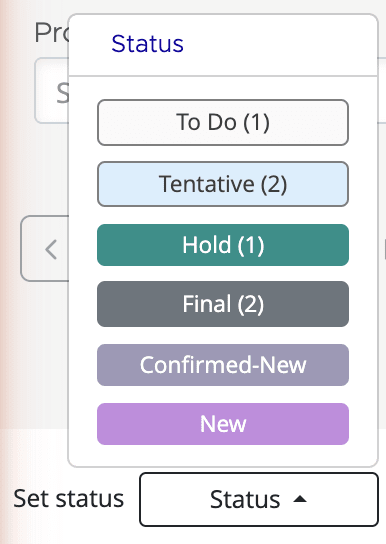
- Click the Status dropdown — each status option shows a number in brackets indicating how many of your selected bookings can be moved to that status
- Choose the status you want to apply (e.g., Hold, Final, Tentative)
- Click Bulk Change to apply the status to all selected bookings
Bulk Change
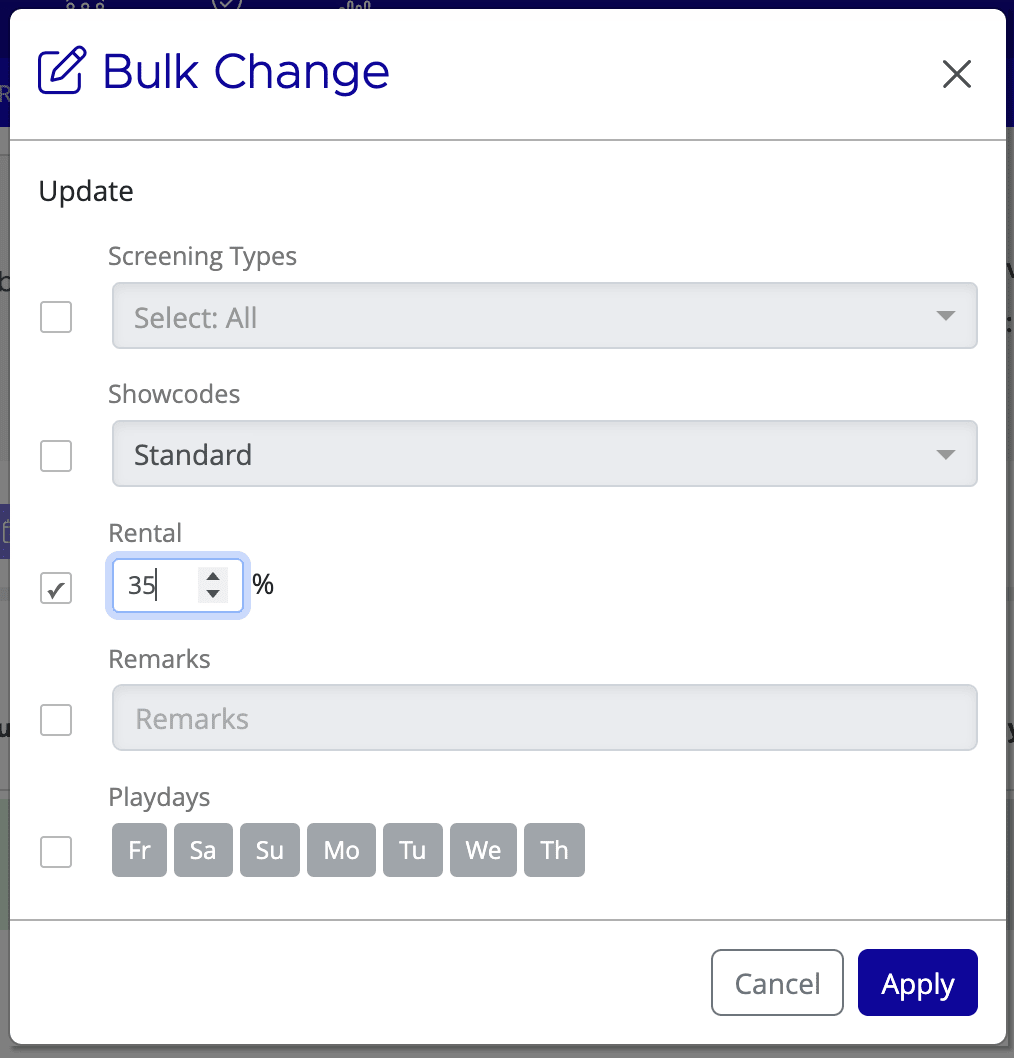
The Bulk Change button does more than change statuses — it opens a dialog where you can update multiple properties at once across all selected bookings. Each field has a checkbox to include it in the update:
- Screening Types — Change the screening type for all selected bookings
- Showcodes — Set the showcode (e.g., Standard) for the next playweek
- Rental — Set the rental percentage for the next playweek
- Remarks — Apply a remark to all selected bookings
- Playdays — Set which days (Fr–Th) the bookings are active in the next playweek
Tick the checkbox next to each field you want to change, set the values, and click Apply.
Bulk updates: Holdover and Versions
The Bulk updates section contains two action buttons:
Holdover — Processes all selected bookings marked as Hold, changing their status to Held. The number in brackets shows how many will be processed. When you click this button, Mica automatically extends each booking by one playweek and orders any required KDM extensions.
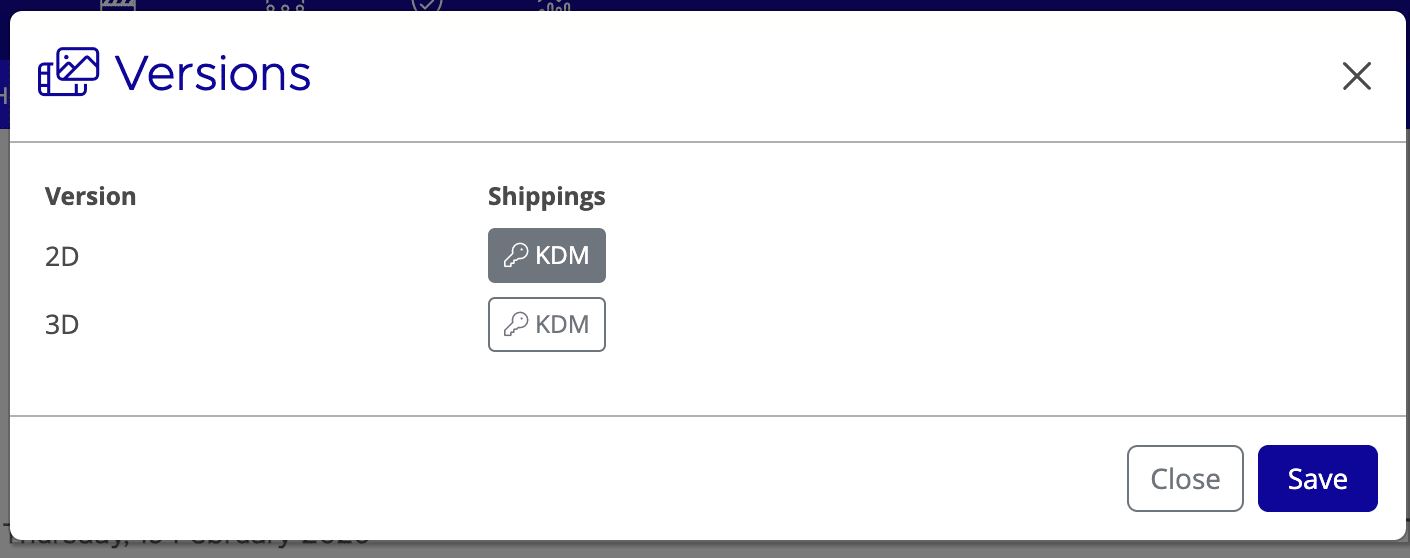
Versions — Opens a dialog where you can manage which versions and KDMs carry over to the next week. Use the KDM checkbox to control whether a KDM extension is ordered for each version.
Changes: Save and Undo
If you've edited terms inline (rental %, showcode, remarks, or day ticks directly in the table rows), use Save to apply those changes or Undo to revert them. These buttons apply to inline edits only — status changes and bulk operations take effect immediately.
Tips and Best Practices
- Process holdovers early in the week — Review performance data on Monday or Tuesday, set statuses by midweek, and confirm holdovers by Wednesday or Thursday. This ensures KDM extensions are ordered in time.
- Use filters to work production by production — Filter by a single production to process all its venues at once, then move to the next film.
- Check the summary bar — Aim to get the To Do count to zero before confirming. Any bookings left as To Do won't be processed.
- Review rental terms — Holdover weeks often have different rental percentages. Check and adjust the Rental % column before confirming.
- Export for records — Use the Export buttons (xlsx, csv, or pdf) to save a snapshot of your holdover decisions before confirming.
Related Articles
If you need assistance with any aspect of Mica, we're here to help:
Contact your Mica system administrator for organisation-specific questions or access issues
OR
Reach out to the Mica support team at support.mica@maccs.com
How did we do?
Removing KDM Versions from Holdover Bookings
