Create a Booking
Learn how to create a cinema booking in Mica using the five-step Add Booking wizard. Covers selecting venues, configuring playweeks, setting rental terms, and confirming bookings.

Bookings are the core of Mica's distribution workflow — they connect a film release to a venue for a set of playweeks with agreed rental terms. This guide walks you through creating bookings using Mica's Add Booking wizard, covering venue selection, play period configuration, rental terms, and DCP/KDM shipping setup.
Table of Contents
- Before You Start
- Method 1: Create Booking from Dashboard
- Method 2: Create Booking from Bookings Menu
- The Booking Wizard (5 Steps)
- Troubleshooting
Before You Start
Before creating a booking, ensure you have:
- Release created: Your film must exist in Mica as a Production → Release with at least one Version attached
- Release date set: The release should have a confirmed release date
- Venue information: Know which venue(s) you want to book
- Play period: Know the start and end dates for the booking
- Terms agreed: Have rental terms agreed with the exhibitor (percentage, MG, etc.)
- DCP/KDM ready (optional): If shipping content, ensure DCP/KDM are linked to the release and Vendor/IDs are set
Method 1: Create Booking from Dashboard
This is the quickest method for creating bookings for films currently in their release window.
The Current Releases section shows films that are within two months before their release date and up to three months after. Hover over a film poster and click the Add Booking button that appears at the bottom. You'll be taken to The Booking Wizard with the Release pre-populated.
Method 2: Create Booking from Bookings Menu
Use this method if your film doesn't appear in Current Releases, or if you prefer to browse all available releases. Navigate to Bookings → Browse and click + Add Booking to open The Booking Wizard.
The Booking Wizard (5 Steps)
Whether you started from the Dashboard or the Bookings menu, you'll now work through the booking wizard. The wizard has five steps:
- Release: Select Production, Release, and Version(s)
- Venue: Select venue(s)
- Period: Set play dates and shipping details
- Terms: Configure rental terms
- Summary: Review and confirm
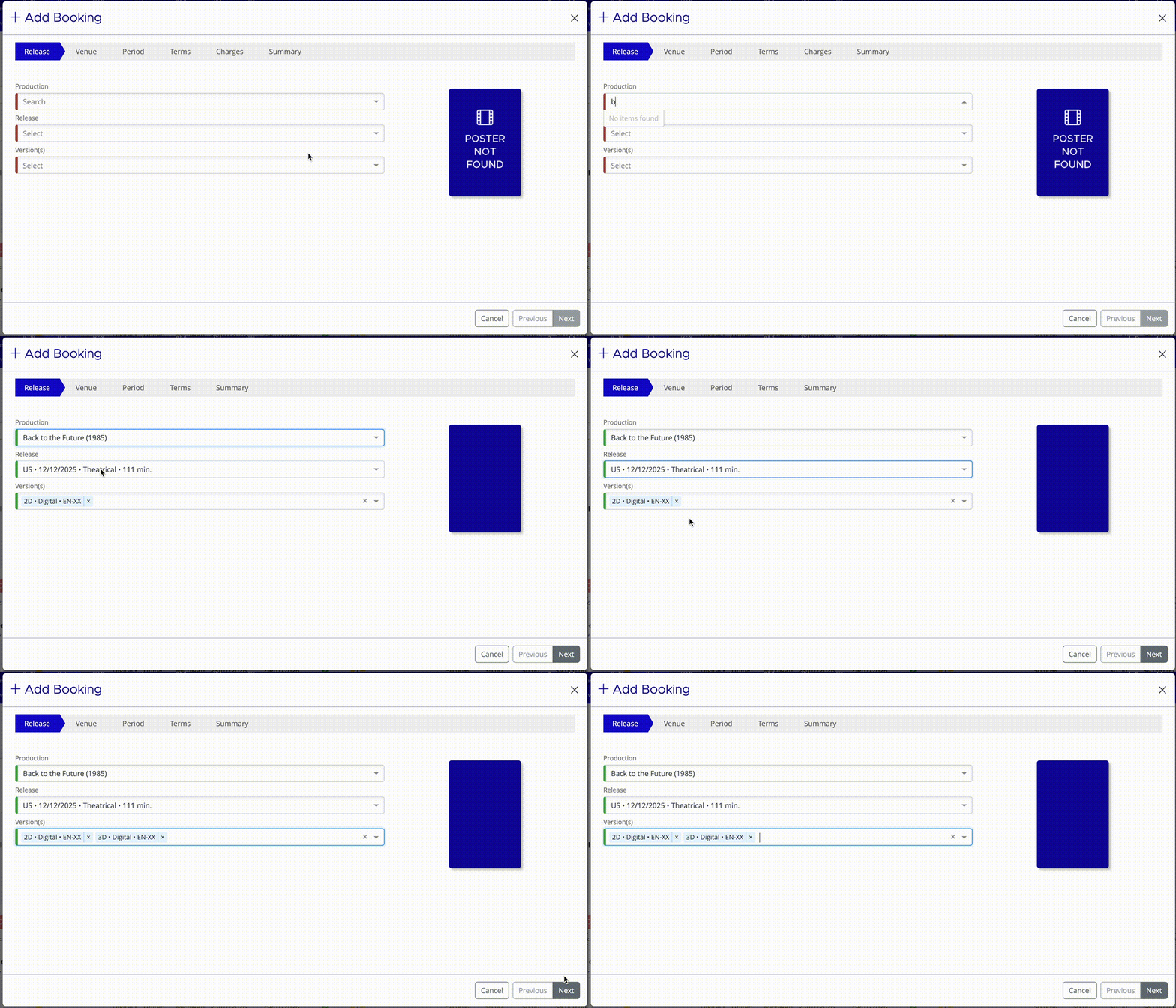
Step 1: Select Production/Release/Version(s)
If you started from the Dashboard, the Release will be pre-populated. Otherwise:
- Click in the Production field and start typing the production name
- Select the correct result from the dropdown
- Select the Release from the dropdown
- Add or remove any versions in the Version(s) box
Step 2: Select Venue(s)
You can add venues to a booking individually, in bulk, or via a venue group.
Single venue: Click in the Name field, start typing the venue name, and select it from the dropdown. The venue's contact information and linked payer will appear automatically.
Multiple venues: Select venues one by one from the dropdown. Each venue appears as a separate row in the booking.
Venue group: Select a venue group (e.g., "Pathé Cinemas") from the dropdown to add all venues in that group at once. Uncheck any venues you don't want to include.
Step 3: Set Play Period
Define when the film will play at the venue(s). Enter a Start Date and End Date that align with your territory's playweek structure (e.g., Thursday–Wednesday in the Netherlands, Friday–Thursday in the UK/US). Mica will automatically calculate the playweeks.
Shipping configuration (optional)
Use the Yes/No toggles to control whether KDM and/or DCP shipping orders are placed. If a Content ID has not yet been entered for the selected Version(s), shipping orders are created with status "Awaiting ID" and sent automatically once the ID is added via the Release configuration.
- Start Date and Time: When the KDM becomes valid (usually a few days before first playday)
- End Date and Time: When the KDM expires (usually some weeks after the last playday)
- Delivery Date: When the DCP should be delivered to the venue
Step 4: Set Rental Terms
Configure how the venue will pay for the booking.
Rental Type | Description | When to Use |
Box Office | Percentage of gross box office revenue | Most common — standard percentage deal |
Admissions | Fixed amount per ticket sold | When charging per admission rather than a share of box office revenue |
Fixed Amount | Flat fee regardless of performance | Flat rental agreements or special screenings |
If you have standard deals with specific venues or circuits, select a term template to auto-populate the terms fields.
Minimum Guarantee: If a Minimum Guarantee (MG) is required, enter the amount and choose its coverage:
- Full period: MG applies to the entire booking
- First week: MG applies only to week 1
- Each week: MG applies to every playweek individually
Conditional Terms: Learn more about using Conditional Terms to set terms that change based on box office performance.
Step 5: Review and Confirm
The summary screen displays all booking details for review before saving:
- Release: Film title, version, and territory
- Venue(s): All selected venues
- Period: Play dates for all playweeks
- Terms: Rental type, percentages, and MG
Choose a booking status before saving:
Status | When to Use | What Happens |
Expected | Booking not yet confirmed with exhibitor |
|
Confirmed | Booking agreed and finalized |
|
Troubleshooting
Issue | Possible Cause | Solution |
Film not showing in Dashboard | Outside current release window (2 months before, 3 months after) | Use Method 2: Bookings → Browse → + Add Booking |
Cannot find venue in dropdown | Venue not in Mica, or spelling incorrect | Try different spelling variations, or check Customers → Venues. Add the venue manually if needed. |
Dates won't save / validation error | Dates don't form complete playweeks for your territory | Ensure start/end days align with your territory's playweek structure (Netherlands: Thu–Wed, UK/US: Fri–Thu). |
No shipping options visible | DCP/KDM not linked to release | Go to Productions → edit the Release and add DCP/KDM content. Or proceed without shipping. |
No payer showing for venue | Payer not connected to venue | Go to Customers → Venues, select the venue, and connect a payer. |
Booking wizard won't advance | Required fields incomplete | Check for red-bordered fields. At minimum: one venue, start/end dates, and rental type are required. |
If you need assistance with any aspect of Mica, we're here to help:
Contact your Mica system administrator for organisation-specific questions or access issues
OR
Reach out to the Mica support team at support.mica@maccs.com
How did we do?
Conditional Terms
Import Returns from Comscore
