Import Returns from Comscore
Import box office return data from Comscore into Mica. Covers downloading Comscore reports, formatting data for import, mapping venues, and reconciling imported figures with existing Flash data.

Mica can import box office return data directly from Comscore (Rentrak) files, saving you the time of entering figures manually. This guide covers the full import process — from selecting your file and verifying the data to fixing common errors and confirming a successful import.
Table of Contents
- What You Need Before Starting
- Step-by-Step Instructions
- Understanding Import Results
- Important Notes
- Troubleshooting Common Issues
What You Need Before Starting
- A Comscore/Rentrak returns file (.dat format)
- Existing bookings in Mica for the films in the file
- The correct territory/country selected for your releases
Step-by-Step Instructions
Step 1: Navigate to the returns import screen
Go to Bookings → Returns and click Import.

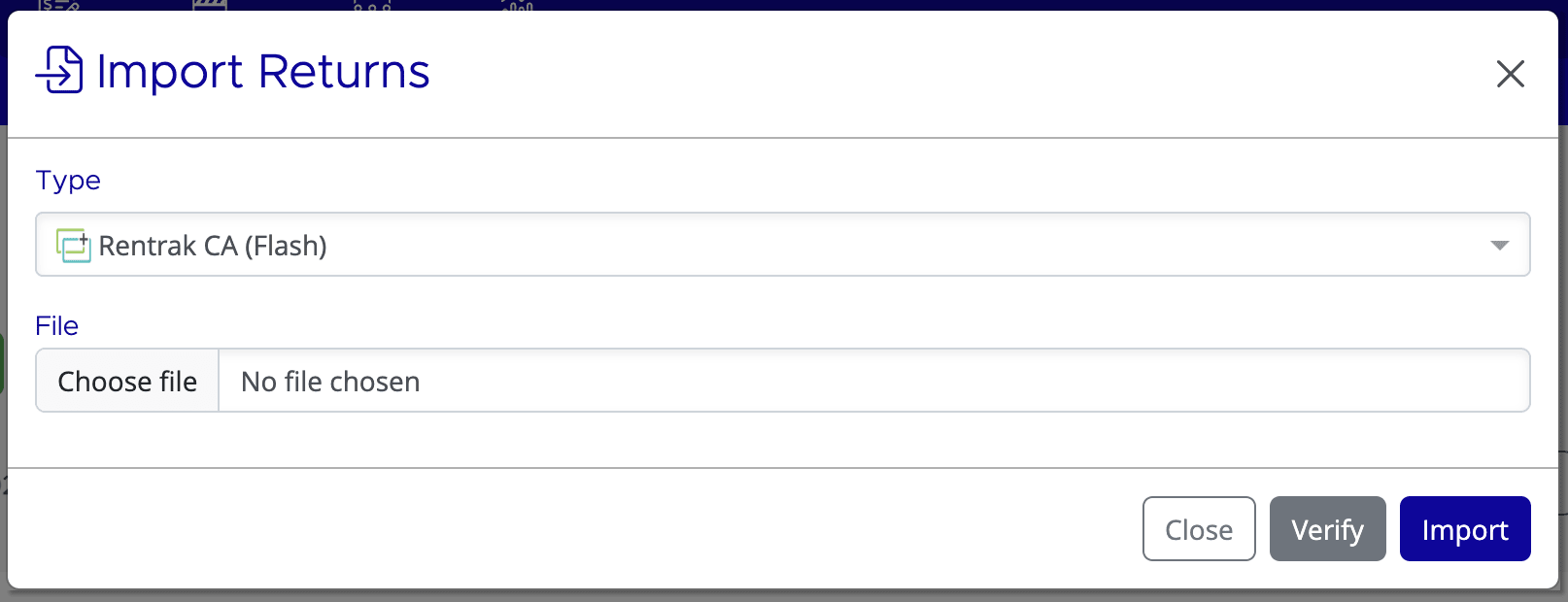
The Import Returns dialog will open.
Step 2: Select import settings
Choose the file format that matches your territory:
- Rentrak US (Flash)
- Rentrak CA (Flash)
- Rentrak International (Flash)
Step 3: Choose your file
Click Choose File and select your .dat file. The filename will appear next to the button (e.g. "ABC123.dat").
Step 4: Verify the import
Before importing, click Verify to check the file for errors. Verification will:
- Check if all film titles in the file have matching references in Mica
- Check if all venues in the file have matching references in Mica
- Identify if bookings exist for the films and venues
- Show any errors that need to be fixed
Step 5: Review verification results
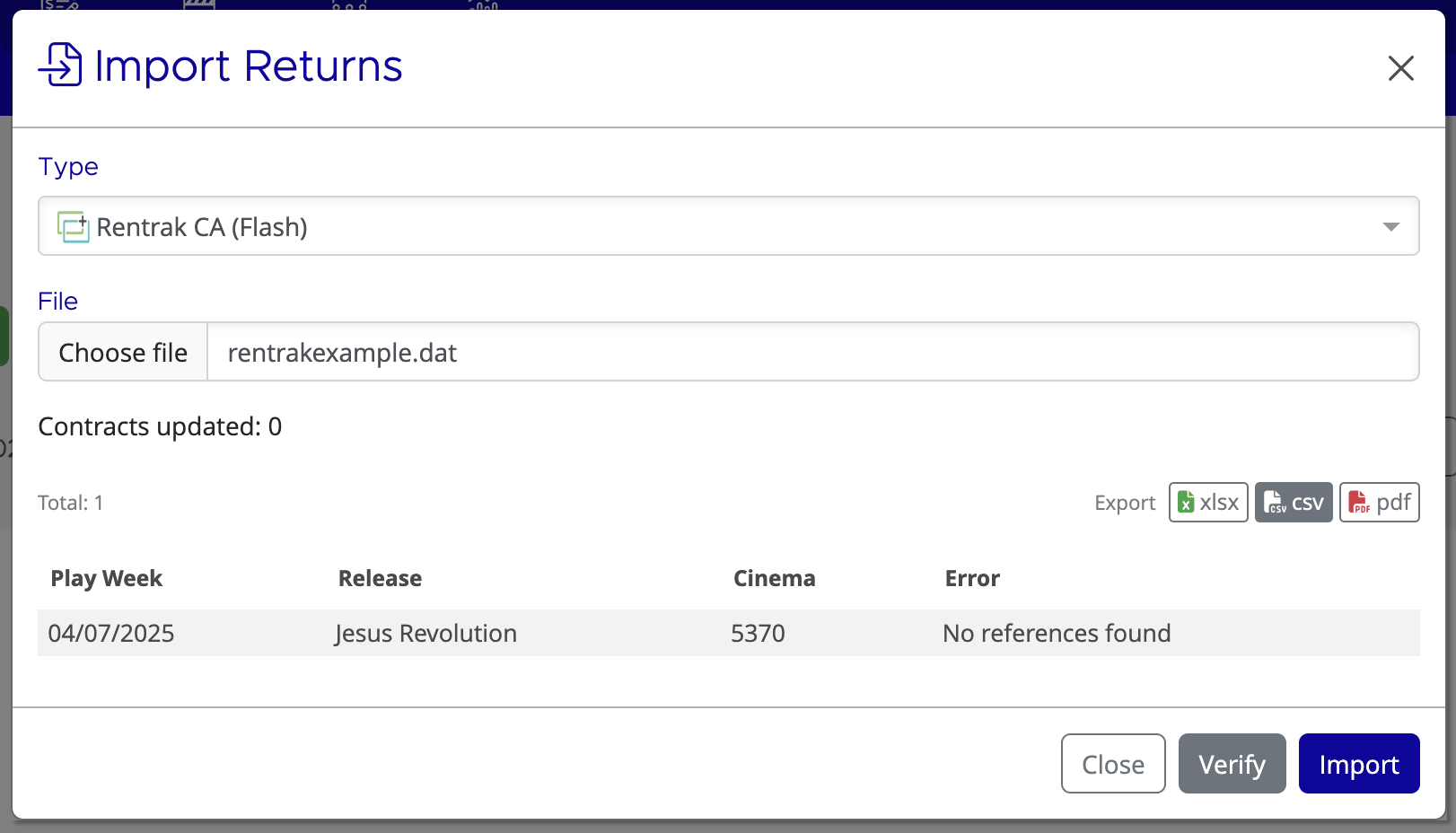
After verification, you'll see a table showing:
Column | Description |
Play Week | The playweek date from the file |
Release | The Rentrak/Comscore ID for the film |
Cinema | The venue name |
Error | Any problems found |
Common errors at this stage:
- "No references found" — The film's Rentrak ID is not linked to any release in Mica
- "Contract not found" — No booking exists for this film/venue/playweek combination
- "Contract not matched" — Booking exists but doesn't match the playweek dates
Step 6: Fix missing references (if needed)
If you see "No references found" errors, add the Rentrak ID to the release. Open the release in Productions, go to the references section, and add the Rentrak ID. Once linked, the release will be recognised on the next verification.
Step 7: Re-verify and import
After fixing references or creating missing bookings, re-run verification. Previously "No references found" errors should now show either "Contract not found" (if you still need to create bookings) or be ready to import.
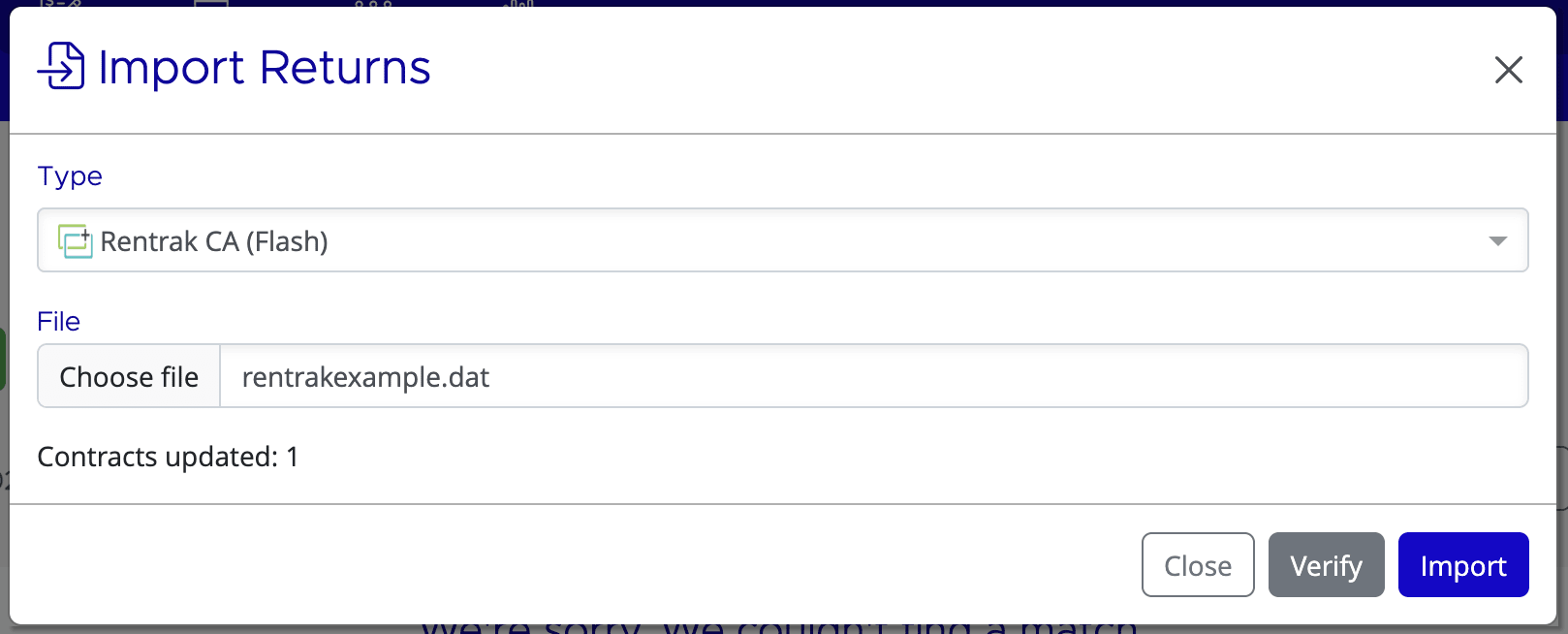
Once verification shows no "No references found" errors, click Import. The "Contracts updated" counter shows how many bookings received figures from the file.
Step 8: Confirm the import was successful
After importing, you'll see a confirmation showing how many contracts were updated.
Verify the import by checking:
- Flash columns are populated with amounts in the Returns screen
- Booking detail screens show the daily breakdown
- No error notifications appear on the Dashboard
Understanding Import Results
Contracts updated counter
"Contracts updated: X" tells you how many bookings received figures from the file. For example, if the file contains 20 cinema/playweek combinations and you have bookings for 15 of them, the result will be "Contracts updated: 15". The remaining five will show "Contract not found" errors.
Error messages explained
Error | Meaning | Solution |
No references found | The Rentrak ID in the file isn't linked to any release in Mica | Add the Rentrak ID as a reference to the release |
Contract not found | No booking exists for this film/venue/playweek | Create a booking for that film/venue/playweek |
Contract not matched | Booking exists but dates don't match the file's playweek | Check booking dates match the file's playweek structure |
Important Notes
You can process files multiple times
Re-importing is safe and useful in several situations: after fixing missing references, after creating new bookings, or when the file is re-sent with corrections. Mica only updates bookings that match — it won't create duplicate figure entries.
File format requirements
Rentrak/Comscore files must be in the correct format for the selected type, match the territory/country selected, contain valid Rentrak IDs that match your releases, and use standard playweek dates for your territory.
Flash vs. BOR imports
Flash (Estimates) | BOR (Box Office Returns) |
|
|
Troubleshooting Common Issues
Issue | Likely Cause | Solution |
All entries show "No references found" | None of your releases have Rentrak IDs linked | Export the verification results, match each Rentrak ID to the correct release, add all IDs as references, then re-import. |
"Contract not found" for films you booked | Playweek dates, venue names, or territory don't match; or booking isn't Confirmed | Check exact playweek dates and venue names match. Ensure bookings are in Confirmed status. |
Import button is greyed out | Verification hasn't been run, or no file selected | Select a file and click Verify first. The Import button activates after verification completes. |
Contracts updated counter stays at 0 | No bookings match the file's data | Fix all "No references found" errors first, then create bookings for remaining items. Ensure all bookings are Confirmed. |
If you need assistance with any aspect of Mica, we're here to help:
Contact your Mica system administrator for organisation-specific questions or access issues
OR
Reach out to the Mica support team at support.mica@maccs.com
How did we do?
Create a Booking
Managing Venue Groups and Circuits
