Understanding Returns
Understand how box office returns work in Mica. Covers Flash vs BOR figures, automatic feeds from Numero and MaccsBox, Comscore imports, manual entry, the Returns page toggles, Flash-to-BOR conversion, and gross vs net calculations.

Returns are the box office figures that flow back from venues into Mica after a playweek. Before you can invoice a booking, you need return figures in place. This article explains the two types of return — Flash and BOR — how they reach your bookings, and where you can view and edit them in Mica.
Table of Contents
- Flash vs BOR
- How Returns Reach Your Bookings
- Where to View and Edit Returns
- The Returns Page
- Entering Returns Manually
- Converting Flash to BOR
- Gross vs Net
Flash vs BOR
Mica tracks two sets of box office figures for every playweek:
Flash | BOR (Box Office Return) | |
What it is | Preliminary estimate — early, often unreconciled figures | Confirmed return — the final, reconciled figures from the exhibitor |
When it arrives | Typically within days of each screening | After the playweek ends, once the exhibitor has reconciled |
Typical source | Numero (automatic), Comscore import, or manual entry | MaccsBox (automatic), Comscore import, or manual entry |
Used for invoicing? | No | Yes — invoicing is always based on BOR Net |
How Returns Reach Your Bookings
Figures can arrive in Mica through several channels. Where possible, Mica loads them automatically — but manual entry and file imports are available for venues or territories where automated feeds aren't in place.
Automatic feeds
Mica is connected to two industry data providers that deliver figures directly to your bookings:
- Numero — provides Flash figures. Where a venue reports to Numero, Flash data is loaded automatically and matched to your bookings.
- MaccsBox — provides BOR figures. Where a venue reports to MaccsBox, reconciled BOR data is loaded automatically and matched to your bookings.
File imports
For venues or territories that aren't covered by Numero or MaccsBox, you can import figures from a data file. Mica supports Comscore (Rentrak) file imports for both Flash and BOR data. The import process verifies the file against your existing bookings before applying the figures.
For full details on importing from Comscore, see Import Returns from Comscore.
Manual entry
You can also key in figures by hand — useful for one-off corrections, venues that don't report electronically, or territories where no automated feed is available. Manual entry is covered in detail below.
Where to View and Edit Returns
You can view and edit return figures in three places in Mica. Each serves a different purpose:
Location | Best for | Flash to BOR? |
Returns page | Reviewing and editing figures across multiple bookings for a given week. Bulk operations. | Yes — in bulk across selected bookings |
Bookings tab | Checking Flash and BOR totals at a glance alongside other booking details | Yes — per individual playweek |
Booking detail page | Editing figures for a single booking in full detail — daily breakdown, per-screen data | Yes — per individual playweek |
The Returns Page
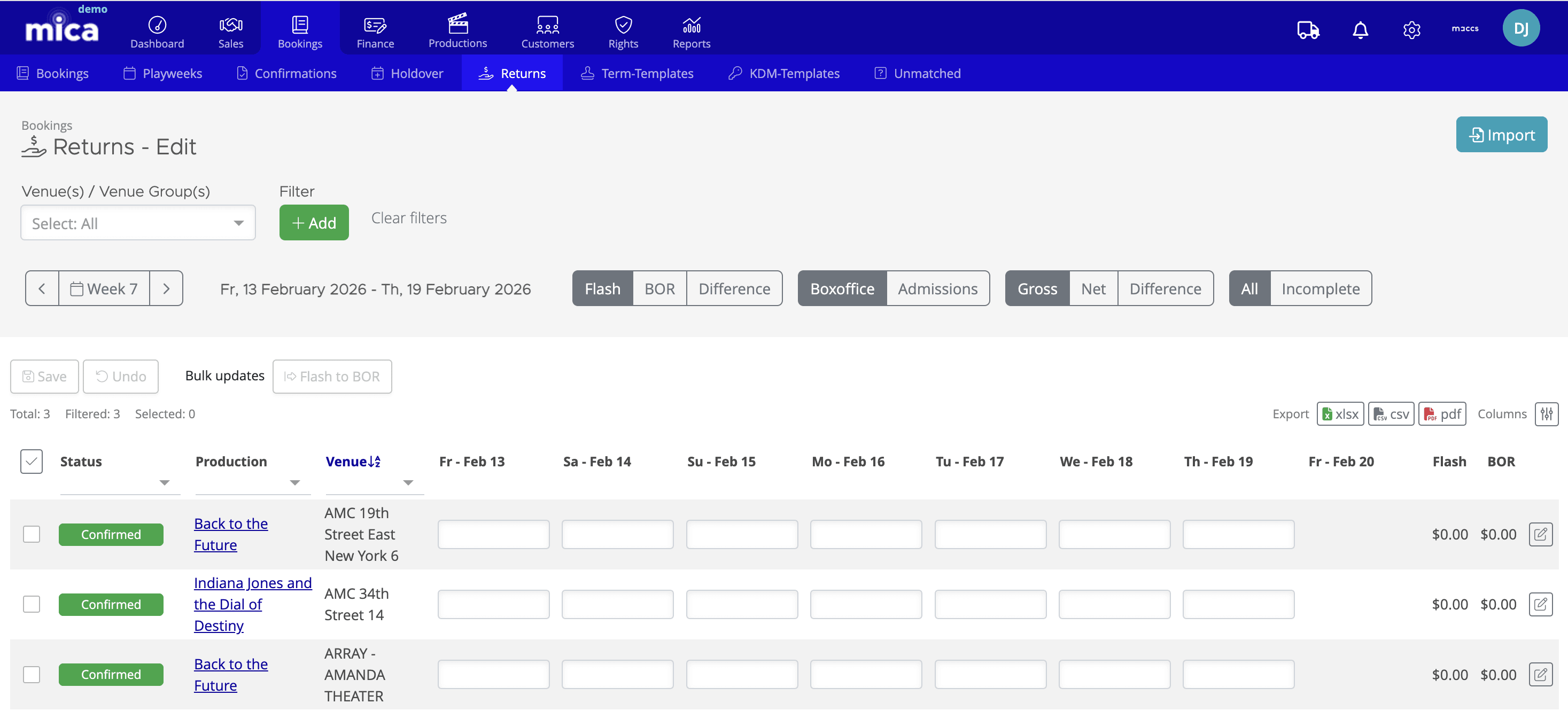
The Returns page is the main place for working with box office figures across all your bookings for a given week. Navigate to Bookings → Returns to open it.
Toggle controls
The Returns page has three sets of toggle buttons that control what you see in the grid. Understanding these is important, because they determine which figures are displayed and editable:
Toggle group | Options | What it controls |
Figure type | Flash · BOR · Difference | Whether you're viewing Flash estimates, confirmed BOR figures, or the difference between them |
Value type | Boxoffice · Admissions | Whether the daily columns show monetary amounts or ticket counts |
Amount type | Gross · Net · Difference | Whether you see gross takings, net (after tax), or the difference between them |
Completeness | All · Incomplete | Whether to show all bookings or only those still missing figures |
The grid shows one row per booking, with daily columns for the selected playweek. Flash and BOR totals appear on the right of each row. Click the edit icon on any row to open the full Edit Returns dialog for that booking.
Week navigation
Use the week selector at the top left to move between playweeks. You can also filter by venue or venue group using the dropdown.
Entering Returns Manually
Quick entry on the Returns page
For simple cases — entering a single gross or net figure per day — you can type directly into the daily cells on the Returns page grid. Make sure the correct toggles are selected (Flash or BOR, Gross or Net), then click into a cell, type the value, and press Tab to move to the next day. Click Save when you're done.
Detailed entry via Edit Returns
For more granular data — per-screen breakdowns, ticket types, or admissions counts — click the edit icon at the end of any booking row to open the Edit Returns dialog.
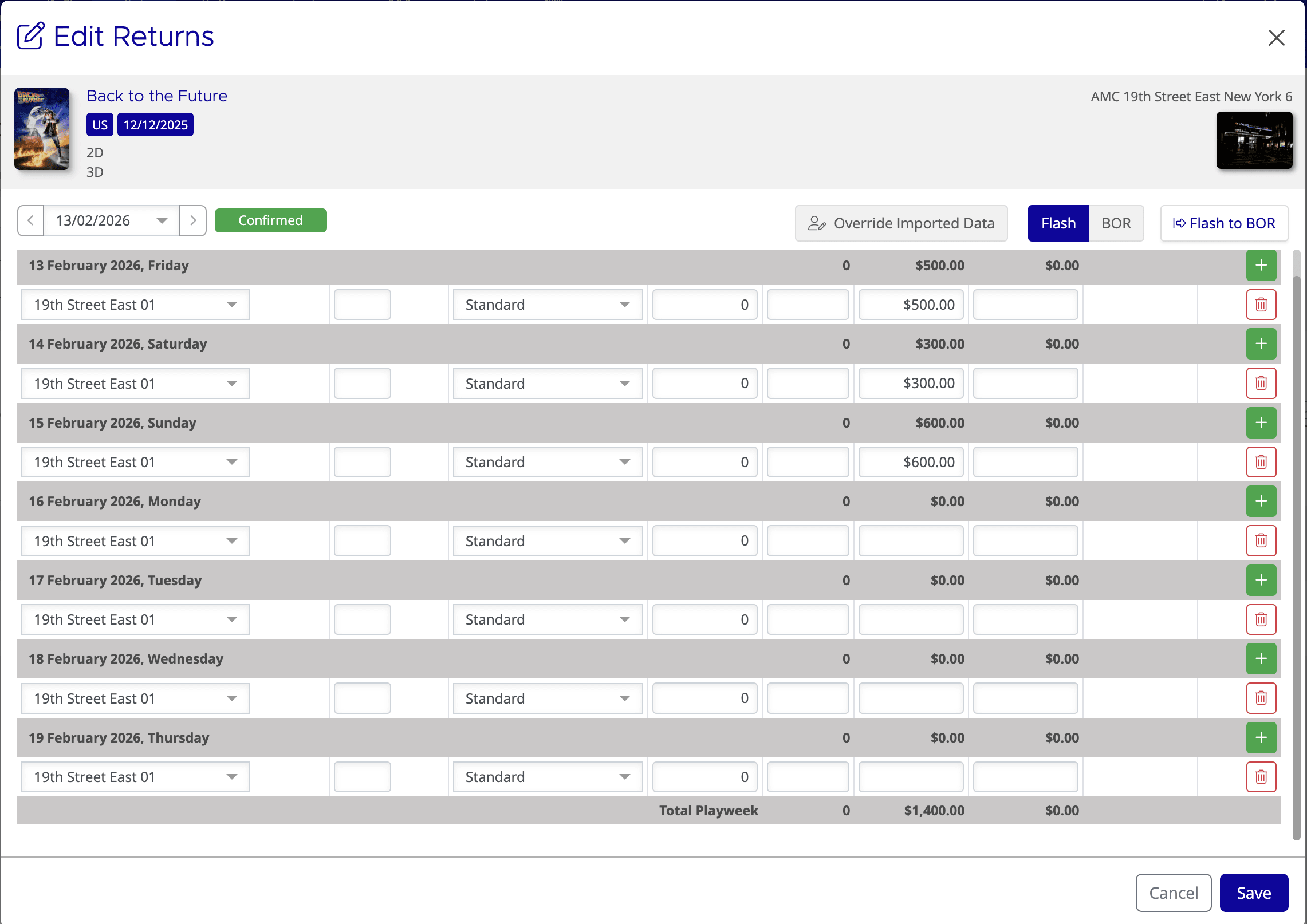
The Edit Returns dialog shows a daily breakdown for the selected playweek. For each day you can enter:
- Screen — select the screen from a dropdown (populated from the venue's screen configuration)
- Show — the show number or time
- Ticket Type — Standard, Premium, etc.
- Price — ticket price
- Admissions — number of tickets sold
- Box Office — gross box office amount
- Box Office Net — net amount after tax
Use the Flash / BOR toggle at the top of the dialog to switch between entering Flash and BOR figures. Click the + button on any day to add an additional line (for example, a second screen or a different ticket type).
Override imported data
If figures have been loaded automatically from Numero or MaccsBox but you need to correct them, click Override Imported Data at the top of the Edit Returns dialog. This unlocks the fields so you can amend the values. Without clicking this button, automatically imported figures are read-only.
Converting Flash to BOR
In many cases, Flash figures are a close enough approximation that you can copy them straight across to BOR rather than waiting for or entering a separate set of confirmed figures. Mica provides a Flash to BOR conversion to handle this.
In bulk (Returns page)
On the Returns page, select one or more bookings using the checkboxes, then click Flash to BOR in the bulk actions bar. This copies the Flash Gross and Flash Net values into the BOR Gross and BOR Net fields for all selected bookings in the displayed week.
Per playweek (Edit Returns dialog or booking detail)
In the Edit Returns dialog or on the booking detail page, click the Flash to BOR button to copy Flash figures to BOR for that single playweek.
Gross vs Net
Each return figure in Mica has both a Gross and a Net value:
- Gross — the total box office amount collected by the venue, including any applicable taxes
- Net — the box office amount after tax has been deducted
The distinction matters because invoicing in Mica is always based on BOR Net. Rental percentages, minimum guarantees, and all financial calculations use the Net figure. If you only have Gross figures available, you'll need to enter or calculate the Net amount before you can invoice.
If you need assistance with any aspect of Mica, we're here to help:
Contact your Mica system administrator for organisation-specific questions or access issues
OR
Reach out to the Mica support team at support.mica@maccs.com
How did we do?
Understanding Booking Statuses
When to Change Playweek Start Day in Mica
