When to Change Playweek Start Day in Mica
Understand when to change the playweek start day versus using the start date setting in Mica. Covers preview weeks, territory-specific playweeks, and step-by-step instructions for both methods.

Mica gives you two ways to control when playweeks start — and choosing the wrong one is a common source of booking errors. This guide explains the difference between the Start Day dropdown (which reshapes every playweek in the booking) and the Start Date field (which adds preview days before the first full playweek), and when to use each.
Table of Contents
- Understanding Playweeks in Mica
- The Key Difference: Start Day vs. Start Date
- When to Change the Start Day Dropdown
- When to Adjust the Start Date Field
- Understanding Preview Weeks
- Step-by-Step Instructions
- Common Scenarios
- Troubleshooting
Understanding Playweeks in Mica
A playweek is the standard seven-day period during which box office figures are collected and reported. Different territories use different playweek structures:
- Netherlands: Thursday–Wednesday
- United Kingdom: Friday–Thursday
- United States: Friday–Thursday
- France: Wednesday–Tuesday
Mica sets the playweek structure automatically based on your territory. Most of the time you won't need to change it — but previews, holidays, and special releases sometimes require adjustments.
The Key Difference: Start Day vs. Start Date
Mica's playweek settings include two controls that sound similar but do very different things. You'll find both on the Period tab when creating or editing a booking:
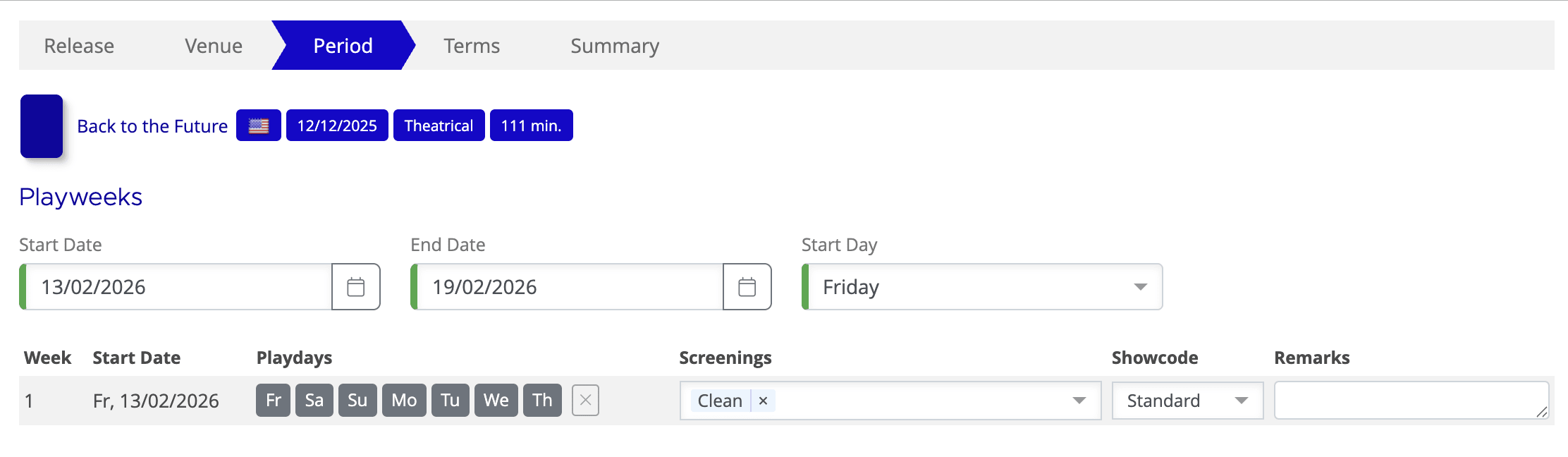
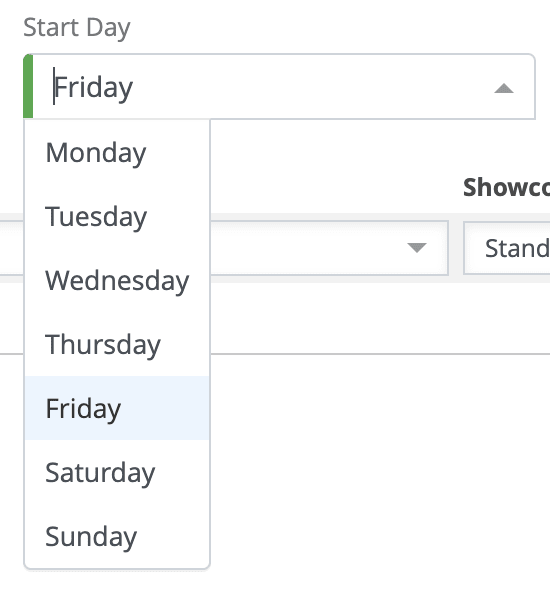
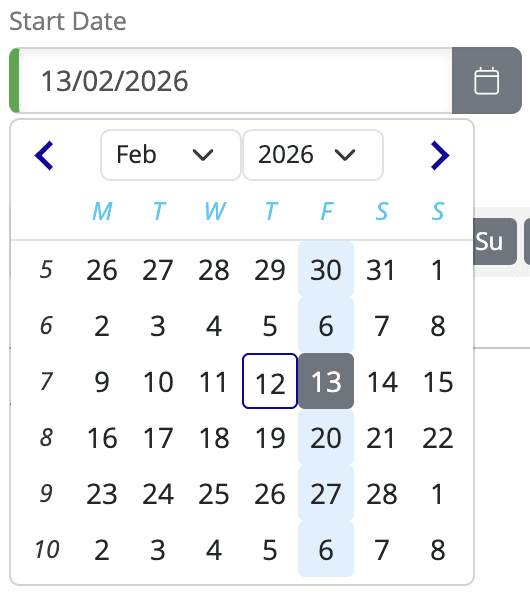
A simple rule: if you only need extra days at the beginning, adjust the Start Date field. If the entire run needs different playweek days, change the Start Day dropdown.
Start Day dropdown | Start Date field | |
What it controls | Which day of the week every playweek begins on | The calendar date when play begins |
Scope | All playweeks + all holdovers | Only the first week (Week 0) |
Playweek structure | Changes for the entire booking | Stays the same |
Typical use | Territory runs on a non-standard playweek, or a release requires it for its full run | Preview screenings, gala events, partial-week openings |
Example | Changing from Friday–Thursday to Thursday–Wednesday for the entire booking | Adding a Thursday preview before a standard Friday–Thursday run |
When to Change the Start Day Dropdown
Change the Start Day dropdown when:
Scenario 1: Mica defaults are incorrect
Your territory consistently uses a different playweek start day that hasn't been properly configured in Mica. If this is the case, also email support.mica@maccs.com and we will correct the default.
Scenario 2: Permanent circuit agreement
You have a permanent agreement with a circuit or group of venues to book on a different playweek cycle.
Scenario 3: Full-run holiday variation
A specific release — typically around a holiday like Christmas — needs a non-standard playweek structure for its entire run, not just the opening.
When to Adjust the Start Date Field
Adjust the Start Date field when:
Scenario 1: Preview / pre-show screenings
You want preview screenings on a Thursday before the standard Friday–Thursday playweek begins.
- Leave the Start Day dropdown as Friday (unchanged)
- Set the Start Date field to Thursday
- Thursday becomes a preview day in Week 0
- Week 1 and all subsequent weeks run Friday–Thursday as normal
Scenario 2: Special event screenings
You're running a one-time gala, premiere, or special event screening outside the normal playweek structure.
Scenario 3: Limited partial-week openings
The film opens at select venues for part of a week before the wide release.
Understanding Preview Weeks
When you set the Start Date field earlier than the standard playweek start day, the extra days form a preview week (Week 0). These days appear before Week 1 and are handled differently from regular playweeks:
- Preview weeks appear as "PV" on customer statements
- Most days in the preview week will be unticked — only the specific preview days are active
- Box office figures are still collected and reported for active preview days
- Preview weeks do not count toward regular playweek numbering (Week 1, Week 2, etc.)
MaccsBox integration
When you untick days in the playweek chooser, MaccsBox will not expect box office figures for those days. This prevents false alerts about missing data and ensures the booking status doesn't show as incomplete.
Step-by-Step Instructions
A standard booking with no adjustments looks like this — all playweeks run Friday–Thursday with every day ticked:
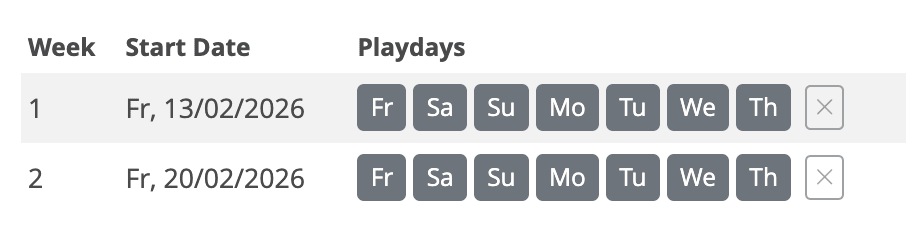
Method 1: Adjusting the Start Date field (most common)
Within the Playweeks setting, either via Plans or during the Add Booking workflow:
- Leave the Start Day dropdown unchanged (e.g. Friday)
- Set the Start Date field to your first preview day (e.g. Thursday 1 January)
- Set the End Date to the last day of the first full playweek (e.g. Thursday 8 January)
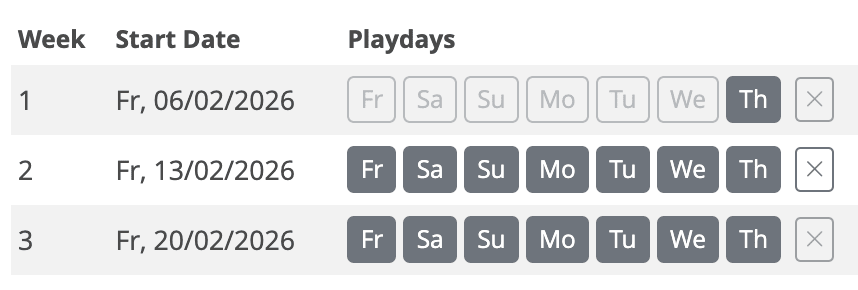
- The preview days appear in Week 0 — remaining days in that week show light grey (unticked)
The result: Week 1 has only the preview day (Thursday) ticked, while Weeks 2 and 3 run the full Friday–Thursday cycle as normal:
Method 2: Changing the Start Day dropdown (rare)
Within the Playweeks setting, either via Plans or during the Add Booking workflow:
- Change the Start Day dropdown to the required day (e.g. Thursday)
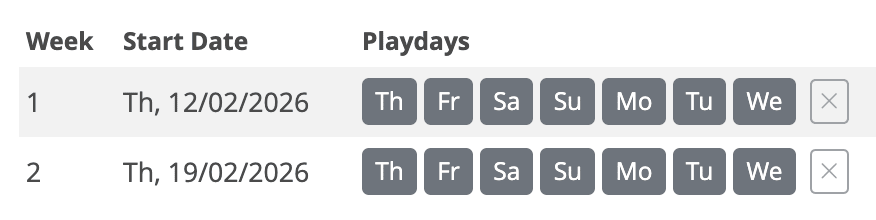
- All playweeks — including any future holdovers — will now run on the new cycle (e.g. Thursday–Wednesday)
The result: every playweek now starts on Thursday and runs Thursday–Wednesday:
Common Scenarios
Scenario A: Thursday preview before Friday release
A film releases on Friday, but you want Thursday evening preview screenings.
Setting | What to do |
Start Day dropdown | Keep as Friday (don't change) |
Start Date field | Set to Thursday |
Week 0 (preview) | Thursday only (tick Thursday, leave other days unticked) |
Week 1 onward | Friday–Thursday (all days ticked) |
Scenario B: Permanent Thursday–Wednesday territory
Your entire territory operates on Thursday–Wednesday playweeks, not the Mica default.
Setting | What to do |
Start Day dropdown | Change to Thursday |
Start Date field | Set to your first play date as normal |
Week 1 onward | Thursday–Wednesday (all days ticked) |
All holdovers | Thursday–Wednesday |
Scenario C: Wednesday gala + Friday release
A Wednesday gala premiere, followed by a regular Friday wide release.
Setting | What to do |
Start Day dropdown | Keep as Friday (don't change) |
Start Date field | Set to Wednesday |
Week 0 (preview) | Wednesday only (tick Wednesday, leave other days unticked) |
Week 1 onward | Friday–Thursday (all days ticked) |
Scenario D: Different playweek for a specific circuit
One circuit runs on a different playweek from the rest of your territory.
- Keep the Start Day dropdown as the territory default for most bookings
- When creating bookings for this circuit, change the Start Day dropdown to match their cycle
- Consider creating a custom venue group for this circuit with the correct playweek settings
Troubleshooting
Issue | Likely Cause | Solution |
MaccsBox expects figures for days that should be excluded | Unwanted days not unticked in the playweek chooser | Check that you unticked unwanted days, the booking is Confirmed (not Expected), and preview days are before the release date. |
Figures not aligning with invoicing periods | The Start Day dropdown doesn't match the territory's reporting period | Verify the Start Day dropdown matches your territory's standard. Contact support.mica@maccs.com if the issue persists. |
Holdover weeks running on the wrong days | The Start Day dropdown was changed when you only needed to adjust the Start Date field | You may need to cancel the booking and recreate it. For preview days, always use the Start Date field and leave the Start Day dropdown unchanged. |
Preview weeks not showing as "PV" | Preview dates are not before the release date | Verify the preview dates fall before the release date in Productions. Confirm the booking has preview days in Week 0. |
Best Practices
- Default to the Start Date field: When in doubt, adjust the Start Date rather than changing the Start Day dropdown — it's safer and doesn't affect the rest of the booking
- Document your decisions: If you change the Start Day dropdown, note why and for which territory or circuit
- Consistency within territories: Keep all venues in a territory on the same playweek structure
- Test with one booking first: If changing playweek structures, test with a single booking before applying broadly
- Verify MaccsBox: After creating bookings with non-standard playweeks, check that MaccsBox is receiving the expected data
Related Articles
If you need assistance with any aspect of Mica, we're here to help:
Contact your Mica system administrator for organisation-specific questions or access issues
OR
Reach out to the Mica support team at support.mica@maccs.com
How did we do?
Understanding Returns
Working with KDM Templates
