Allocating Payments to Invoices
Allocate approved payments to invoices in Mica. Covers the invoice-based allocation workflow, partial allocations and overpayments, the Allocations tab for cross-account views, and how to correct allocation errors.

Once a payment has been recorded in Mica, the next step is to allocate it against one or more invoices. Allocation links the received funds to specific invoices, updating their paid status and reducing the payment's available balance. This article covers the invoice-based allocation workflow used by most distributors outside the USA and Canada.
Table of Contents
- Before You Start
- How Invoice Allocation Works
- Allocating from Payment Details
- Partial Allocations and Overpayments
- The Allocations Tab
- Correcting an Allocation
Before You Start
Before allocating a payment, ensure:
- The payment has been recorded on the Payments page (see Recording Payments)
- The payment status is Approved (has available funds). Open payments must be approved before they can be allocated
- Invoices have been created for the relevant playweeks — only existing invoices can be selected during allocation
How Invoice Allocation Works
When a payment is recorded, it starts as Open (entered but not yet approved). Once approved, the payment moves to Approved and its funds become available for allocation. During allocation, you select one or more invoices and specify how much of the payment to apply to each. You can allocate the full payment to a single invoice, split it across several, or allocate only part of it — leaving the rest available for later.
As funds are allocated, invoices move to Paid (if fully covered) or Partially Paid (if only part of the invoice amount is matched). When the payment's entire available balance is distributed, its status changes to Allocated.
Allocating from Payment Details
- Navigate to Finance → Payments
- Click the payment row to open the Payment Details page
- Click Add Allocation
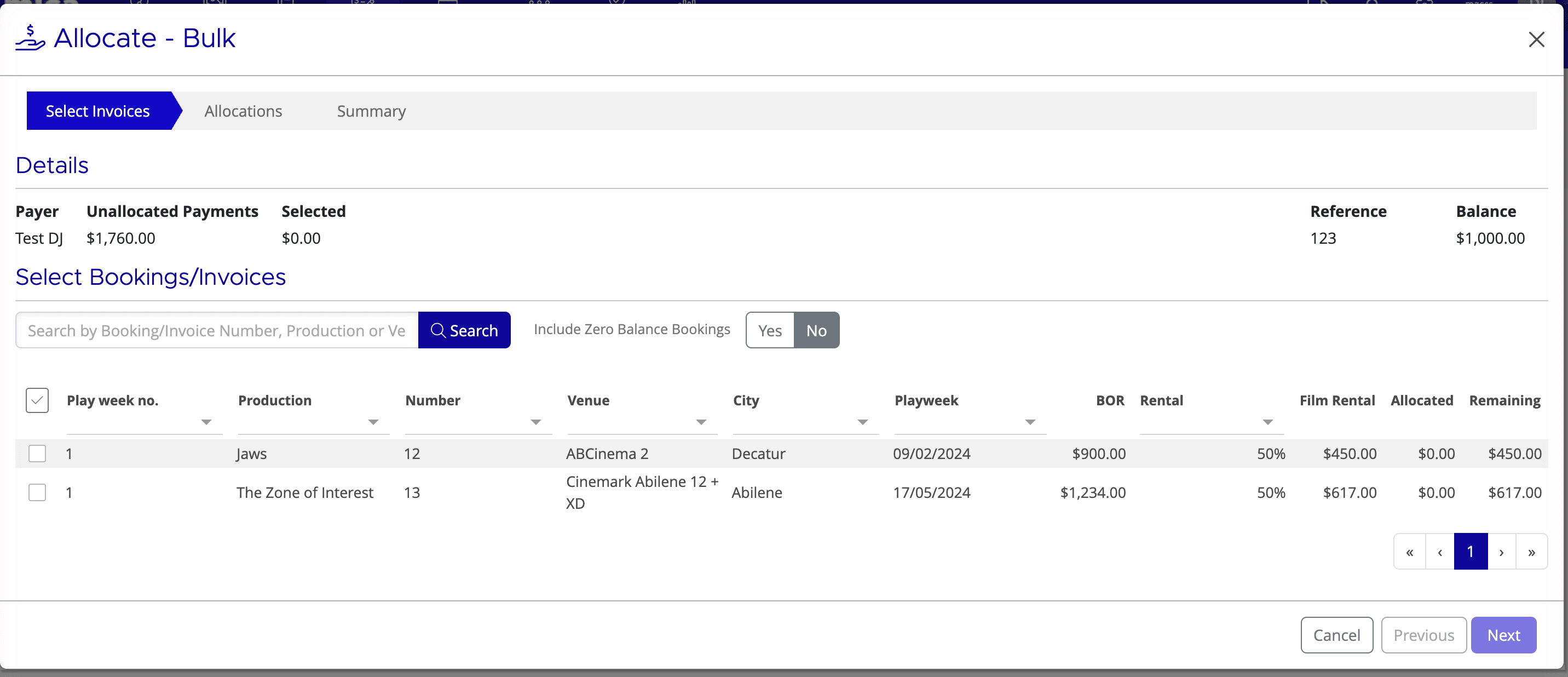
- The allocation modal displays a list of open invoices for the payment's payer. Use the search and filter options to find the invoices you need
- Select one or more invoices by ticking the checkbox next to each
- For each selected invoice, enter the amount to allocate in the Amount field — this defaults to the invoice's outstanding balance or the payment's available amount, whichever is lower
- Review the totals at the bottom of the modal: the sum of all allocation amounts cannot exceed the payment's available balance
- Click Approve to confirm the allocation
After approval, the allocations appear on the Payment Details page, and the Available balance decreases accordingly.
Partial Allocations and Overpayments
Partial allocation: If the payment doesn't cover the full invoice amount, enter only the amount received. The invoice status changes to Partially Paid, and the remaining balance stays due. You can allocate additional payments to the same invoice later.
Overpayment: If the payer sends more than the invoice total, allocate the invoice amount and leave the surplus on the payment as Available. The surplus can then be allocated to other invoices or eventually written off.
The Allocations Tab
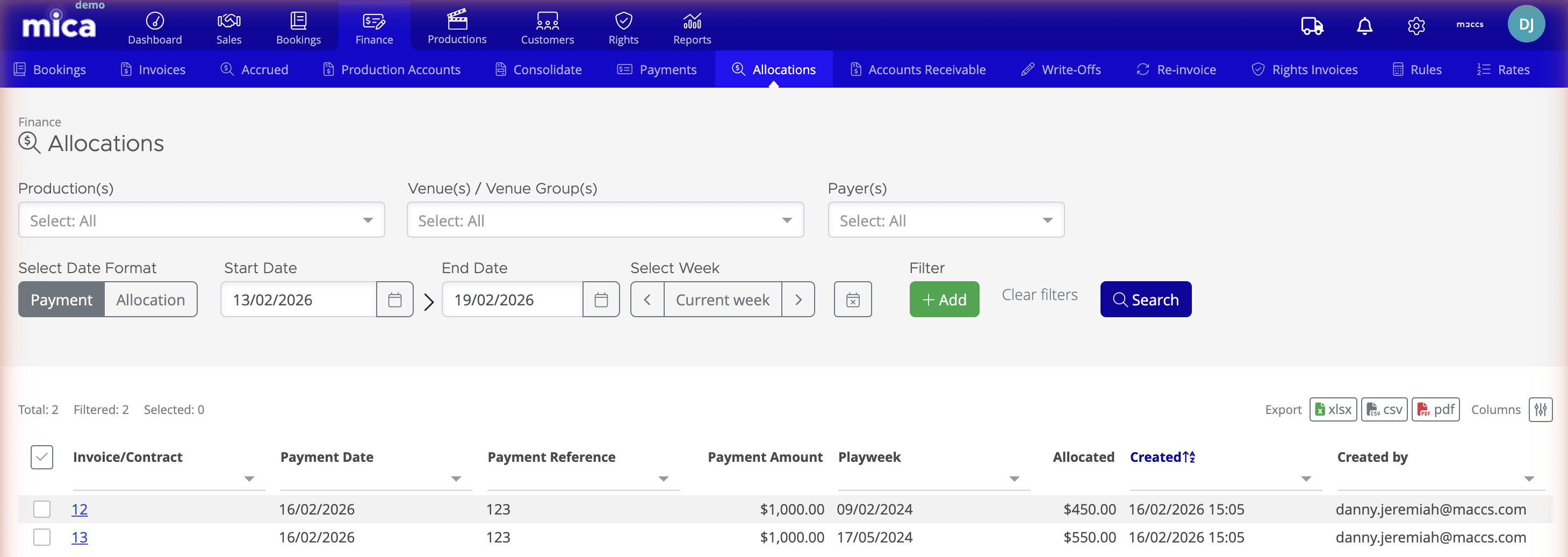
The Finance → Allocations tab provides a consolidated view of all allocations across your account — regardless of which payment or invoice they belong to.
Use the filters available to refine your view: Production(s), Venue(s) / Venue Group(s), Payer(s), date format toggle (Payment date vs Allocation date), and date range picker or week picker. Additional filters are available via the Add button: Country, Contact(s), and Booker(s).
The table displays the following columns: Production, Venue, Payer, Playweek, Type (Invoice or Playweek), Amount, Payment Reference, Timestamp, and Applied By. Click any row to navigate to the Payment Details page for that payment. You can export the allocation data as xlsx, csv, or pdf.
Correcting an Allocation
If an allocation was applied to the wrong invoice or for the wrong amount, you can reverse it using the Corrections feature. Open the Payment Details page, select the allocation to correct, and follow the correction workflow. The corrected amount returns to the payment's Available balance, and the invoice's outstanding balance is restored. You can then create a new allocation with the correct details.
If you need assistance with any aspect of Mica, we're here to help:
Contact your Mica system administrator for organisation-specific questions or access issues
OR
Reach out to the Mica support team at support.mica@maccs.com
How did we do?
Allocating Payments to Bookings
Creating a Payer
