Allocating Payments to Bookings
Allocate payments directly to bookings in Mica's USA/Canada domestic model. Covers the Finance > Bookings page, allocation workflow, playweek detail panels, corrections, customer statements, and eVoucher payment imports.

In the USA and Canada, Mica uses an open-ended booking model where payments are allocated directly against playweeks rather than invoices. This means cash can be applied to bookings as soon as the payment is approved — even before box office data arrives. This article explains the domestic allocation workflow, the Finance → Bookings page, and customer statements.
Table of Contents
- How Domestic Allocations Differ
- The Finance > Bookings Page
- Booking Statuses on This Page
- Allocating a Payment to a Booking
- Viewing Allocations on a Playweek
- Correcting an Allocation
- Customer Statements
- eVoucher Payments
How Domestic Allocations Differ
Most distributors outside the USA and Canada create invoices from playweeks and then allocate payments against those invoices. In the domestic model, this invoice step is skipped entirely. Payments are allocated directly to individual playweeks on a booking.
Because there are no invoices, the amount owed for each playweek (called Amount Due) is calculated dynamically based on the latest box office data, rental terms, and any applicable charges. As new returns data arrives or terms are adjusted, Amount Due recalculates automatically.
Instead of invoices, domestic distributors issue customer statements to exhibitors — periodic summaries showing all playweeks, their rental amounts, allocations, and outstanding balances.
The Finance > Bookings Page
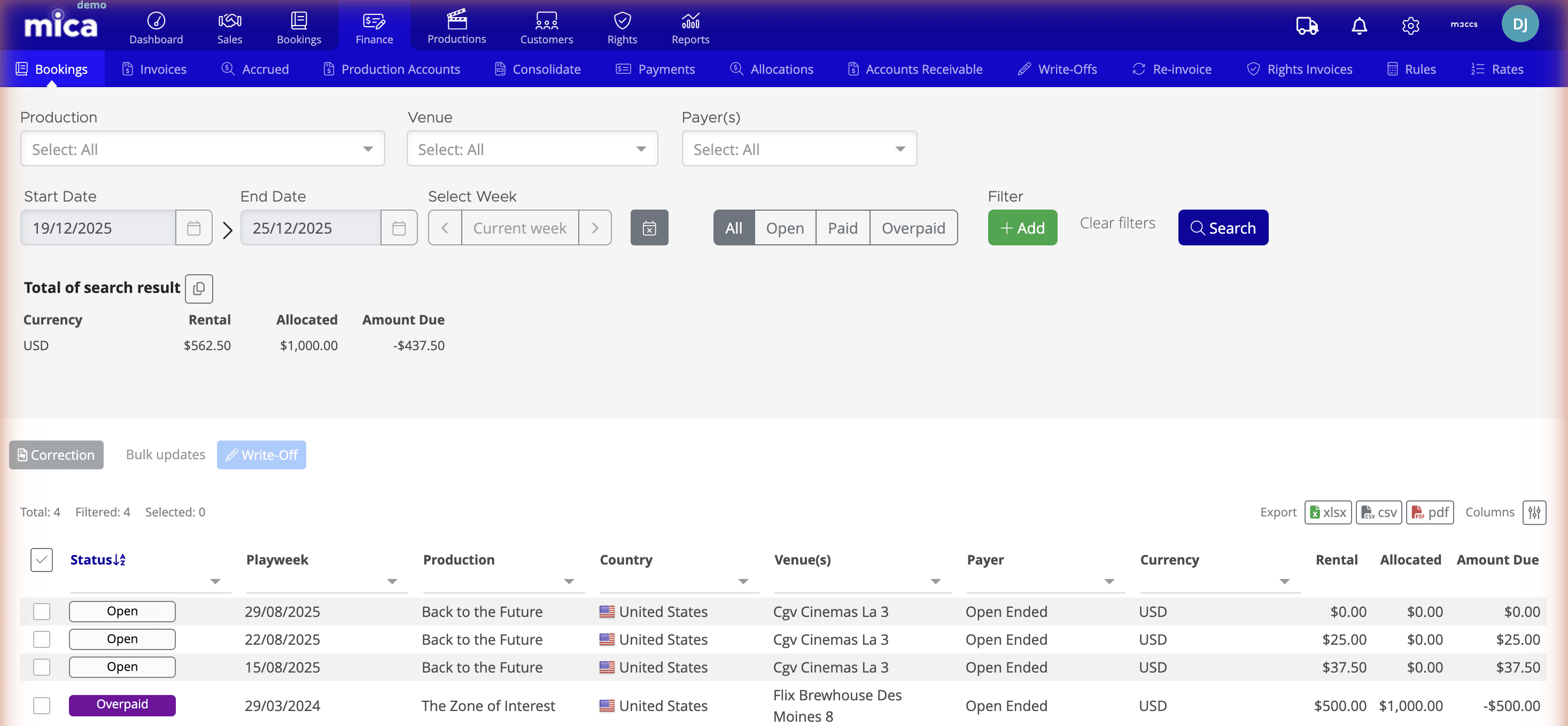
Navigate to Finance → Bookings to view all playweeks available for payment allocation.
Use the filters at the top of the page to narrow results: Production, Venue, Payer(s), date range, and week picker. Status radio buttons let you view All playweeks, only Open (outstanding balance), Paid (fully allocated), or Overpaid (over-allocated) playweeks.
The table displays the following columns: Status, Playweek, Production, Country, Venue(s), Payer, Currency, Rental, Allocated, and Amount Due. A summary bar at the top shows totals for Rental, Allocated, and Amount Due across all filtered results. Additional column filters are available via the Columns button.
The action bar includes buttons for Correction (to reverse allocations) and Write-Off (to forgive debt). You can also export results as xlsx, csv, or pdf.
Booking Statuses on This Page
Each playweek on the Finance → Bookings page carries one of three statuses based on its payment balance.
Amount Due is calculated as: net box office × film rental percentage, plus any applicable tax and charges. It recalculates whenever factors change — for example when BOR figures replace Flash estimates, or when rental terms are adjusted.
Allocating a Payment to a Booking
- Navigate to Finance → Payments and click the payment to open the Payment Details page.
- Click Add Allocation.
- The allocation modal displays bookings for the payment's payer. Use the filters to find the bookings you need.
- Select one or more bookings by ticking the checkbox.
- Enter the amount to allocate for each selected booking.
- Click Approve to confirm.
After approval, the allocations appear on the Payment Details page. The booking's Allocated column on Finance → Bookings updates and the Amount Due recalculates.
Viewing Allocations on a Playweek
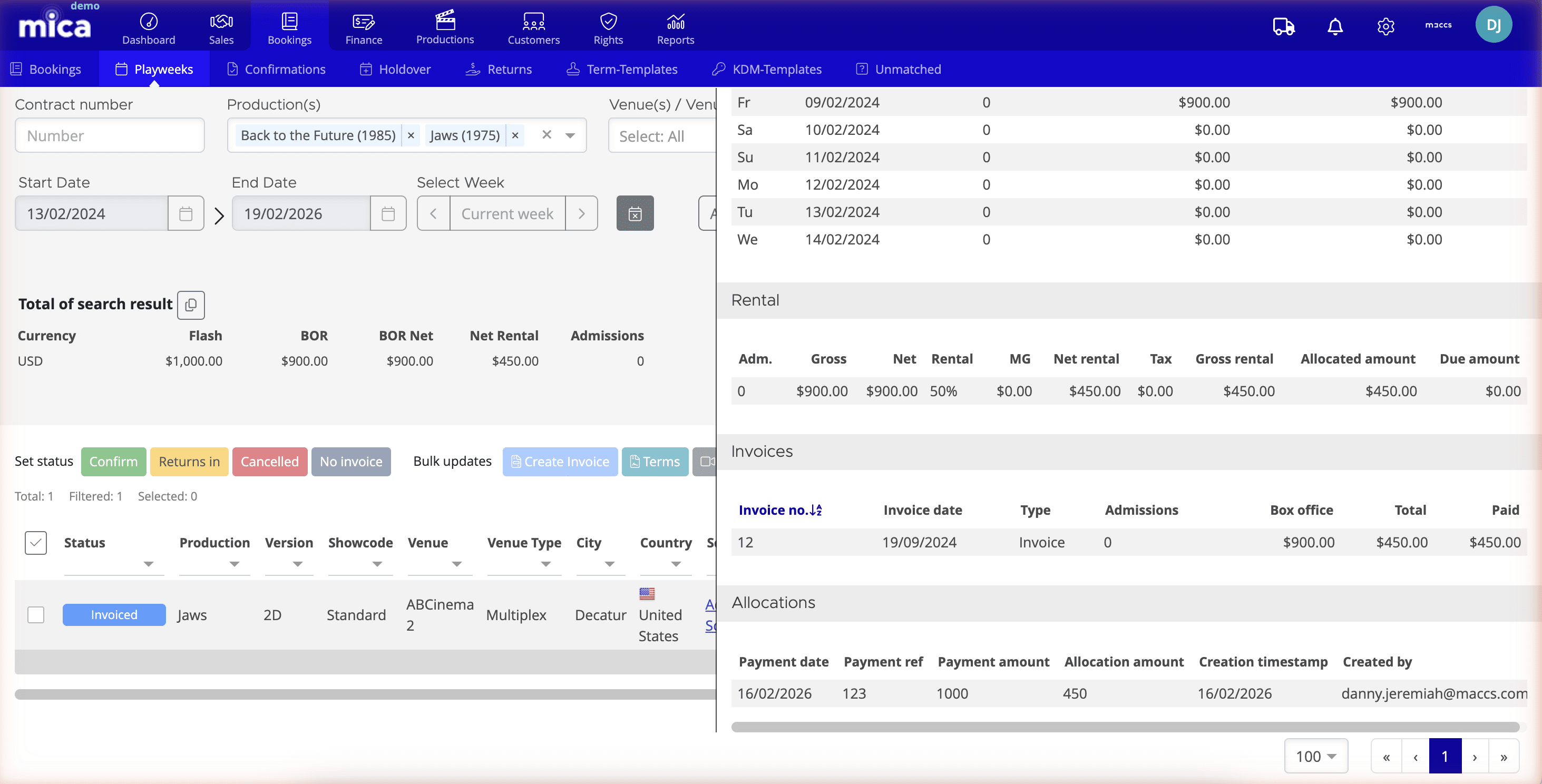
From Bookings → Playweeks, click any playweek row to open the off-canvas detail panel.
The panel includes several sections: Terms (rental terms for that playweek), Returns (daily gross, net, and admissions with totals), Rental summary, and Allocations. The Allocations section lists every allocation applied to that playweek: Payment Date, Payment Reference, Payment Amount, Allocation Amount, Created timestamp, and Created By. Clicking an allocation row navigates to the Payment Details page for that payment.
Correcting an Allocation
If an allocation was applied to the wrong booking or for the wrong amount, select the booking(s) on the Finance → Bookings page and click Correction in the action bar. The correction workflow lets you reverse the allocation, returning the funds to the payment's Available balance. You can then create a new allocation with the correct details.
Customer Statements
Instead of invoices, domestic distributors send customer statements to exhibitors. A statement shows the current state of all playweeks and payments for a given payer, providing a complete picture of what's owed and what's been paid.
Statements include: Venue, City, Production, Playweek, B.O. Net, Type, Terms, Net Rental, Paid, and Amount Due for each playweek. At the bottom, a summary shows Rental Due (total outstanding), Unallocated Payments (any payment amounts not yet allocated), and Total Due (the net balance).
Generate customer statements from the Payer Details page (for a single payer) or via Finance → Accounts Receivable (for bulk download).
eVoucher Payments
Some exhibitor chains in the USA and Canada — including Cineplex, Cinemark, Marcus, and Harkins — send electronic voucher (eVoucher) payment files. These can be imported into Mica via the Import Voucher button on the Payments page, creating payments and allocating them automatically.
If you need assistance with any aspect of Mica, we're here to help:
Contact your Mica system administrator for organisation-specific questions or access issues
OR
Reach out to the Mica support team at support.mica@maccs.com
How did we do?
Adding External References
Allocating Payments to Invoices
