Adding Custom Invoice Remarks
Add custom remarks to invoices in Mica, including purchase order numbers, payment instructions, and billing references. Covers both single invoice and bulk invoicing workflows.

When creating an invoice in Mica, you can add custom remarks that appear on the invoice PDF. This is useful for including purchase order numbers, payment instructions, or billing references that the exhibitor's accounts team needs to process payment.
Table of Contents
- Adding remarks to a single invoice
- Adding remarks during bulk invoicing
- Common use cases
- Troubleshooting
Adding Remarks to a Single Invoice
When invoicing from a booking's detail page:
- Open the booking and scroll down to the Playweeks section
- Find a playweek with Returns In status and click the Create button next to it
- The Create Invoice dialog opens, showing the financial breakdown (box office, rental, VAT, total)
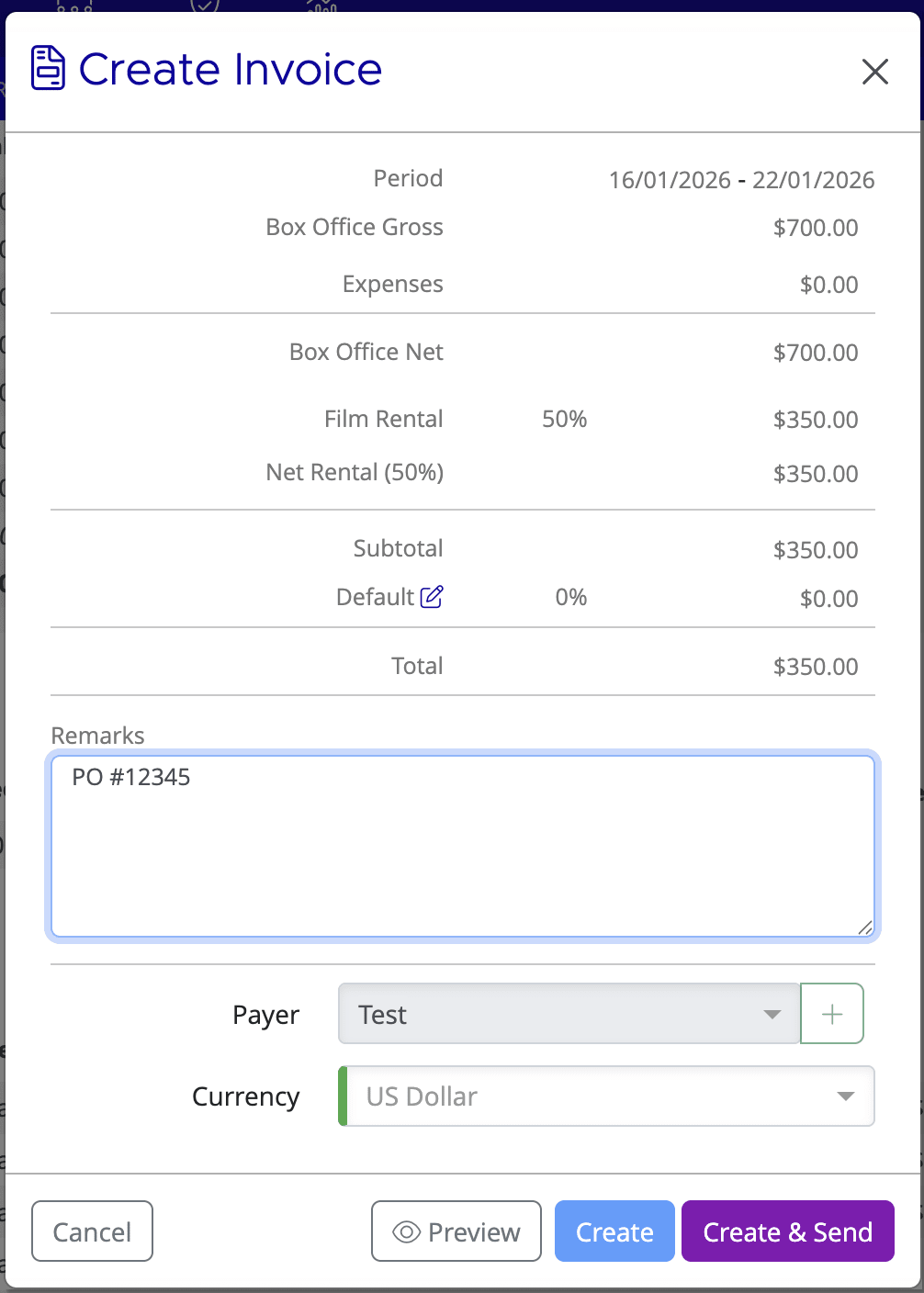
- Enter your text in the Remarks field — this text will appear on the invoice PDF
- Optionally change the Payer if needed
- Click Preview to check how the remark looks on the PDF
- Click Create to save the invoice, or Create & Send to save and immediately email it to the payer
Adding Remarks During Bulk Invoicing
When invoicing multiple playweeks at once from the Bookings → Playweeks page:
- Filter by Status: Returns In and select the playweeks you want to invoice
- Click the Create Invoice button in the toolbar
- The bulk invoicing screen shows all selected playweeks with their BOR figures, terms, and payer
- Add remarks to individual bookings in the Remarks column — scroll horizontally if the column is off-screen
- Click Create Invoice or Create Invoice & Send
Common Use Cases
- Purchase order numbers — many exhibitors require their PO number on invoices for their accounting system (e.g.
PO: 2026-01-12345) - Payment instructions — specific payment terms or bank details not in the standard template (e.g.
Payment due: Net 30 days from invoice date) - Billing references — internal reference numbers or cost centre codes
- Special agreements — notes about negotiated terms or exceptions (e.g.
Extended terms as per agreement dated 15/01/2026)
Troubleshooting
Problem |
Solution |
Need to change a remark after invoice creation |
Invoices can't be edited after creation. Credit the invoice to revert the playweek to Returns In, then re-invoice with the correct remark. |
Remarks column not visible in bulk invoicing |
The bulk invoicing table has many columns. Scroll horizontally to find the Remarks column, or maximise your browser window. |
Remark text cut off on the PDF |
Keep remarks to one or two lines. Use abbreviations where appropriate (e.g. "PO" instead of "Purchase Order"). Preview the invoice before creating it. |
Related Articles
- How to Create an Invoice — full invoicing workflow including bulk invoicing
- Creating a Payer — setting up payers for invoice delivery
- Understanding Booking Statuses — when playweeks are ready to invoice
If you need assistance with any aspect of Mica, we're here to help:
Contact your Mica system administrator for organisation-specific questions or access issues
OR
Reach out to the Mica support team at support.mica@maccs.com
How did we do?
Adding External References
