Creating a Payer
Create payer records in Mica and connect them to venues for automated invoice routing. Covers single venue, circuit, and third-party payer types, required fields, and venue linking.

Payers are the entities — usually businesses — that receive invoices for venue bookings in Mica. Every venue needs a linked payer so Mica knows where to send invoices. Whether it's a single cinema paying for itself, a head office paying for an entire circuit, or a third-party billing company, you set them all up the same way.
Table of Contents
- Where to Find Payers
- Creating a Payer
- The Payer Detail Page
- Connecting Venues to a Payer
- Payer Status
- Troubleshooting
Where to Find Payers
Navigate to Customers → Payers in the top menu. The Payers page lists all payers in your account with columns for status, name, address, city, country, phone, email, and VAT number.
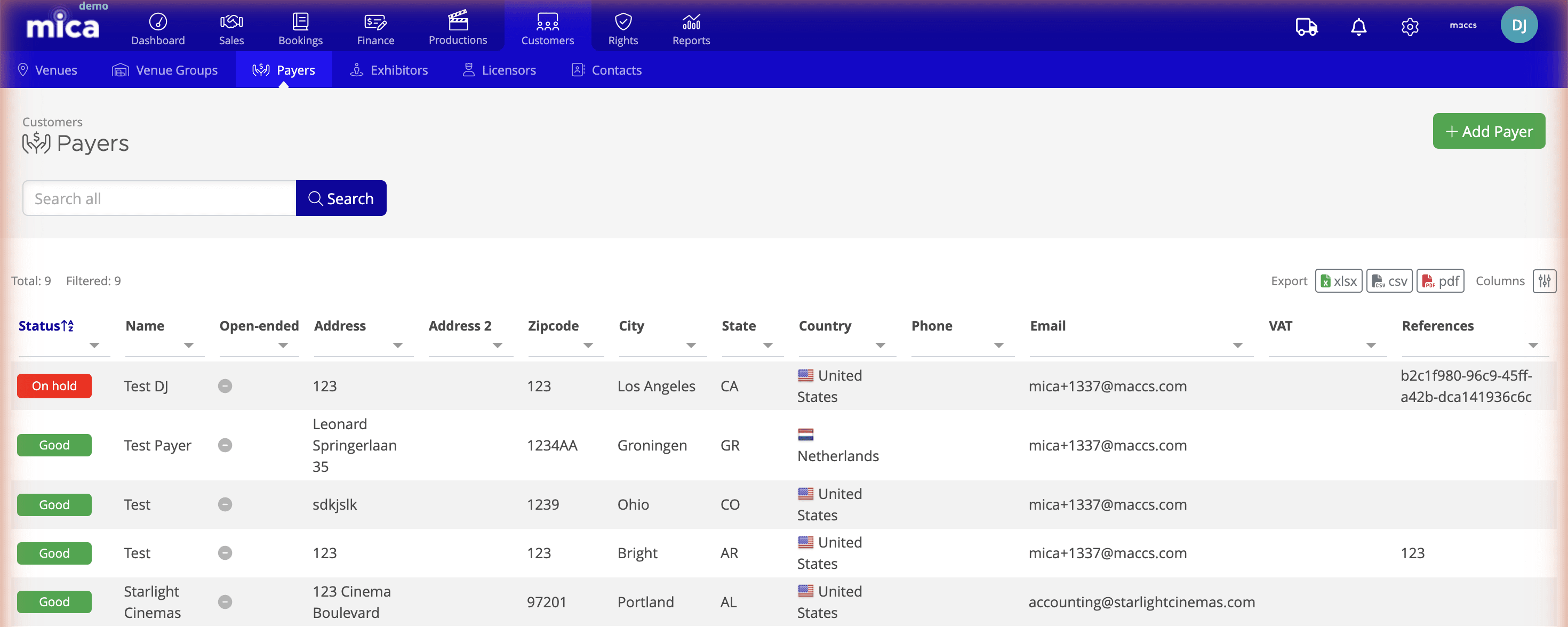
Use the search bar to find a specific payer, or click + Add to create a new one. You can also export the list as xlsx, csv, or pdf.
Creating a Payer
Click + Add on the Payers page to open the Add Payer dialog.
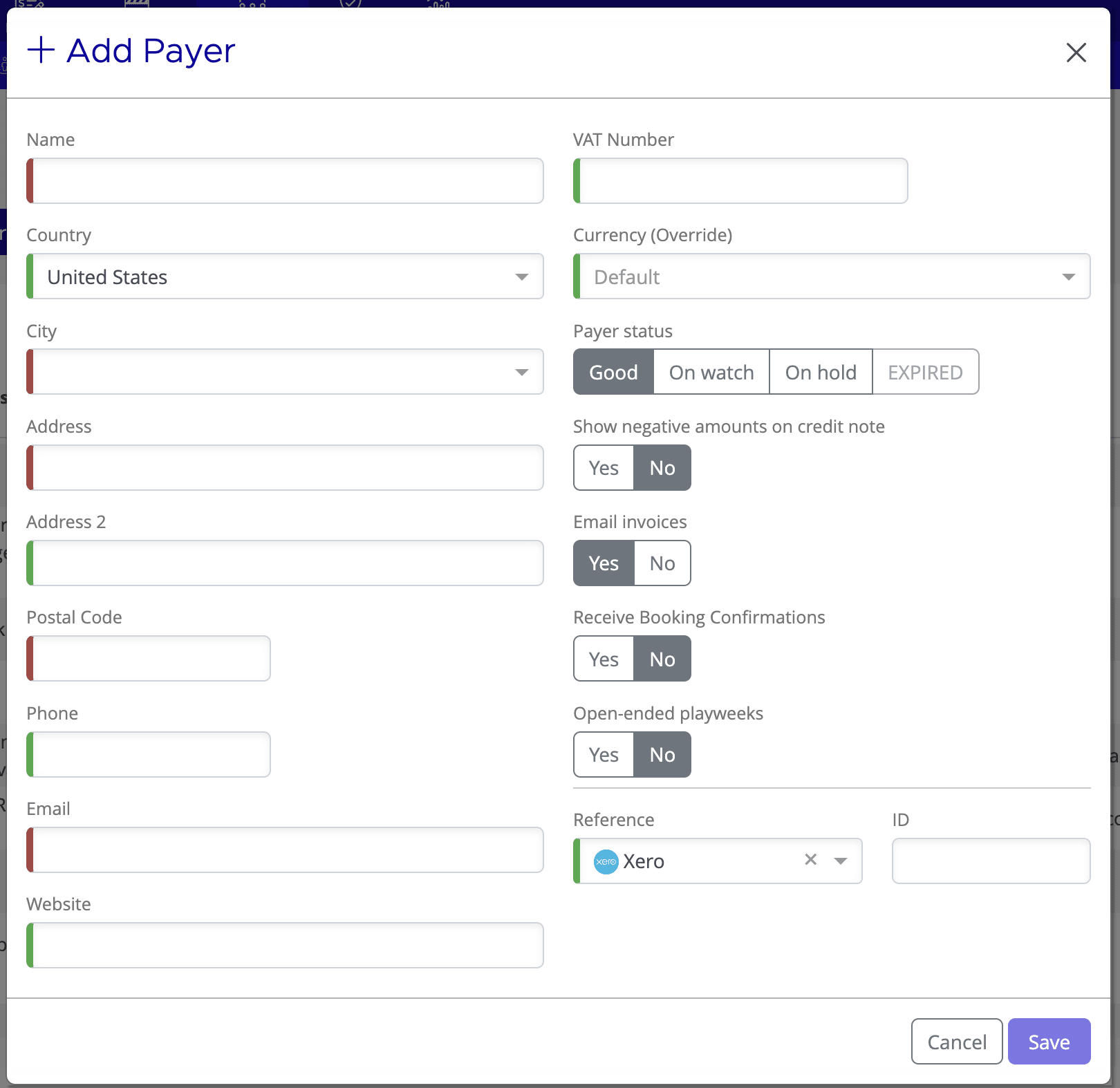
Contact and address fields
Field | Description |
Name | The official company or organisation name (required) |
Country | The payer's country (required) |
City | City — select from the dropdown after choosing a country |
Address | Street address for invoicing |
Address 2 | Additional address line (suite, floor, building, etc.) |
Postal Code | ZIP or postal code |
Phone | Contact phone number |
Primary email address — required if Email Invoices is set to Yes | |
Website | Company website URL |
Invoicing, status, and settings fields
Field | Description |
VAT Number | Tax identification number — required for VAT invoicing in most territories |
Currency (Override) | Override the default invoice currency for this payer. Leave as Default unless the payer wishes to receive invoices in a different currency |
Show negative amounts on credit note | Controls whether credit notes display amounts as negative values. Default is No |
Email Invoices | When set to Yes, Mica can email invoices directly to this payer. Requires a valid email address |
Status | Set the payer's initial status: Good (default), On Watch, or On Hold. See Payer Status for details on how each status affects bookings and invoicing |
Receive Booking Confirmations | When set to Yes, the payer receives email confirmations when bookings are created or updated at their connected venues. Default is No |
Open-ended playweeks | USA Only - when set to Yes, bookings for this payer can have open-ended bookings with the ability to apply cash without invoicing. Default is No |
Reference | Link this payer to an external system (e.g. Xero, SAP) by selecting a provider and entering the external ID |
Click Save to create the payer. You're taken to the payer detail page where you can connect venues, add references, and manage contacts.
The Payer Detail Page
After creating a payer (or clicking an existing one from the list), you see the payer detail page. This is your central view for managing everything about a payer.
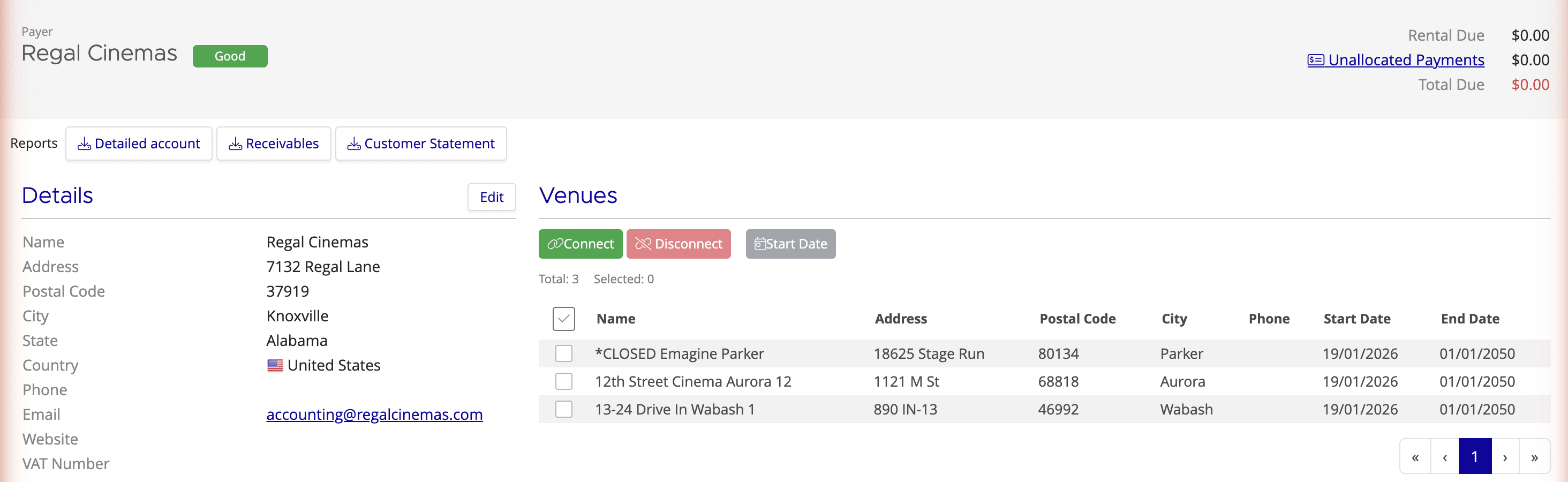
The page is organised into several sections:
- Details — The payer's contact and billing information, with an Edit button to update fields
- References — External system links (e.g. Xero, SAP). Click + Add to add a new reference
- Contacts — People linked to this payer, with configurable permissions for booking and invoice access
- Venues — All venues connected to this payer. Use Connect and Disconnect to manage the list
- Invoices (Open) — Current unpaid invoices for this payer, with invoice number, dates, production, venue, and amounts
The top-right corner shows the payer's financial summary: open invoices count, unallocated payments, and outstanding balance. Use the tabs — Reports, Transactions, Receivables, and Customer Statement — for deeper financial views.
Connecting Venues to a Payer
After creating a payer, connect one or more venues so Mica automatically assigns this payer to future bookings at those venues.
From the payer detail page
- Open the payer detail page
- Click Connect in the Venues section
- Search for specific venue names, or use the filters to narrow the list (e.g. filter by venue group to find all cinemas in a circuit)
- Select individual venues, or click Select All to connect the entire filtered list
- Click Save to confirm
From a venue detail page
You can also connect a payer directly from a venue's detail page. Navigate to Customers → Venues, open the venue, and set the payer in the venue's details. This is useful when you're setting up a new venue and want to assign its payer at the same time.
Payer Status
Every payer in Mica has a status that affects how bookings and invoicing work. You can set the status when creating a payer or change it later. The options are Good (default), On Watch, and On Hold. Payers may also show as Expired based on account activity.
For full details on how statuses work and when to change them, see Payer Status.
Troubleshooting
Issue | Solution |
Can't save payer — email required | If Email Invoices is set to Yes, a valid email address is required. Either enter an email or set Email Invoices to No. |
Payer not appearing as default on new bookings | Check that the payer is connected to the venue. Navigate to the payer detail page and verify the venue appears in the Venues section. |
Need different payers for different bookings at the same venue | Connect the primary payer to the venue as the default. For exceptions, override the payer manually when creating the booking or invoice. |
Invoice sent to wrong email | Check the email address on the payer detail page (Details → Edit). You can also add multiple email addresses separated by semicolons. |
Payer missing from dropdown during booking creation | The payer may not be connected to the selected venue. Open the venue detail page and check which payer is linked. |
Related Articles
If you need assistance with any aspect of Mica, we're here to help:
Contact your Mica system administrator for organisation-specific questions or access issues
OR
Reach out to the Mica support team at support.mica@maccs.com
How did we do?
Allocating Payments to Invoices
How to Create an Invoice
