Adding External References
Link releases in Mica to external finance systems like Xero using external references. Covers adding tracking codes, how references flow into exported invoices, and troubleshooting common issues.

External references link your releases in Mica to external finance and reporting systems like Xero, SAP, or Exact Online. When you add an external reference to a release, Mica includes it automatically when exporting invoices — so your accounting system can track revenue by film without manual data entry.
Table of Contents
- Where to Find External References
- Adding a Reference
- Supported Providers
- Managing References
- References and Invoice Export
- Troubleshooting
Where to Find External References
External references live on the release level, inside the Edit Release dialog. To access them:
- Navigate to Productions and click the production you want
- Scroll to the Releases section on the production detail page
- Click the edit icon next to the release
- Scroll down within the Edit Release dialog to the References section
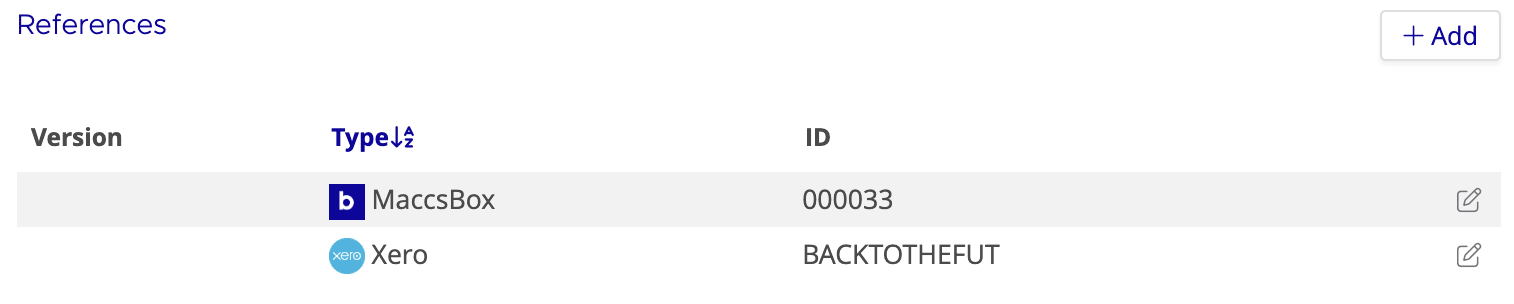
The References section shows a table of all references for that release, with columns for Version, Type (the provider), and ID.
Adding a Reference
Click + Add in the References section to open the Add reference dialog.
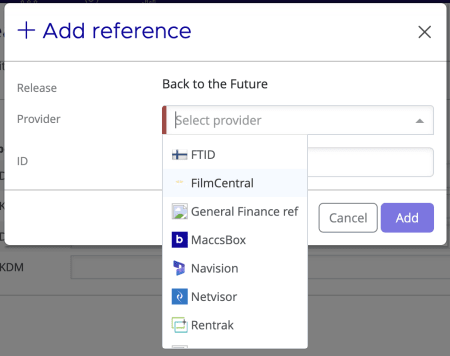
Reference fields
- Release — Pre-filled with the current release name (read-only)
- Provider — Select the external system from the dropdown (e.g. Xero, SAP, MaccsBox)
- ID — Enter the reference code that identifies this release in the external system (e.g. a tracking category name, project code, or account reference)
Click Add to save the reference. It appears immediately in the References table. You can add multiple references for different providers on the same release — for example, a Xero tracking code for accounting and a Rentrak ID for box office reporting.
Click Save on the Edit Release dialog to confirm your changes.
Supported Providers
The Provider dropdown lists all external systems configured for your organisation. Common providers include:
Category |
Providers |
Accounting / ERP |
Xero, Exact Globe, Exact Online, SAP, Sage, AccountView, Navision, Netvisor, Workday |
Film industry |
MaccsBox, Cinedi, FilmCentral, Rentrak, FTID |
General |
General Finance ref |
Managing References
To edit an existing reference, click the edit icon next to it in the References table within the Edit Release dialog. You can update the Provider or ID, then click Save.
To remove a reference, click the edit icon and delete the entry.
References and Invoice Export
When you export invoices from Mica, the system automatically includes any external references associated with the release. The reference appears as a tracking category, project code, or custom field in your accounting system — depending on the provider.
This means revenue from each release is categorised correctly in your accounting software without manual entry, making it straightforward to track performance by film and reconcile Mica invoices with your finance records.
Troubleshooting
Issue |
Solution |
Provider dropdown is empty |
No external integrations are configured for your organisation. Contact your Mica administrator to set up the providers you need. |
Invoice exported but reference not appearing in external system |
Verify the reference ID in Mica matches exactly what your external system expects (check spelling, capitalisation, and spaces). Update the reference and re-export the invoice if needed. |
Changed a reference but old invoices still show the previous one |
Reference changes only apply to future exports. Previously exported invoices keep their original reference. Update those directly in your external system. |
Can't find the References section |
Open the Edit Release dialog and scroll down — References sits below the Shipping section. Make sure you're editing a release (not a production or version). |
Related Articles
If you need assistance with any aspect of Mica, we're here to help:
Contact your Mica system administrator for organisation-specific questions or access issues
OR
Reach out to the Mica support team at support.mica@maccs.com
How did we do?
Adding Custom Invoice Remarks
Allocating Payments to Bookings
