Working with Venue Groups
Manage venue groups in Mica by adding and removing venues, connecting contacts, and using groups to filter bookings by circuit or region. Includes practical applications and troubleshooting.

Venue groups let you organise venues into logical collections — typically by cinema circuit, booking group, or geographic region. Groups are used throughout Mica for filtering bookings, applying default terms to multiple venues at once, and managing contacts who handle bookings for an entire circuit.
Table of Contents
- Where to Find Venue Groups
- Group Types
- Creating a Group
- Managing Venues in a Group
- Connecting Contacts
- Setting Default Terms
- Using Groups in Practice
- Troubleshooting
Where to Find Venue Groups
Navigate to Customers → Venue Groups in the top menu. The Venue Groups page lists all existing groups with their name and type.
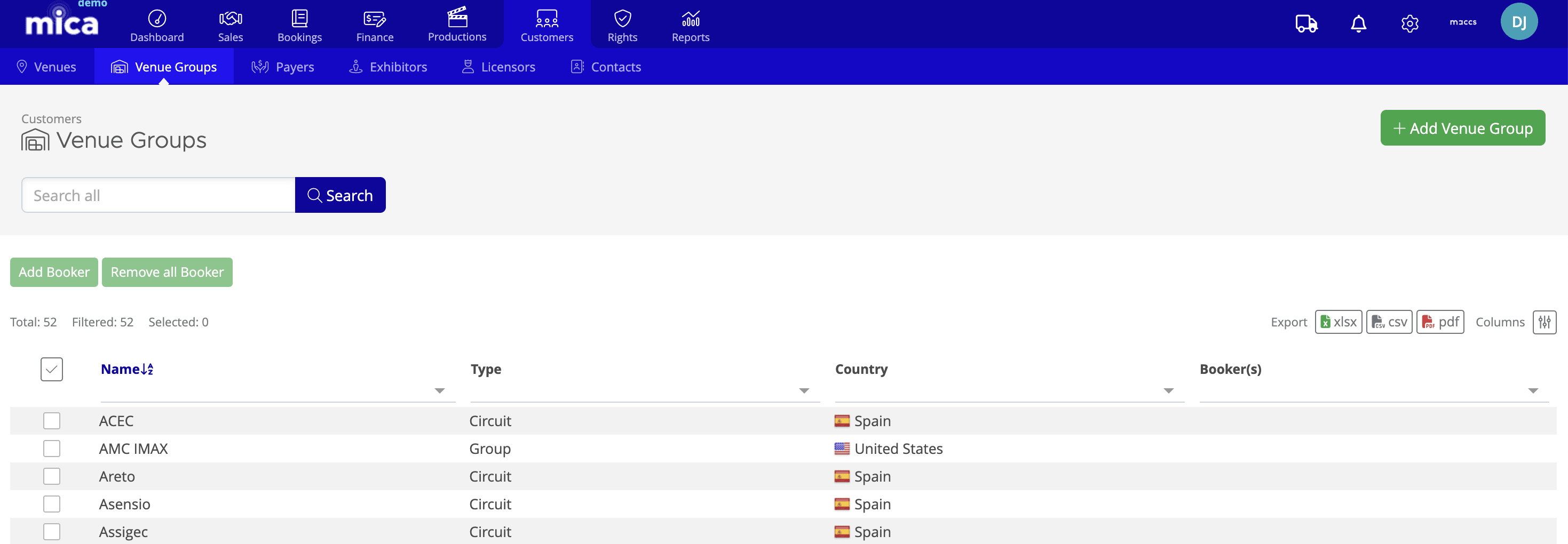
Use the search bar to find a specific group, or click + Add to create a new one. Click any group to open its detail page.
Group Types
When creating a group, you select a type that describes its purpose:
Type |
Description |
Example |
Circuit |
A cinema chain or operator with multiple venues |
Kinepolis Nederland, Pathé Cinemas |
Booking Circuit |
A group of venues booked through the same booker or agency |
Amsterdam Booking Company BV, Pathé Booking |
Group |
A custom collection of venues for any purpose |
Premium Large Format, Art House Cinemas |
Buyers |
Venues grouped by the buyer responsible for acquisitions |
Regional buyer territories |
Bookers |
Venues grouped by the booker who handles scheduling |
Booker-specific venue lists |
Designated Market Area |
Venues in a geographic media market |
Northern California, Pacific Northwest |
Creating a Group
- Navigate to Customers → Venue Groups
- Click + Add
- Enter a Name — use clear, descriptive names (e.g. "Kinepolis Nederland" rather than "KIN-NL")
- Select the Type from the dropdown
- Select the Country
- Click Save
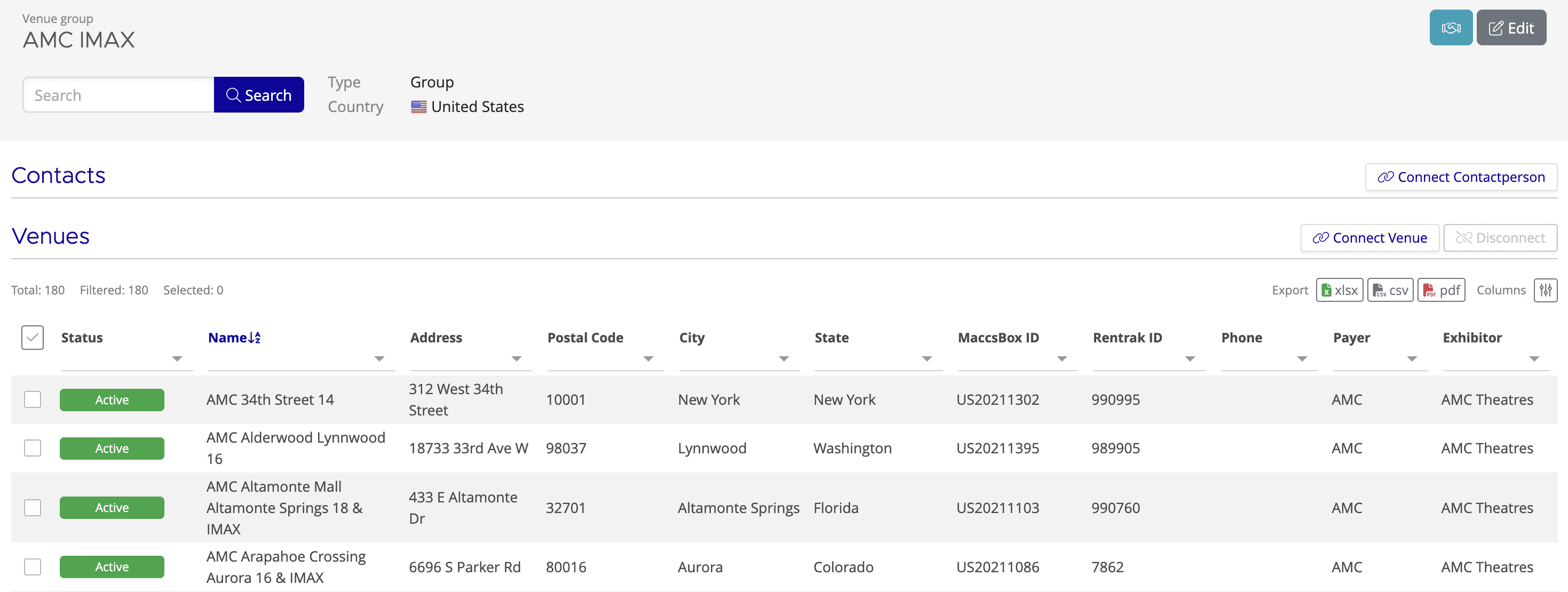
After saving, you're taken to the group detail page where you can connect venues and contacts.
Managing Venues in a Group
Adding venues
- Open the group detail page
- Click Connect in the Venues section
- The Select Venue(s) dialog opens — search for venue names or browse the list
- Select one or more venues
- Click OK to add them to the group
The venue list on the group detail page shows each venue's name, address, city, state, and phone number. You can export this list as xlsx, csv, or pdf.
Removing venues
- On the group detail page, tick the checkbox next to the venue(s) you want to remove
- Click Disconnect
- The venues are removed from the group but remain in the system
Connecting Contacts
Connecting a contact to a venue group creates a filtering relationship — when you filter by that contact elsewhere in Mica (e.g. in Bookings → Browse), all venues in the group are included in the results. This is useful for associating a booker or buyer with their circuit.
- On the group detail page, click Connect in the Contacts section
- Search for an existing contact, or click + to create a new one
- Select the contact and click OK
Setting Default Terms
You can set default rental terms for an entire venue group, just as you can for individual venues. When creating a booking for any venue in the group, Mica automatically applies these default terms — saving time and ensuring consistency across the circuit.
- Open the group detail page
- Click Default Terms (or Edit if terms already exist)
- Configure the terms: rental type (Box Office, Admissions, or Fixed Amount), percentage, MG, and coverage
- Optionally select a term template to pre-fill the fields
- Click Save
Using Groups in Practice
Booking an entire circuit
When creating a booking, you can select a venue group in the Venue step of the booking wizard. All venues in the group are added at once — untick any you don't need. This is much faster than adding venues individually.
Filtering by circuit or booker
Venue groups appear as filter options throughout Mica:
- Bookings → Browse — filter by venue group to see all bookings for a circuit
- Bookings → Playweeks — filter playweeks by venue group for bulk invoicing
- Customers → Venues — filter the venue list by group membership
- Invoices → Browse — filter invoices by venues in a specific group
Connecting a contact for quick filtering
If a booker (e.g. Sarah from Pathé) handles all bookings for a circuit, connect her as a contact on the venue group. Then when filtering by contact "Sarah" in Bookings → Browse, you'll see all bookings across her circuit's venues.
Troubleshooting
Issue |
Solution |
Can't find a venue when connecting |
Check that the venue exists in the system under Customers → Venues. The Select Venue(s) dialog searches by name — try different spelling variations. |
Venue appears in multiple groups |
This is expected. A venue can belong to multiple groups simultaneously (e.g. both a circuit group and a custom "Premium" group). |
Default terms not applying to bookings |
Verify the venue is connected to the group and that default terms are set on the group detail page. Group-level terms override venue-level terms. |
Contact filter not showing group's venues |
Confirm the contact is connected to the group (not just to individual venues). Check the Contacts section on the group detail page. |
Related Articles
If you need assistance with any aspect of Mica, we're here to help:
Contact your Mica system administrator for organisation-specific questions or access issues
OR
Reach out to the Mica support team at support.mica@maccs.com
How did we do?
Managing Venues
