Managing Venues
Find, create, and manage cinema venue records in Mica. Covers the venues browse page, venue detail page sections, adding new venues, editing details, setting default rental terms, and a complete field reference.

Venues represent the individual cinema sites where your films are screened. Mica maintains a single shared venue list — all users in your territory see and work with the same venue records. Each venue holds the site's address, screen configuration, MaccsBox integration, and booking history. This article covers how to find, create, and manage venue records in Mica.
Table of Contents
- Browsing Venues
- The Venue Detail Page
- Adding a Venue
- Editing a Venue
- Setting Default Terms
- Field Reference
Browsing Venues
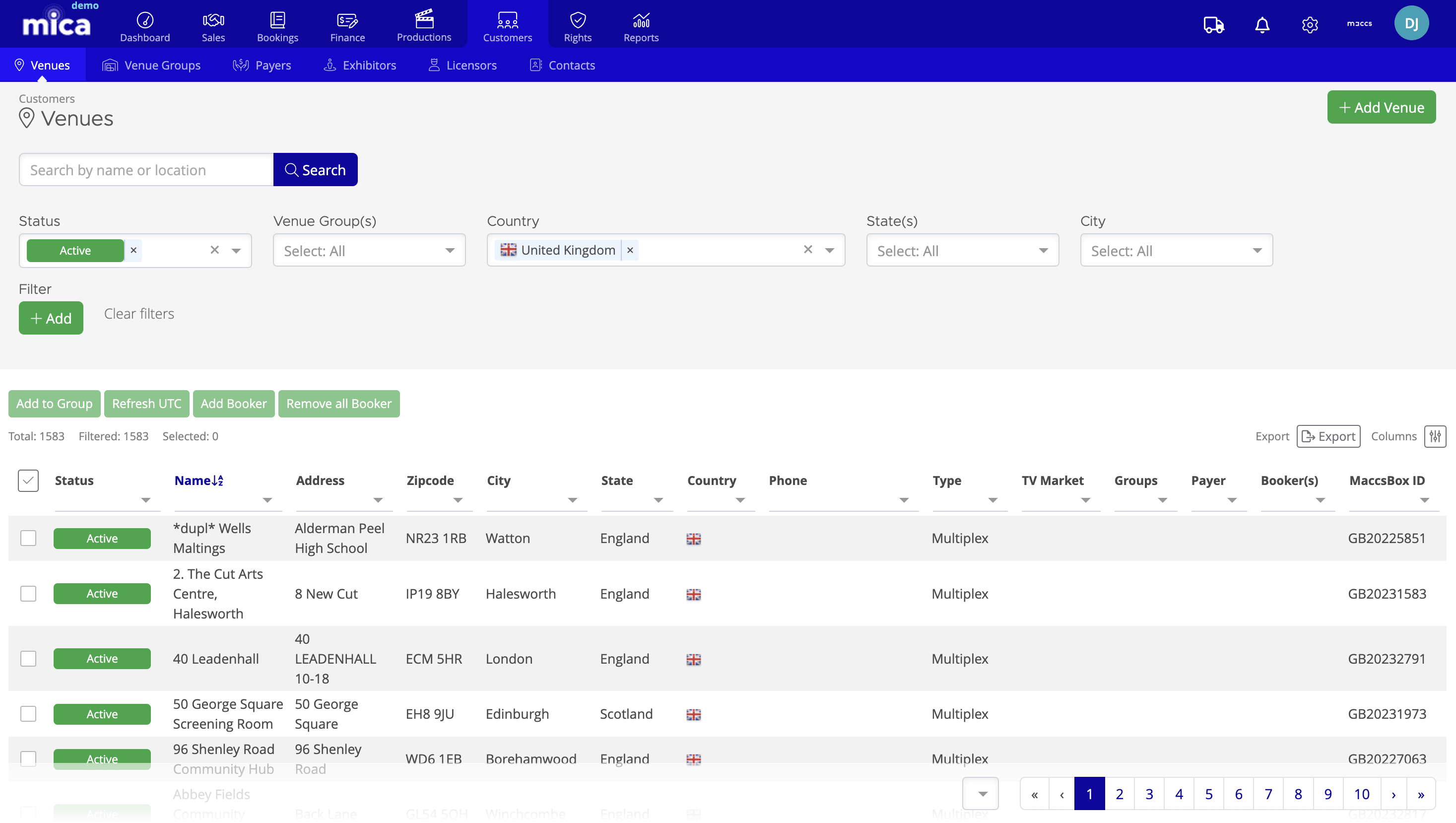
Navigate to Customers → Venues to open the venues browse page. This page lists every venue in your Mica instance and provides filters to narrow the list.
Use the filter bar at the top to search by venue group, country, state, city, or venue type. You can also switch between card view and list view using the toggle in the top-right corner.
The Venue Detail Page
Click on any venue to open its detail page. This is the central hub for everything related to that site — from basic contact information through to booking history and financial data.
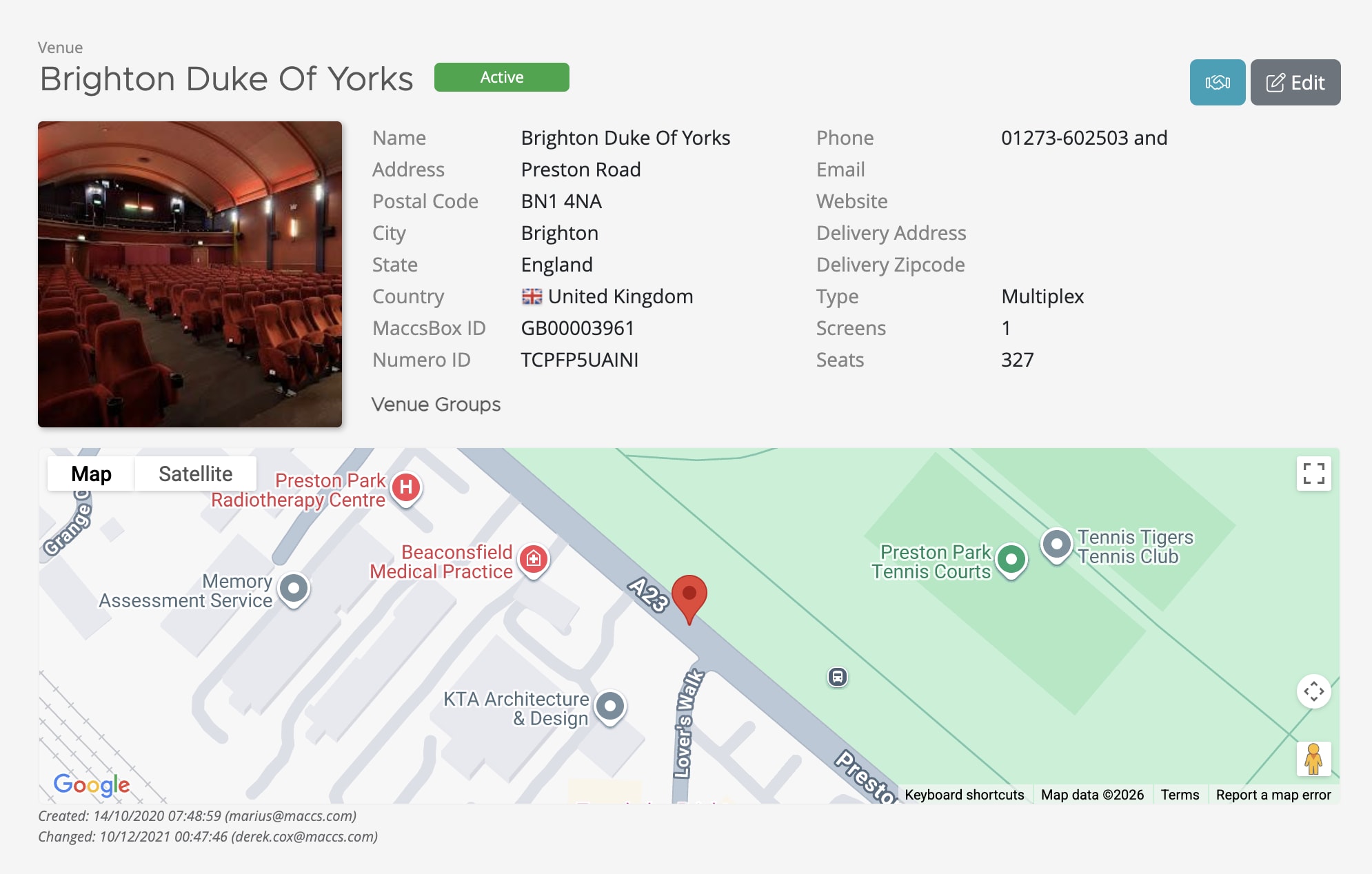
The detail page is organized into the following sections:
| Section | What it shows |
| Header | Venue name, full address, phone, email, website, MaccsBox ID, screen count, and total seats. Includes a map pin and action buttons for Edit and Week Terms. |
| Screens | Individual cinema screens with seating capacity and MaccsBox integration. See Working with Screen Configurations for details. |
| Contacts | People associated with this venue. Use the Connect button to link existing contacts. See Managing Contacts. |
| References | External reference codes for this venue. Use the +Add button to add a new reference. See Adding External References. |
| Exhibitors | The organization(s) operating this venue. Use the Connect button to link an exhibitor. |
| Payers | The billing entity for invoices related to this venue. A venue is the physical building; the payer is the entity responsible for payment. While most venues have a default payer, a different payer can be assigned per booking — for example, when a film festival uses a cinema's screens but handles its own billing. Use the Connect button to link a payer. See Creating a Payer. |
| Bookings | All bookings at this venue with status, production, version, play dates, box office, and admissions. Click Results to view detailed figures. |
| Expenses | Expense rules applied to this venue, showing calculation rate, tax rate, and what the expense is based on. |
Adding a Venue
Most venues are pre-populated from Mica's venue database. You only need to add a venue manually if it doesn't already exist — for example, a new cinema opening or a pop-up screening location. Film festivals are not physical venues and should not be created as venue records — create or use a payer instead.
- Navigate to Customers → Venues
- Click the +Add button in the top-right corner
- Fill in the venue details in the Add Venue dialog
- Click Save
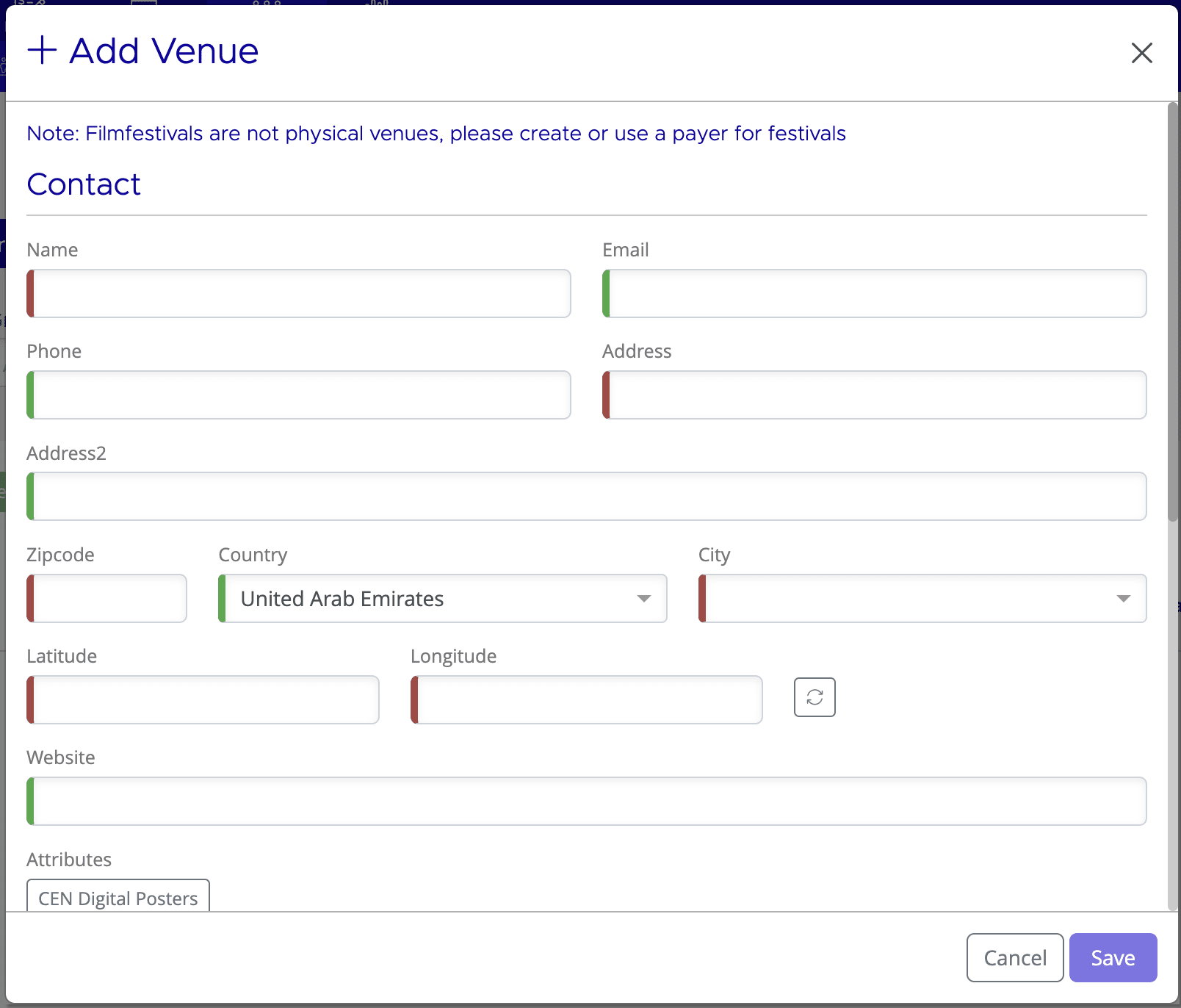
After saving, Mica opens the new venue's detail page where you can add screens, connect a payer, and link contacts.
Editing a Venue
To update a venue's details:
- Open the venue's detail page
- Click the Edit button in the header area
- Update the fields as needed
- Click Save
You can edit the venue's name, address, contact information, MaccsBox codes, and other metadata. Screen configurations are managed separately through the Screens section — see Working with Screen Configurations.
Setting Default Terms
You can assign default rental terms to a venue so that new bookings at that site are pre-populated with agreed terms. This saves time when you have standing agreements with a cinema.
- Open the venue's detail page
- Click the Week Terms button in the header area
- Select or create a term template, specifying the rental percentage, minimum guarantee, coverage, and any condition
- Save your changes
Default terms act as a starting point — they can still be adjusted on individual bookings. For more on how term templates and conditions work, see Working with Term Templates and Conditional Terms.
Field Reference
The following fields are available when adding or editing a venue:
| Field | Description |
| Name | The venue's display name |
| Street / Address 2 | Street address lines |
| Postal Code | Zip or postal code |
| City | City or town |
| State | State, province, or region |
| Country | Country (used for filtering and reporting) |
| Phone | Main venue phone number (public/reception only) |
| General enquiries email (public only) | |
| Website | Venue website URL |
| Type | Venue classification (e.g. Multiplex) |
| MaccsBox Code | External MaccsBox identifier for the venue |
| MaccsBox ID | Internal MaccsBox identifier linking to box office data |
| Latitude / Longitude | Geographic coordinates for map display |
| UTC | Timezone offset |
| Currency (Override) | Override the default currency for this venue |
| TV Market | Television market area (used in some territories) |
| Delivery Address / Zipcode / City | Separate delivery address if DCP shipments go to a different location |
If you need assistance with any aspect of Mica, we're here to help:
Contact your Mica system administrator for organisation-specific questions or access issues
OR
Reach out to the Mica support team at support.mica@maccs.com
How did we do?
Managing Users
Working with Venue Groups
