How to Create an Invoice
Create invoices for film rental in Mica from individual bookings or in bulk. Covers invoiceable statuses, rental calculations, the Create Invoice modal, bulk processing, and best practices for a weekly invoicing workflow.

Invoices in Mica bill venues for film rental fees based on box office performance. You can create invoices individually from a booking's detail page, or process multiple playweeks at once using bulk invoicing. This guide covers both methods, along with invoice calculations, status lifecycle, and best practices for a weekly invoicing workflow.
Table of Contents
- Before You Start
- Method 1: Invoice from Booking Details
- Method 2: Bulk Invoice Creation
- Understanding Invoice Calculations
- Invoice Status Lifecycle
- Best Practices
- Troubleshooting
Before You Start
Before creating invoices, ensure you have:
- Confirmed booking with playweeks — the booking must be in Confirmed status, not Expected
- Box office figures entered — either Flash or BOR/EBOR figures for the relevant playweeks
- Playweek status set to "Returns In" — this means actuals or EBOR figures for all playdays have been collected. Only invoice when the playweek has this status
- Payer assigned — the booking must have a payer linked to receive the invoice
Method 1: Invoice from Booking Details
Use this method when working with a single booking.
Navigate to the booking
You can access booking details from any of the following:
- Dashboard — click a booking in the Active Bookings section
- Bookings → Bookings — double-click a booking in the list
- Bookings → Playweeks — double-click a playweek row
Find invoiceable playweeks
Scroll down to the Terms section at the bottom of the booking detail page. Each playweek row shows its status and an Invoice column:
- ✅ Ready to invoice — status shows "Returns In" (yellow) or "Partial Returns" (orange), and a Create button appears in the Invoice column
- ❌ Already invoiced — status shows "Invoiced" (blue) with a document icon
- ❌ Not ready — status shows "Confirmed" (green), meaning no box office data has been entered yet

Create the invoice
- Click the Create button for the playweek you want to invoice
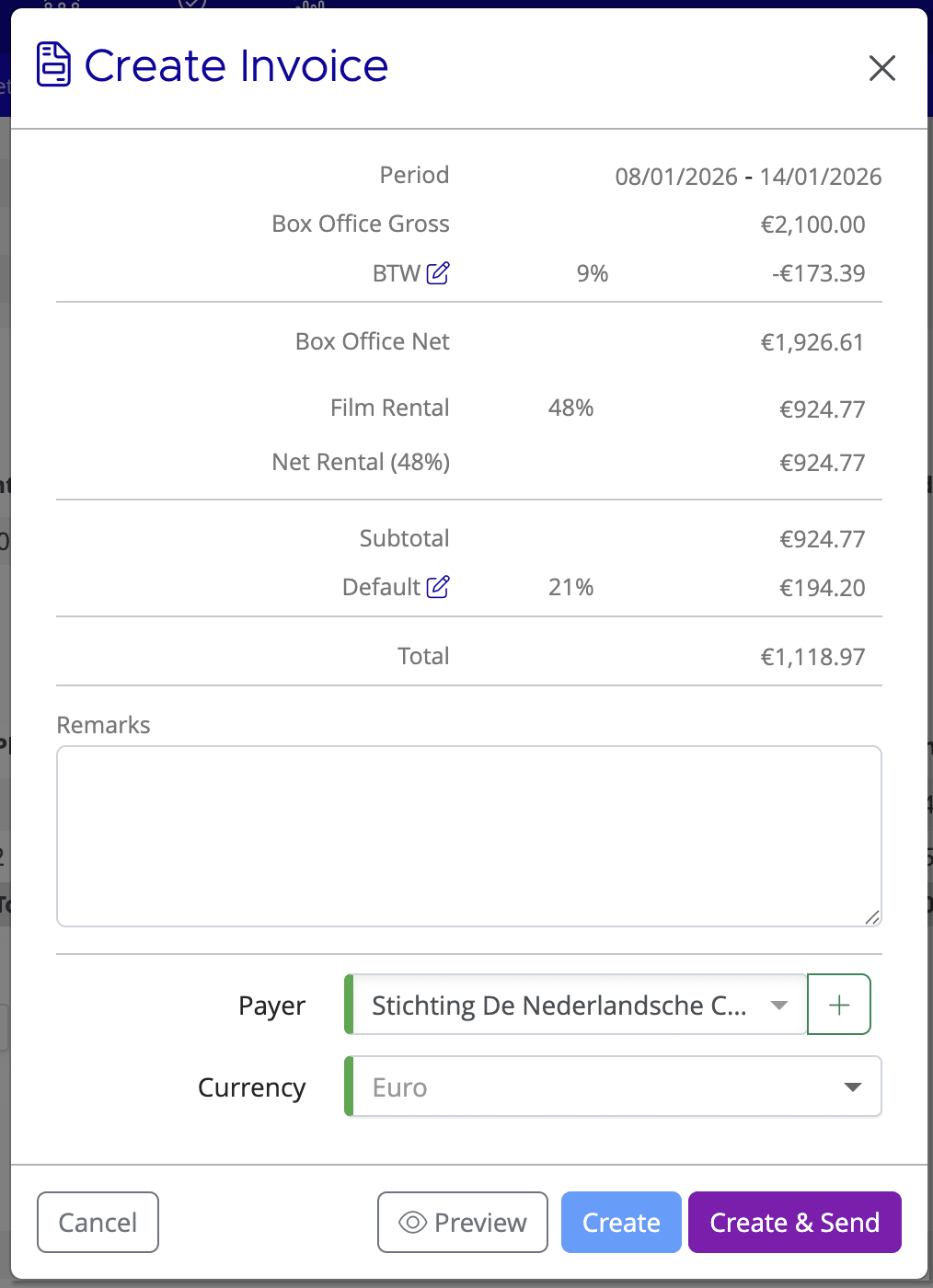
- The Create Invoice modal opens with a summary of the period, box office figures, and rental calculation
- Review the breakdown: Box Office Gross → VAT deduction → Box Office Net → Film Rental → Burns deduction → Subtotal → VAT → Total
- Add optional Remarks for notes or special circumstances - these will be included on the invoice PDF
- Check the Payer field — you can change it if needed using the dropdown or the + button to add a new payer
- Choose your action:
- Preview — view a PDF preview before committing
- Create — generate and save the invoice (can be sent later from Invoices → Browse)
- Create & Send — generate the invoice and email it to the payer immediately
Verify the invoice was created
After creating the invoice:
- The playweek status changes to "Invoiced" (blue)
- The Invoice column shows a document icon instead of the Create button
- The invoice appears in Invoices → Browse
Method 2: Bulk Invoice Creation
Use this method to process multiple playweeks at once — for example, invoicing an entire week's worth of returns on a Monday morning.
Filter for invoiceable playweeks
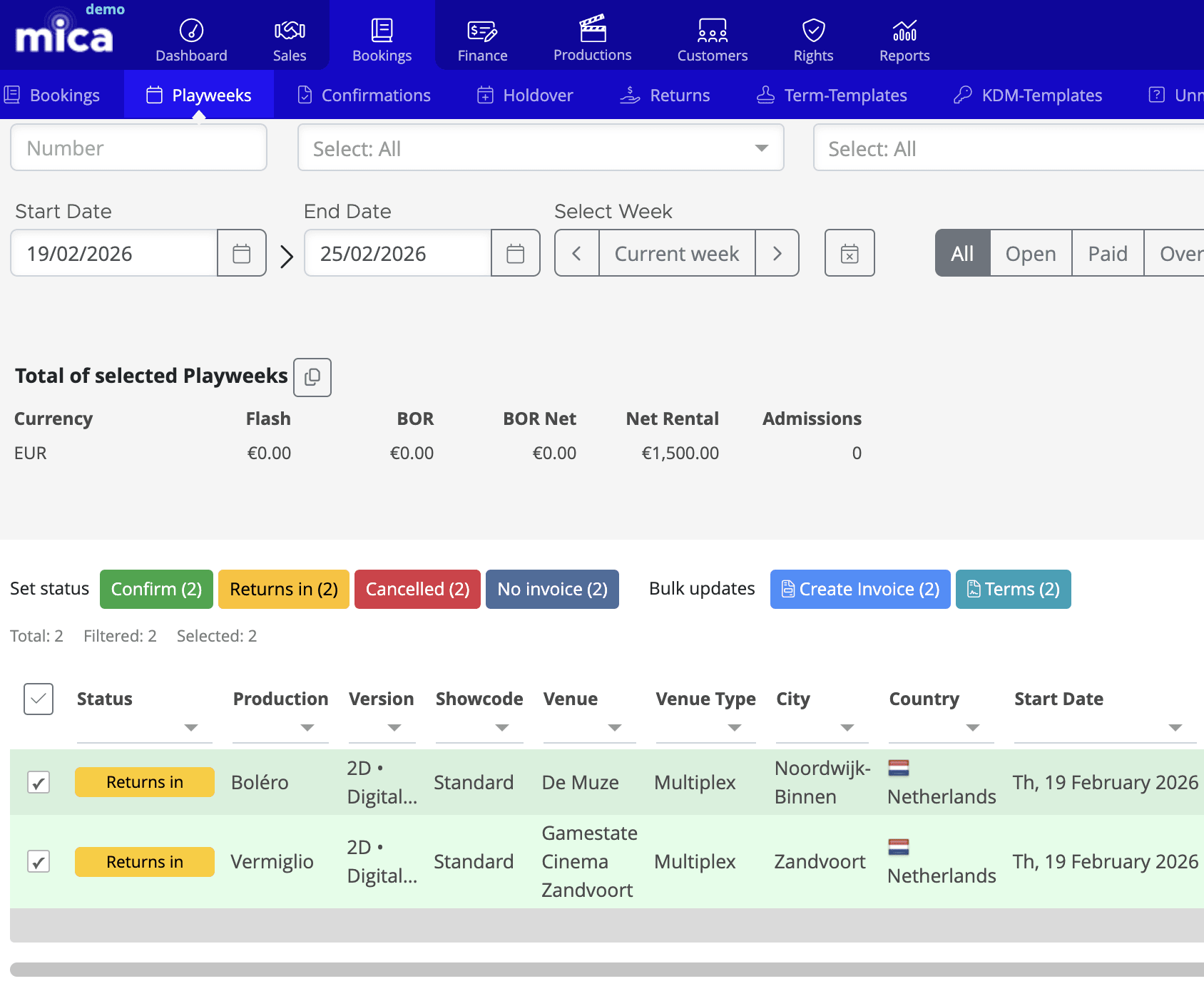
- Navigate to Bookings → Playweeks
- Set your filters:
- Date range — use the date picker or week navigation arrows
- Status — filter by "Returns In" to show only invoiceable playweeks
- Payment — set to "Open" to exclude already-invoiced playweeks
- Optionally filter by production, venue, or payer
- Click Search
Select and create
- Select playweeks using the checkboxes — tick individual rows, or use the header checkbox to select all
- Click Create Invoice in the Bulk Updates section
- Review the bulk invoice summary
- Click Create to generate all invoices at once
Understanding Invoice Calculations
Mica calculates invoice amounts based on the rental terms set on the booking. The key components are:
Rental methods
Rental Type | How It Works | When to Use |
Box Office (percentage) | Box Office Net × Rental % | Most common — standard percentage deal |
Admissions | Fixed amount per ticket sold | When charging per admission rather than a revenue share |
Fixed Amount | Flat fee regardless of performance | Flat rental agreements or special screenings |
Box office figures
- Gross — total ticket sales revenue
- Net — Gross minus venue-applied sales tax and other deductions. This is the basis for rental calculation
Minimum Guarantee
If a Minimum Guarantee (MG) is set on the booking, Mica compares the calculated rental to the MG and invoices whichever is higher. The MG can apply to the full booking period, first week only, or each week individually, depending on how it was configured when the booking was created.
Invoice Status Lifecycle
Invoices move through the following statuses:
- Created — invoice generated and saved, visible in Invoices → Browse
- Sent — invoice emailed to the payer (either via "Create & Send" or manually from the Browse list)
- Exported — invoice data exported to an accounting system
- Paid — payment received and applied to the invoice
Crediting an invoice
If an invoice contains errors — wrong rental percentage, missing MG, incorrect figures — you can credit it. Navigate to the invoice in Invoices → Browse, open it, and click the Credit button. The credit is sent to the payer automatically, the playweek re-opens for editing, and you can then create a corrected invoice.
Best Practices
Weekly invoicing workflow
- Every Monday (or your chosen day), filter the previous week's playweeks in Bookings → Playweeks
- Verify all box office returns are complete
- Update any playweeks from "Partial Returns" to "Returns In" where no further figures are expected
- Use bulk invoice creation to process them all at once
- Send to payers using "Create & Send", or send in bulk from Invoices → Browse
Quality checks
- Preview invoices before creating — especially for high-value bookings
- Verify rental percentages match the agreed terms
- Check the payer is correct before sending
- Use Remarks to document any special circumstances or adjustments
Troubleshooting
Issue | Solution |
No "Create" button on a playweek | Check that box office returns have been entered and the playweek status is "Returns In" or "Partial Returns". Also verify a payer is assigned to the booking and you have the appropriate permissions. |
Invoice calculations look wrong | Verify the rental terms on the booking (percentage, MG, rental type). Check the box office figures — Net is used for calculation, not Gross. |
Can't select playweeks for bulk invoicing | Check your filter settings. The playweek must have status "Returns In" or "Partial Returns" and must not already be invoiced. |
Invoice email not received by payer | Verify the payer's email address in Customers → Payers. Check that "Email Invoices" is set to Yes on the payer record. |
Need to correct an invoice after creation | Invoices can't be edited after creation. Credit the invoice to re-open the playweek, then create a new corrected invoice. |
Related Articles
If you need assistance with any aspect of Mica, we're here to help:
Contact your Mica system administrator for organisation-specific questions or access issues
OR
Reach out to the Mica support team at support.mica@maccs.com
How did we do?
Creating a Payer
Payer Status
