Working with KDM Templates
Create and manage KDM templates in Mica to automate key delivery for bookings. Learn about template targeting by country, venue group, venue, or production, and how the template hierarchy works.

KDM templates let you pre-configure delivery parameters — start dates, end dates, holdover windows, and validity times — so Mica applies them automatically when bookings match your targeting criteria. Instead of entering KDM settings manually for every booking, you define templates once and Mica does the rest.
Table of Contents
- Where to Find KDM Templates
- Creating a KDM Template
- Targeting Options
- Template Hierarchy
- Troubleshooting
Where to Find KDM Templates
Navigate to Bookings → KDM-Templates in the sidebar. The KDM Templates page displays all your existing templates in a table with columns for description, targeting criteria (country, productions, venue groups, venues), date created, and the KDM parameters.
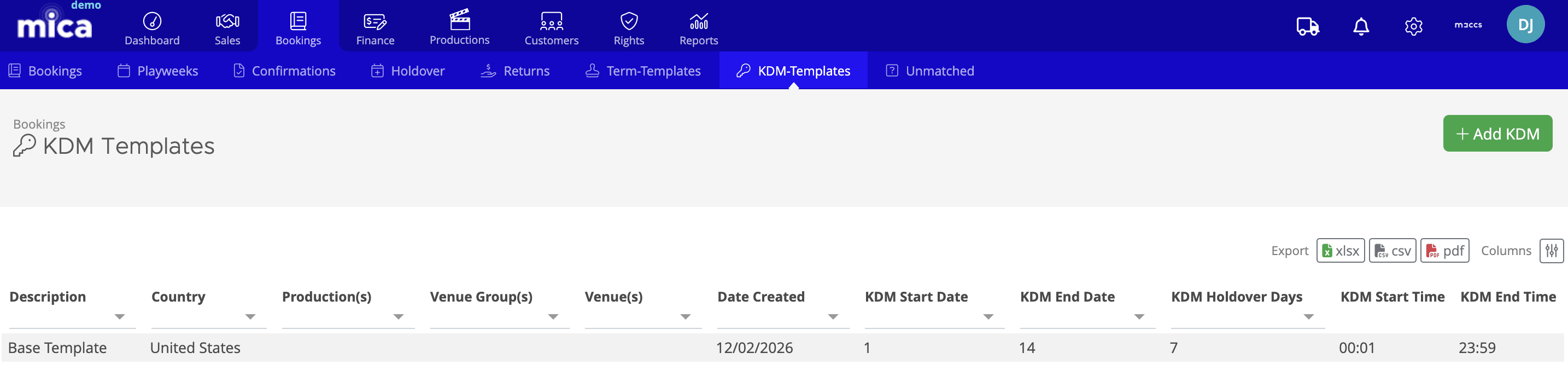
From here you can create new templates with the Add KDM button, or export the list as xlsx, csv, or pdf. Use the column filters to search and sort your templates.
Creating a KDM Template
Click Add KDM to open the template form. Each template has a description, targeting criteria, and five KDM parameters that control delivery timing.
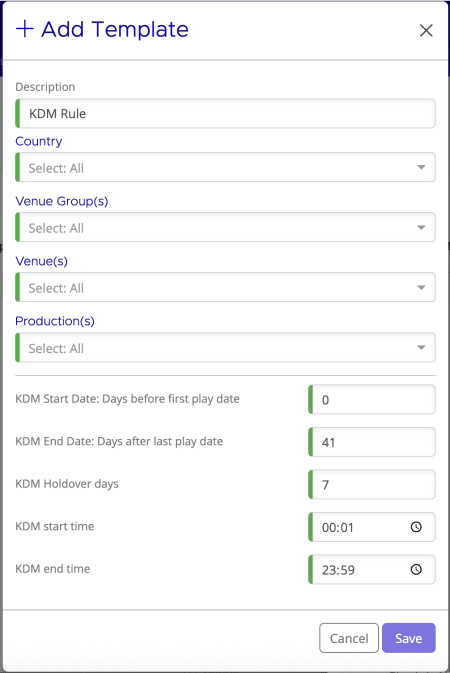
Template fields
- Description — A name that identifies the template's purpose and scope (e.g. "USA Standard KDM" or "Pathé Cinemas Extended Window")
- Country — The territory this template applies to, or "All" for every country
- Venue Group(s) — One or more circuits or venue groups, or "All"
- Venue(s) — Specific individual venues, or "All"
- Production(s) — Specific films, or "All"
KDM parameters
- KDM Start Date — Days before the first play date when the KDM becomes valid (default: 0)
- KDM End Date — Days after the last play date when the KDM expires (default: 41)
- KDM Holdover Days — Additional buffer days beyond the booking period (default: 7)
- KDM Start Time — Time of day the KDM becomes valid (default: 00:01)
- KDM End Time — Time of day the KDM expires (default: 23:59)
Click Save to create the template. It takes effect immediately for any new bookings that match the targeting criteria.
Targeting Options
Templates can target bookings at different levels of specificity. You can use a single targeting option or combine several to create precise rules.
Country
Applies the template to all bookings in a specific territory. Use this to set baseline KDM standards for an entire market — for example, all bookings in the USA or all bookings in the Netherlands.
Venue group
Applies to all venues within a circuit or venue group. This is useful for exhibitors with specific KDM requirements across their chain, such as an extended delivery window for a major circuit.
Venue
Applies to a specific individual venue. Use this for venues with unique requirements, such as screening rooms or festival venues that need different KDM timing.
Production
Applies to a specific film or production. This is useful for high-security releases that need tighter KDM windows, or titles with special distribution requirements.
Combined targeting
You can set multiple targeting criteria on a single template. For example, a template targeting a specific production at a specific venue group in a specific country would only apply when all three criteria match. This lets you create very precise rules for exceptional cases without affecting your broader templates.
Template Hierarchy
When multiple templates could apply to a single booking, Mica uses the most specific match. Templates with more targeting criteria take precedence over broader ones.
The priority order, from highest to lowest:
- Production + Venue — A specific film at a specific venue
- Production + Venue Group — A specific film at a specific circuit
- Production + Country — A specific film in a specific territory
- Venue — A specific venue, all films
- Venue Group — A specific circuit, all films
- Production — A specific film, all locations
- Country — A specific territory, all films (lowest priority)
If no template matches, Mica falls back to the account-level KDM defaults.
Troubleshooting
Issue |
Solution |
Template not applying to new bookings |
Check that the targeting criteria matches your booking — verify the country, venue group, and venue are correct. If another template exists with more specific targeting, it will take precedence. Also confirm that KDM shipping is enabled on the release. |
Wrong template applying |
Review the template hierarchy above. A more specific template overrides a broader one. Check the KDM Templates list to identify any conflicting templates. |
Need to override a template for one booking |
Templates set the defaults, but you can edit KDM parameters directly in the booking wizard's Period step. Manual changes override the template for that booking only. |
Template not affecting existing bookings |
Templates only apply to bookings created after the template is saved. To update existing bookings, edit them individually or use bulk update features. |
Related Articles
If you need assistance with any aspect of Mica, we're here to help:
Contact your Mica system administrator for organisation-specific questions or access issues
OR
Reach out to the Mica support team at support.mica@maccs.com
How did we do?
When to Change Playweek Start Day in Mica
Working with Term Templates
