Working with Term Templates
Create reusable rental term templates in Mica for consistent booking terms across circuits and territories. Covers box office, admissions, and fixed amount terms, minimum guarantees, default values, and using templates with Plans.

Term templates let you save reusable rental term structures — rental type, percentage, minimum guarantee, and conditions — so you can apply them consistently across bookings. Instead of configuring terms from scratch for every booking, create templates for your standard agreements and select them during booking creation.
Table of Contents
- Where to Find Term Templates
- Creating a Term Template
- Rental Types
- Minimum Guarantee Options
- Targeting Templates
- Using Templates in Bookings
- Templates vs Plans
- Troubleshooting
Where to Find Term Templates
Navigate to Bookings → Term-Templates in the sidebar. The Term Templates page lists all your saved templates with columns for description, rental type, rental percentage, minimum guarantee, condition, and any targeting criteria.
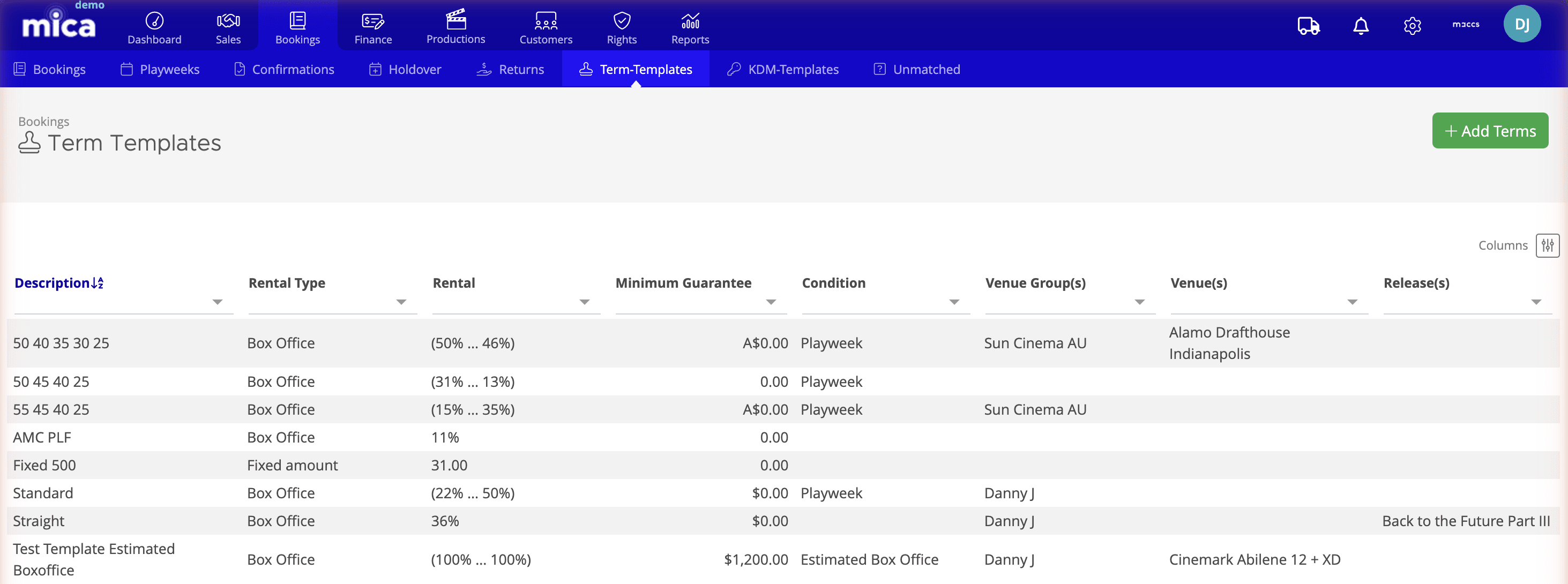
Click Add Terms to create a new template, or click an existing template to edit it.
Creating a Term Template
Click Add Terms to open the template form. Each template has a description, optional targeting criteria, and the term structure itself.
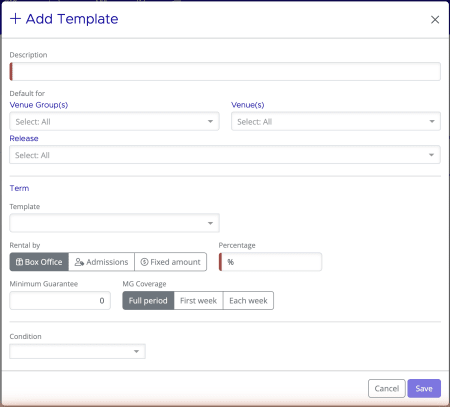
Template fields
- Description — A name that identifies the template (e.g. "Pathé Circuit - Standard 3-Week" or "Wide Release - Premium Large Format")
- Venue Group(s) — Optionally restrict this template to specific circuits or venue groups
- Venue(s) — Optionally restrict to specific individual venues
- Release — Optionally restrict to specific film releases
Term structure
- Template — Optionally base this template on an existing one to pre-fill values
- Rental by — How the rental fee is calculated: Box Office, Admissions, or Fixed amount
- Percentage — The rental percentage (for Box Office or Admissions types)
- Minimum Guarantee — A minimum rental amount regardless of performance
- MG Coverage — How the guarantee is applied: Full period, First week, or Each week
- Condition — Optional condition type (e.g. Playweek for sliding scales, or Estimated Box Office)
- Rental — Whether the percentage is Incremental (changes per week) or Fixed (same each week)
Click Save to create the template. It's immediately available for use in bookings.
Rental Types
Mica supports three rental calculation methods. Choose the one that matches your agreement with the exhibitor.
Box Office (percentage)
The most common method. Rental is calculated as a percentage of net box office revenue. With a Playweek condition and Incremental rental, you can create sliding scale agreements where the percentage decreases each week (e.g. 50% week 1, 45% week 2, 40% week 3).
Admissions (per ticket)
Rental is calculated based on the number of tickets sold, regardless of ticket price. Useful in markets where admission-based deals are standard.
Fixed amount
A flat rental fee regardless of box office performance. Used for flat-fee screening agreements or festival bookings.
Minimum Guarantee Options
A minimum guarantee (MG) ensures you receive a minimum rental amount even if box office performance is low. Mica offers three coverage options that control how the MG is applied across the booking period.
Coverage |
How it works |
Example (€2,000 MG) |
Full period |
MG applies to the entire booking, regardless of how many weeks it runs |
If total rental across all weeks is €1,800, you receive €2,000 |
First week |
MG only protects the opening week. Subsequent weeks use calculated rental with no MG |
If week 1 rental is €1,500, you receive €2,000 for week 1. Weeks 2+ have no floor |
Each week |
MG applies individually to every week of the booking |
Each week is guaranteed at least €2,000, even if calculated rental is lower |
Targeting Templates
When creating a template, you can optionally set targeting criteria under Default for so the template automatically applies when bookings match.
- Venue Group(s) — Apply to all venues within specific circuits or groups (e.g. all Pathé cinemas)
- Venue(s) — Apply to specific individual venues (e.g. Pathé Tuschinski only)
- Release — Apply to specific film releases (e.g. a high-security title with special terms)
You can combine criteria — for example, a template targeting a specific release at a specific venue group would only apply when both match.
If multiple templates match, Mica applies the most specific one. A venue-level template overrides a venue group template for that venue.
Using Templates in Bookings
During the Terms step of the Add Booking wizard, you can select a template from the Template dropdown. The template's rental type, percentage, MG, and conditions populate automatically.
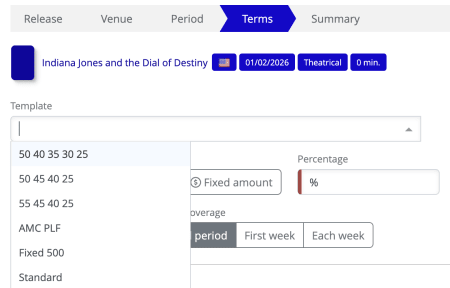
If you've set targeting on a template, it populates automatically when the booking matches — no manual selection needed. You can always override the auto-applied template or adjust individual values before saving.
Templates vs Plans
For example, if you book Pathé Amsterdam and Kinepolis Utrecht in a single booking, and each has a different template, only one template applies to both venues.
The solution: use Plans
Plans don't have this limitation. When you create bookings through a Plan, each venue gets its own correct template applied individually.
Situation |
Recommended approach |
Single venue booking |
Bookings → Add — template applies correctly |
Multiple venues, same terms |
Bookings → Add — all venues use the same template anyway |
Multiple venues, different terms |
Plans → Add Plan — each venue gets its correct template |
Troubleshooting
Issue |
Solution |
Template not appearing in dropdown |
Verify the template was saved successfully in Bookings → Term-Templates. Refresh the browser if you just created it. |
Wrong template auto-applied |
Check for overlapping targeting criteria. A more specific template (venue-level) overrides a broader one (venue group-level). You can manually change the template during booking creation. |
Different circuits getting same terms |
This is a known limitation of multi-venue bookings. Use Plans instead, or create separate bookings per circuit. |
Changes to template not affecting existing bookings |
Template changes only affect future bookings. Existing bookings keep the terms they were created with. |
Related Articles
If you need assistance with any aspect of Mica, we're here to help:
Contact your Mica system administrator for organisation-specific questions or access issues
OR
Reach out to the Mica support team at support.mica@maccs.com
How did we do?
Working with KDM Templates
