Payer Status
Understand payer statuses in Mica — Good, On Watch, and On Hold — and how they affect booking and invoicing workflows. Learn when and how to change a payer's status.

Every payer in Mica has a status that indicates their payment reliability. Payer status helps your team make informed decisions about bookings and shipping — flagging risky payers before new commitments are made and, optionally, holding KDM deliveries until payment issues are resolved.
Table of Contents
- The Four Payer Statuses
- Where Payer Status Appears
- Changing a Payer's Status
- Effects on Bookings and Sales
- Hold-for-Release KDMs
- Releasing Held KDMs
The Four Payer Statuses
Mica uses four statuses to classify payers by payment risk. Each status is colour-coded and visible across the system.
Where Payer Status Appears
Payer status is visible in several places throughout Mica, so your team always has payment-risk context at hand:
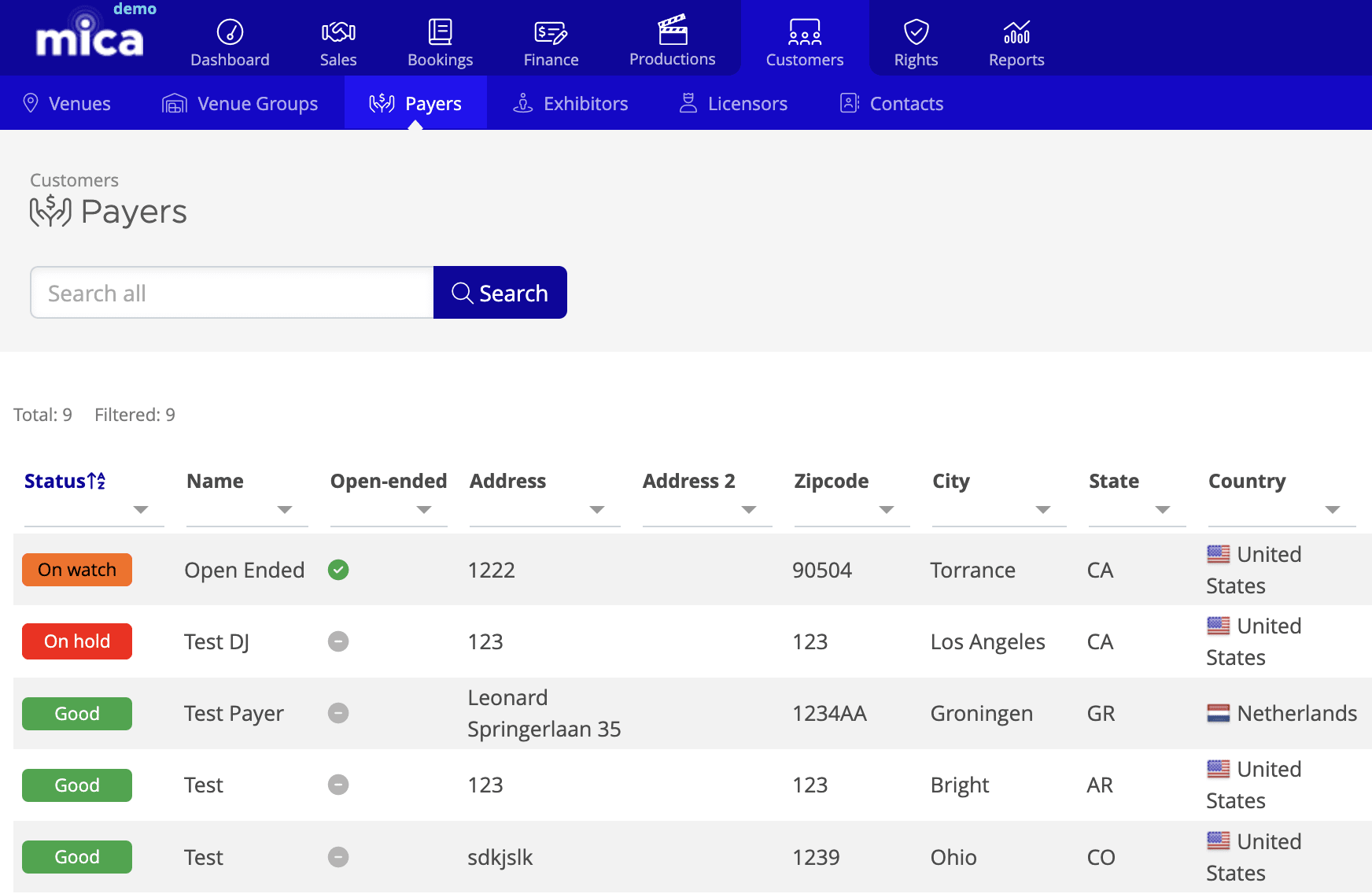
- Payers list — The Status column on Customers → Payers shows a colour-coded badge for each payer
- Payer detail page — The status badge appears next to the payer name at the top of the page
- Booking creation — A warning is displayed when creating a booking for an On Watch or On Hold payer
- Holdovers page — Optional Payer and Payer Status columns can be enabled via Columns on Bookings → Holdovers
- Plans page — Payer status is available as a filter and an optional column on Sales → Plans. You can filter by status when confirming bookings or ordering shippings to enforce your own business rules for On Watch or On Hold payers. Payer status is also included in plan exports
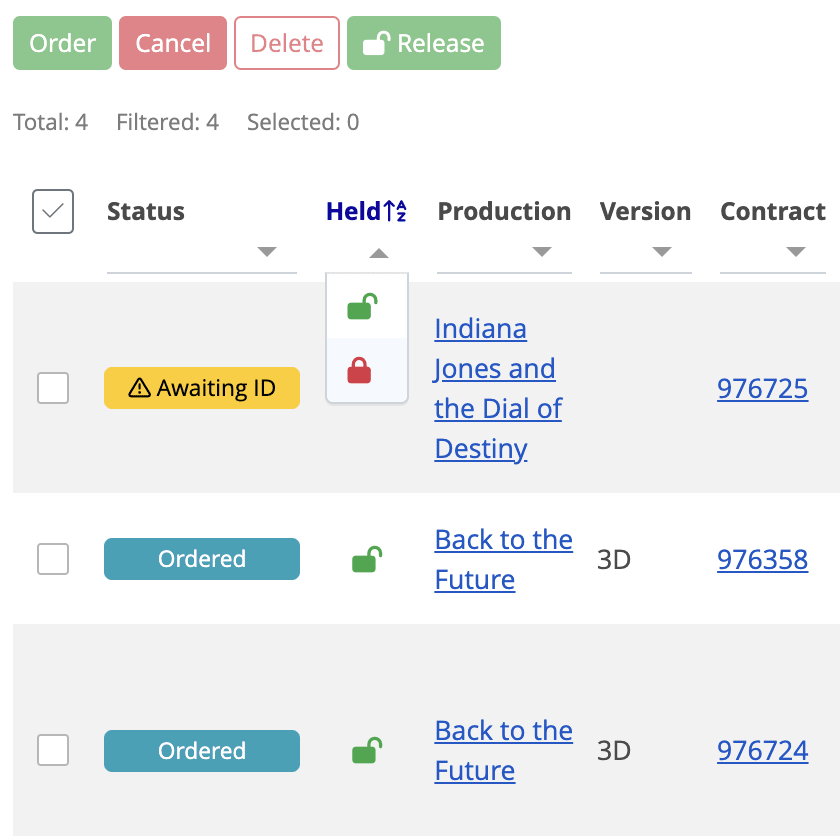
- Shippings page — The Held column shows a padlock icon for orders affected by hold-for-release. Use the Release button in the action bar to release selected held orders
Changing a Payer's Status
You can set a payer's status when creating a new payer, or change it at any time from the payer detail page.
When creating a payer
- Navigate to Customers → Payers
- Click + Add Payer
- In the Payer status field, select the appropriate status — Good is selected by default
- Complete the remaining fields and click Save
When editing an existing payer
- Navigate to Customers → Payers and click the payer's name
- Click Edit in the Details section
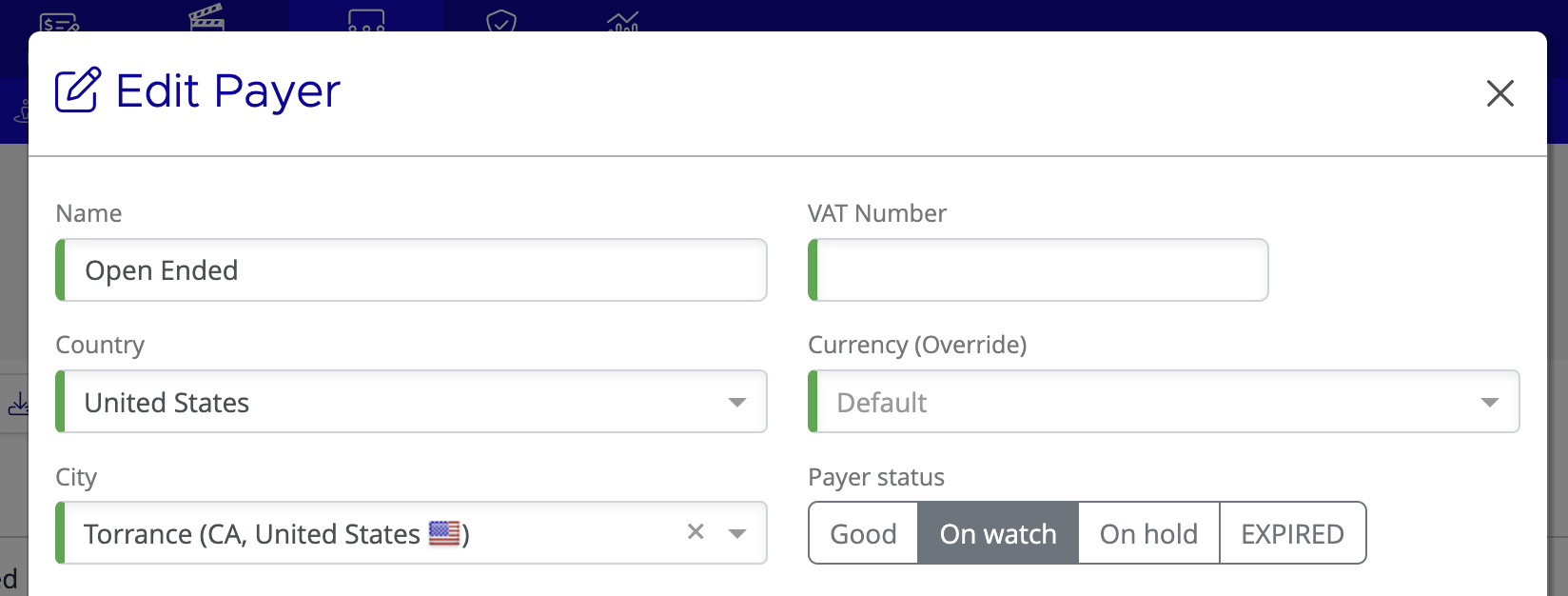
- In the Payer status field, click the status you want to assign
- Click Save
Effects on Bookings and Sales
The payer's status determines what happens when your team creates or manages bookings.
Status |
Can create bookings? |
Warning shown? |
Shipping affected? |
Good |
Yes |
No |
No |
On Watch |
Yes |
Yes — informational warning |
No |
On Hold |
Yes |
Yes — warning about held KDMs |
Yes, if hold-for-release is enabled |
Expired |
No |
N/A |
N/A — cannot be connected to active venues |
Hold-for-Release KDMs
Hold-for-release is an optional feature that prevents KDM orders from being delivered to venues with an On Hold payer. When enabled, KDM orders are still placed with the vendor, but with a hold flag that instructs the vendor not to deliver the keys until the hold is lifted. This feature is only available with supported KDM vendors — check with your Mica administrator to confirm whether your vendor supports it.
How it works
- An administrator enables hold-for-release for your distributor account (this is an account-level setting — contact your Mica administrator if you need it turned on)
- When a shipping order is created for a venue whose payer is On Hold, the KDM order is placed with the vendor with a "hold-for-release" flag
- On the Shippings page, the Held column displays a padlock icon indicating the order is held
- The keys remain held until the payer's status improves or a user manually releases them
When creating a booking for a venue with an On Hold payer and hold-for-release enabled, a warning appears at the booking stage informing the user that KDM orders will be held.
Releasing Held KDMs
There are two ways to release KDM orders that are being held.
Automatic release
When a payer's status changes from On Hold to On Watch or Good, all held KDM orders for that payer that are not in the past are automatically released. A confirmation dialog shows the number of orders that will be released before the status change is applied.
Manual release
Users can release individual held orders without changing the payer's overall status:
- From the Shippings page — Select one or more held orders and click the Release button in the action bar
- From the Booking Details page — Select one or more held orders within a specific booking and release them
Manually released orders are timestamped with the name of the user who released them. Releasing an order does not change the payer's status — only the selected orders are affected.
Related Articles
If you need assistance with any aspect of Mica, we're here to help:
Contact your Mica system administrator for organisation-specific questions or access issues
OR
Reach out to the Mica support team at support.mica@maccs.com
How did we do?
How to Create an Invoice
Payment Statuses
